Getting Started
Getting started with SOLIDWORKS
These guides take you from an empty PC to your first finished part. First install and activate SOLIDWORKS, then learn the interface and set up units, options and templates once so every new file starts right. Organise your folders before you have hundreds of files, build a first part with a check value, and follow the 30-day learning plan from there.
 Kevin Walsh
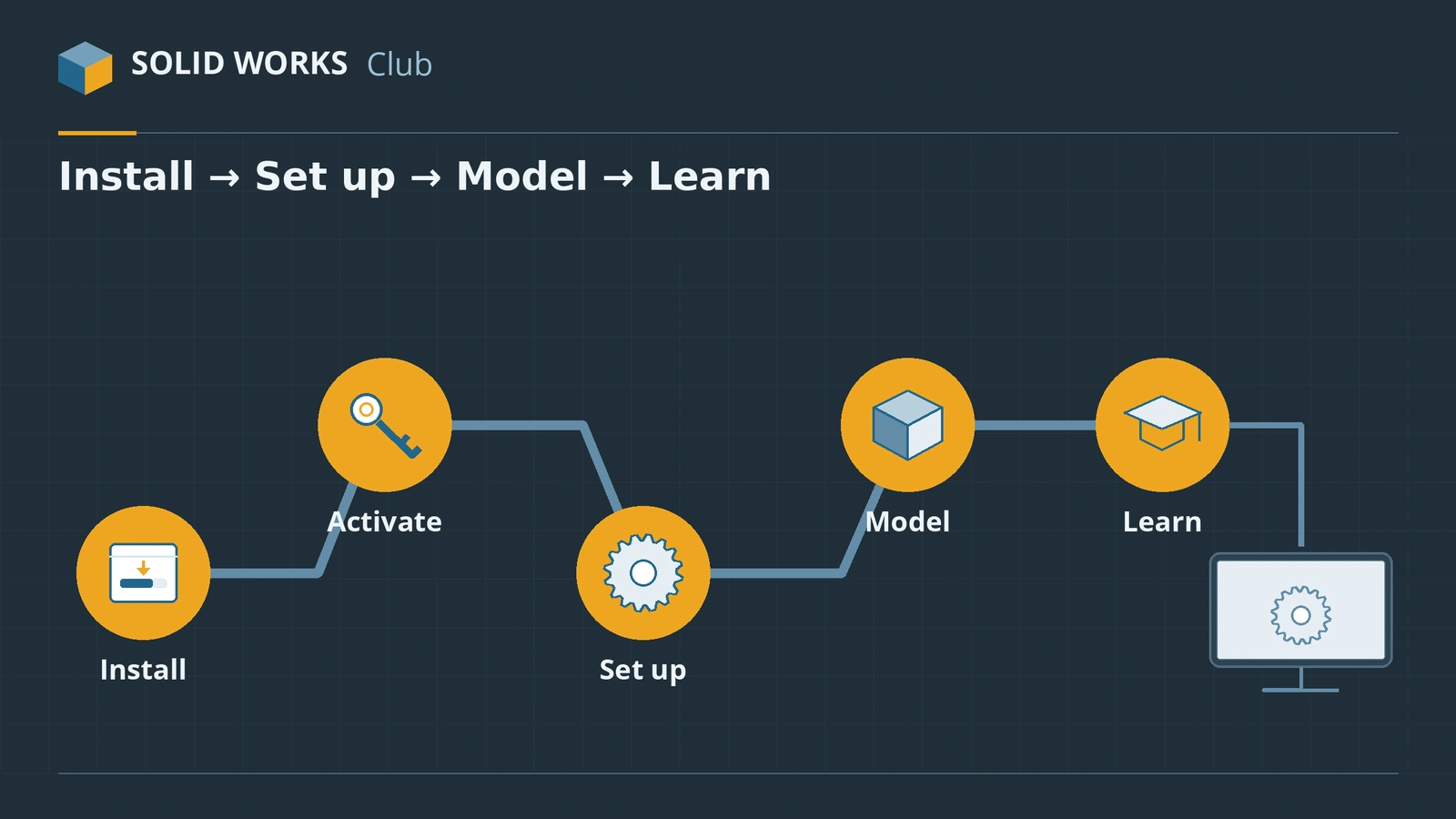
The order that works
| Step | Guide | Time |
|---|---|---|
| 1 | Install SOLIDWORKS | ~1 hour |
| 2 | Activate it | 2 minutes |
| 3 | Learn the interface | 20 minutes |
| 4 | Set options, units and templates | 30 minutes |
| 5 | Organise your files and folders | 15 minutes |
| 6 | Build your first part | 15 minutes |
| 7 | Follow the 30-day learning plan | 30 days |
Keeping SOLIDWORKS current is covered in updating SOLIDWORKS, and removing it cleanly in uninstalling SOLIDWORKS.
Before you install
- Hardware: check your PC with the PC checker or the system requirements.
- License: students can get SOLIDWORKS free — see the student edition; otherwise compare editions and prices.
- Problems? The errors and fixes guides cover install, activation, crashes and model errors.
All getting-started guides
-
 How to install SOLIDWORKS step by stepInstall SOLIDWORKS step by step — download SolidWorksSetup.exe, run the Installation Manager, enter your serial, choose products and folders, then activate.
-
 How to activate SOLIDWORKSActivate SOLIDWORKS after installing, automatically over the internet or by email, plus the yearly reactivation and how to move a license to a new PC.
-
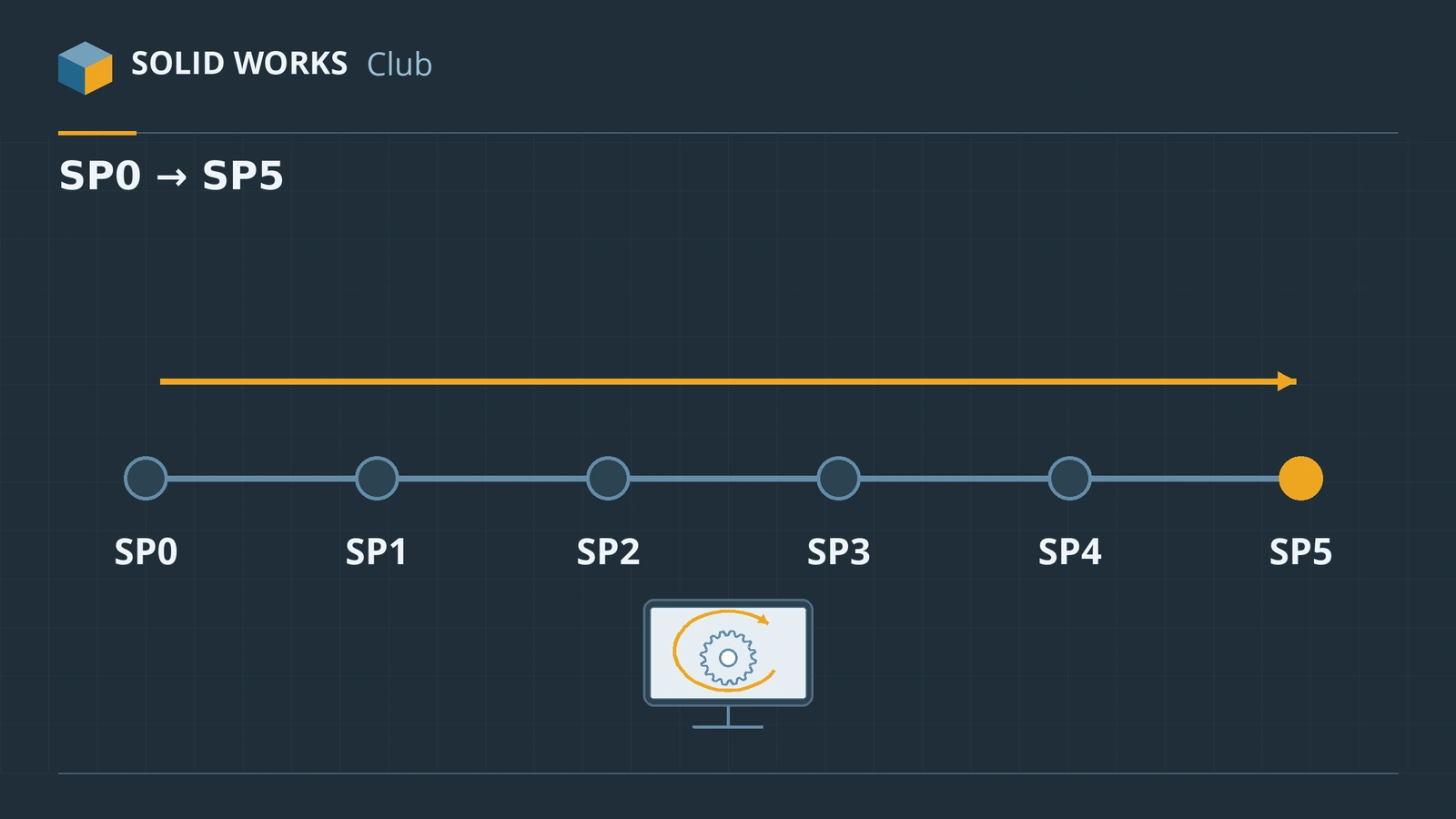 How to update SOLIDWORKSUpdate SOLIDWORKS to the latest service pack with Check for Updates, or upgrade to a new major version: when to do it, what to back up, what changes.
-
 How to uninstall SOLIDWORKS completelyUninstall SOLIDWORKS the right way — deactivate first, back up settings and Toolbox, then use the Installation Manager's advanced options for a clean uninstall.
-
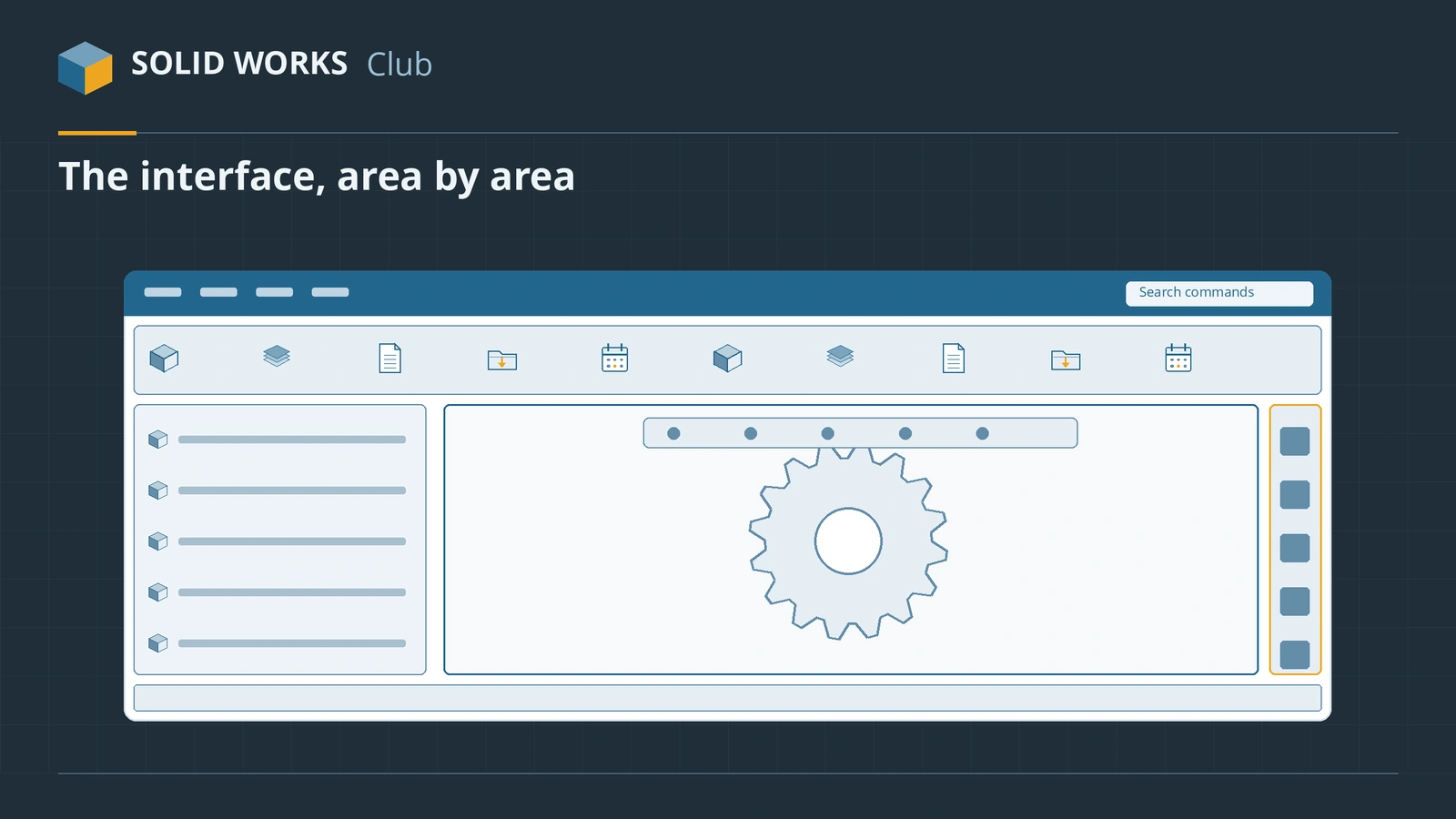 The SOLIDWORKS interface explainedA beginner's map of the SOLIDWORKS interface — CommandManager, FeatureManager tree, PropertyManager, Task Pane, heads-up toolbar, status bar and the S key.
-
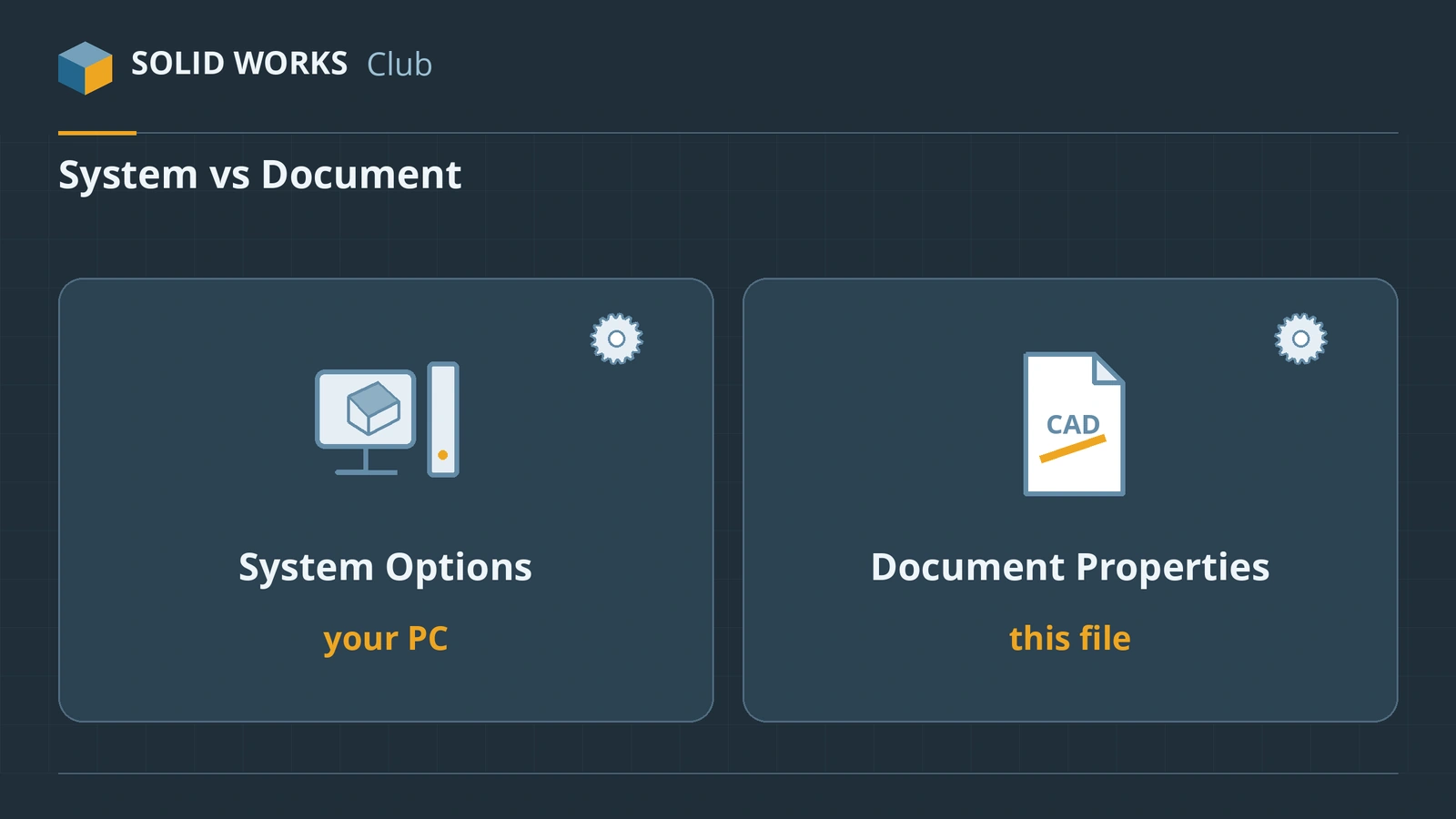 SOLIDWORKS options — System Options vs Document PropertiesHow SOLIDWORKS settings work — System Options for every file vs Document Properties saved in each file — the pages to set first, and how to back up or reset.
-
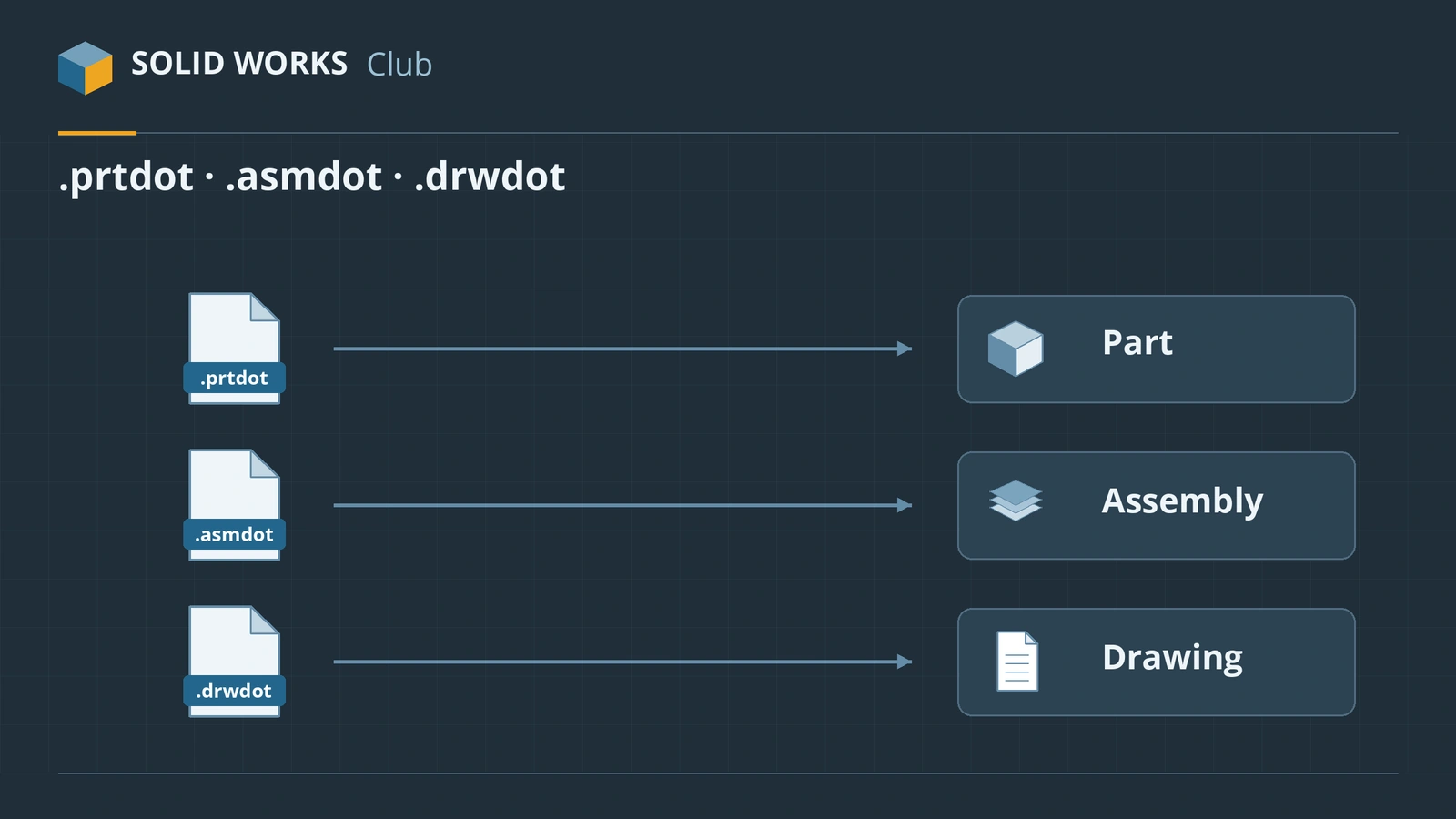 How to create SOLIDWORKS templatesCreate SOLIDWORKS part, assembly and drawing templates (.prtdot, .asmdot, .drwdot), save them to your own folder and set them as the defaults.
-
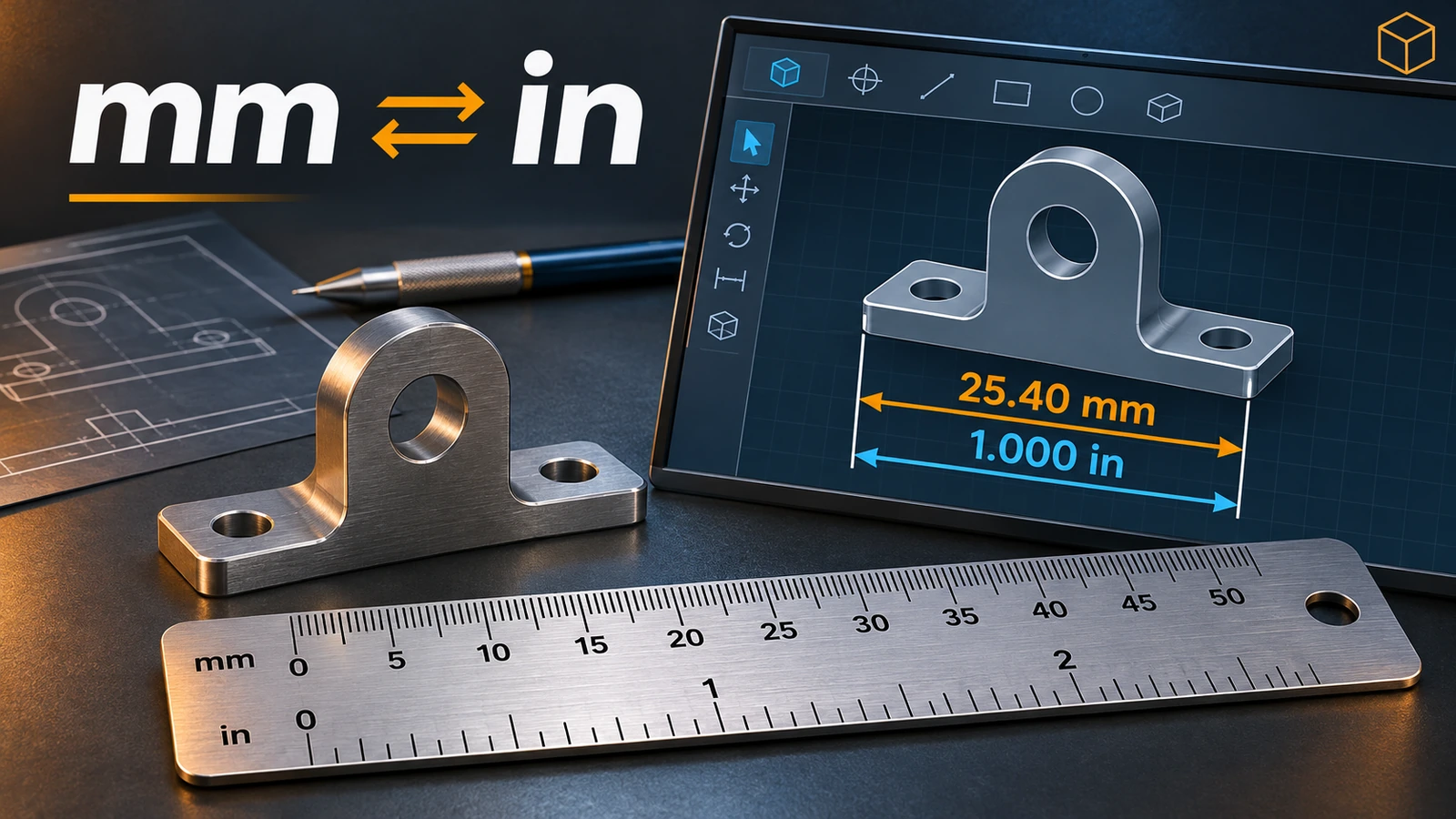 How to change units in SOLIDWORKSChange units in SOLIDWORKS from the status bar or Document Properties: MMGS, IPS, MKS, CGS or custom. Set decimals, dual dimensions and default units.
-
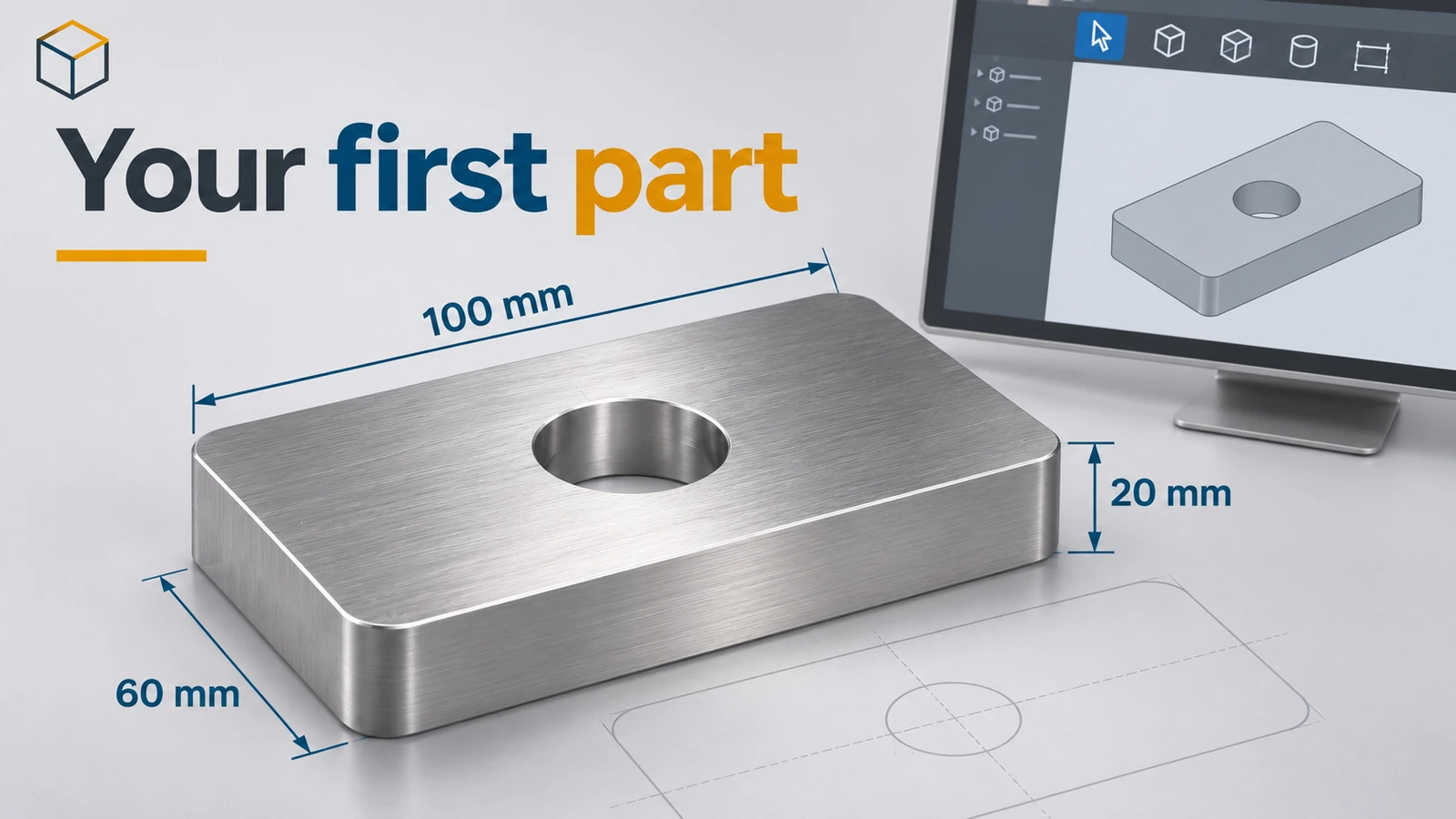 Your first SOLIDWORKS part, step by stepModel your first SOLIDWORKS part in 15 minutes: a sketch on the Front Plane, Smart Dimension, Extruded Boss, a hole and fillets, with a check mass.
-
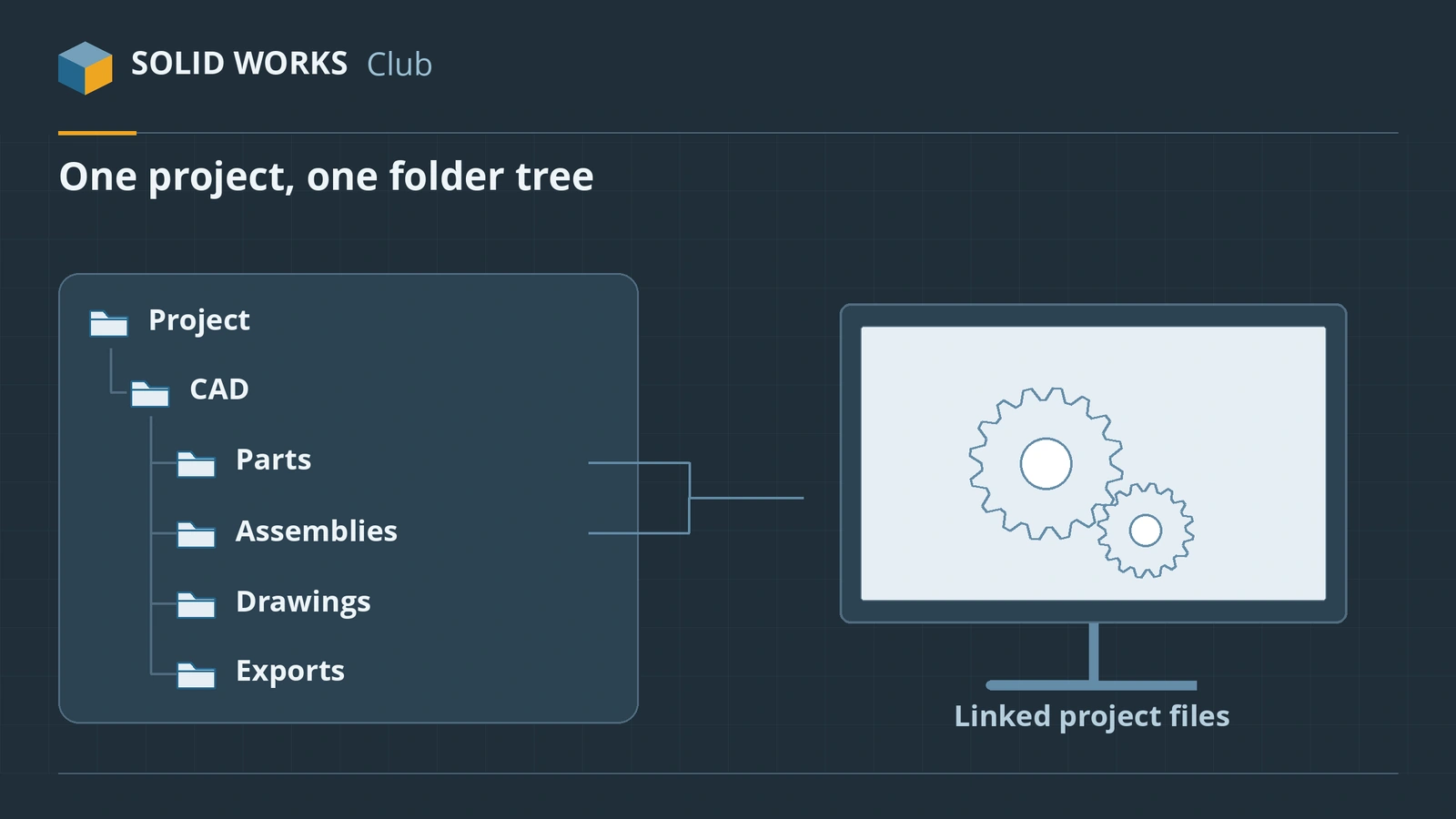 How to organize SOLIDWORKS files and foldersSet up SOLIDWORKS project folders that keep references intact — folder structure, naming, local vs network vs cloud sync, Pack and Go, rename tools and backups.
-
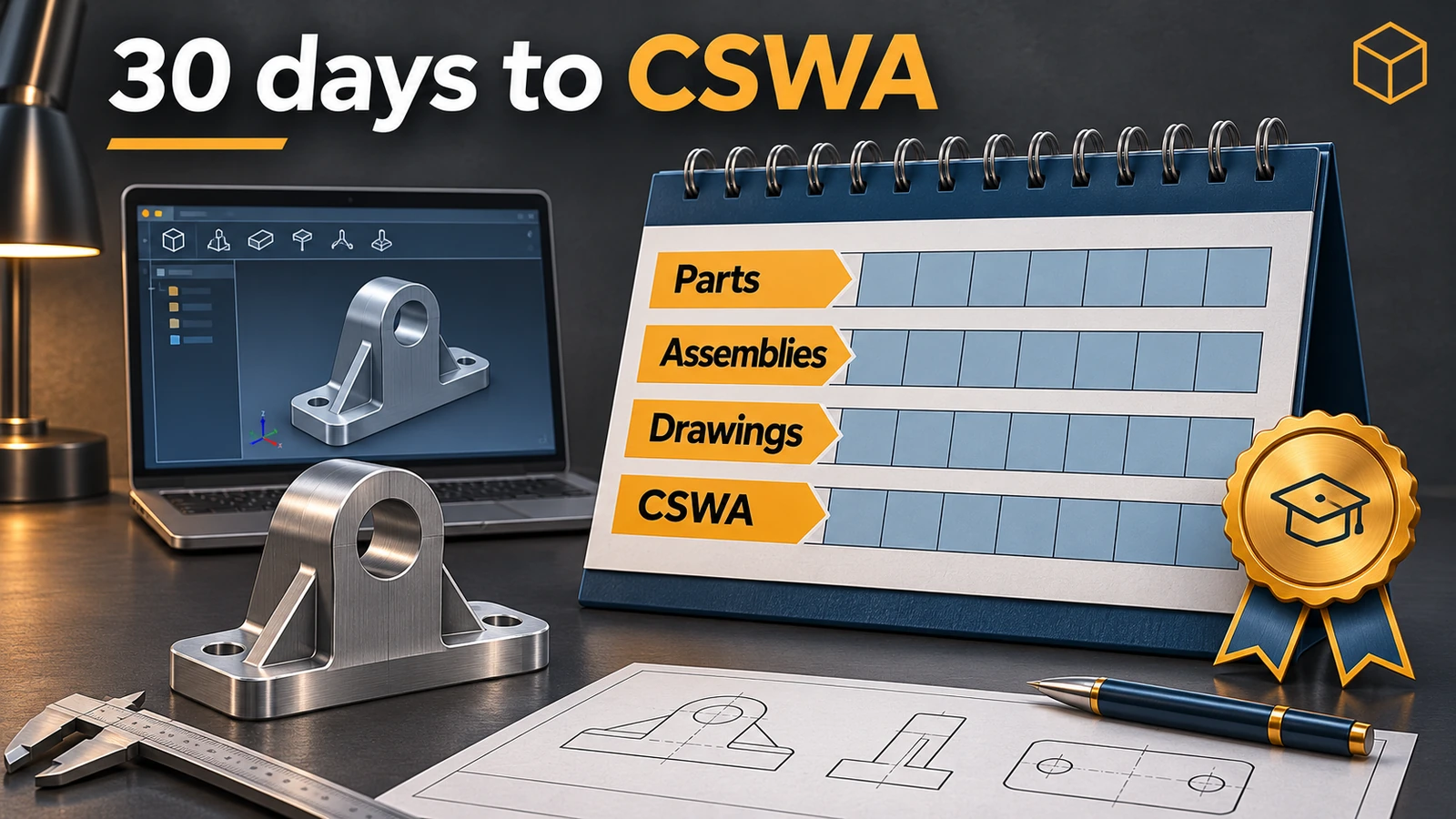 How to learn SOLIDWORKS — a 30-day planA practical 30-day plan to learn SOLIDWORKS for free — built-in tutorials, free MySolidWorks training, official videos, practice parts and the CSWA as a goal.
Frequently asked questions
What do I need to start using SOLIDWORKS?
+
A Windows 11 Pro or Enterprise PC with 16 GB of RAM or more and a certified graphics card, a SOLIDWORKS license (commercial, student or makers) and about an hour to download and install it.
What should I set up before modelling?
+
Units and drafting standard in your templates, a local folder structure for projects, and a backup and auto-recover folder. It takes half an hour and saves fixing many files later.
What is the best first exercise?
+
A simple plate or bracket: sketch, dimension until fully defined, extrude, cut a hole and add fillets. Our first part tutorial gives you a mass to check your result.
Related
- How to install SOLIDWORKS step by stepInstall SOLIDWORKS step by step — download SolidWorksSetup.exe, run the Installation Manager, enter your serial, choose products and folders, then activate.
- Your first SOLIDWORKS part, step by stepModel your first SOLIDWORKS part in 15 minutes: a sketch on the Front Plane, Smart Dimension, Extruded Boss, a hole and fillets, with a check mass.
- How to learn SOLIDWORKS — a 30-day planA practical 30-day plan to learn SOLIDWORKS for free — built-in tutorials, free MySolidWorks training, official videos, practice parts and the CSWA as a goal.
- How to get the free SOLIDWORKS student edition (2026)Since July 1, 2026, students get SOLIDWORKS Design Standard free, no .edu email needed. Who qualifies, how to download it, its limits and the $60 Premium.