Getting Started
How to create SOLIDWORKS templates
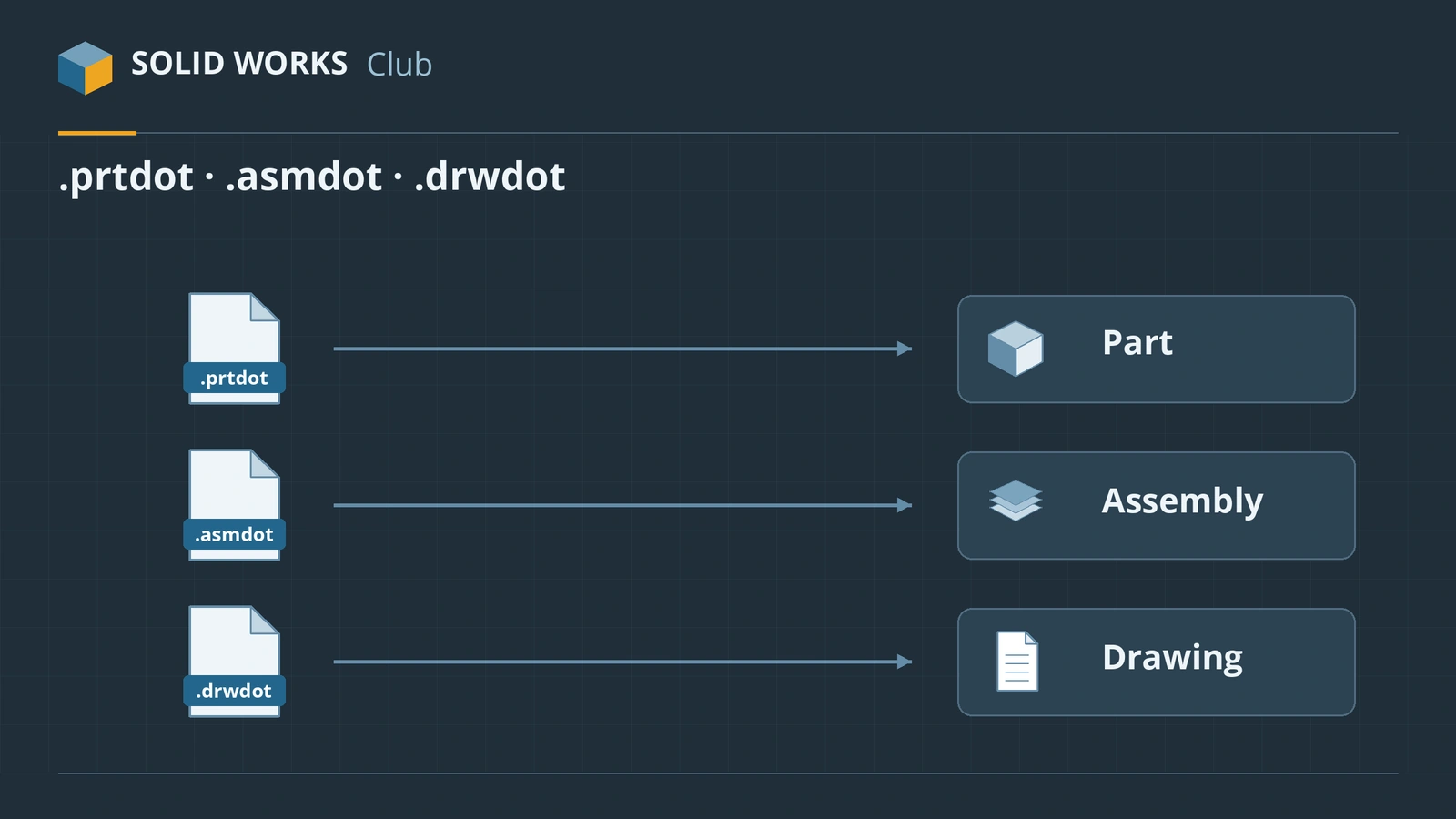
A template is the starting file for every new part (.prtdot), assembly (.asmdot) or drawing (.drwdot). It stores Document Properties — units, drafting standard, dimension styles — plus anything you put in it, such as custom properties or a default material. Set your template up once and every new file starts the way you want. Editing a template later does not change files you already made from it.
 Kevin Walsh
Where to find it
File → Save As → Save as type: Part Template (*.prtdot)
Template file types
| File | Extension | What it holds |
|---|---|---|
| Part template | .prtdot |
Units, standard, custom properties, material, planes |
| Assembly template | .asmdot |
Units, standard, custom properties |
| Drawing template | .drwdot |
Drafting standard, units, dimension styles, properties, sometimes pre-placed views and tables |
| Sheet format | .slddrt |
Sheet size, border and title block for drawings |
Default sheet formats are in C:\ProgramData\SOLIDWORKS\SOLIDWORKS 20xx\lang\english\sheetformat. To understand where all these folders are, see SOLIDWORKS file locations.
A sensible starter set
Most people need only a few templates: one part, one assembly and one drawing template per unit system they work in — for example Part MM ISO, Assembly MM ISO, Drawing A3 ISO. The drawing template and its title block are built in the title block lesson. Choose the units on the units page, and the difference between per-file and global settings on options.
Step by step
-
1
Make a folder for your templates
Create a folder outside the program folders, for example
C:\SOLIDWORKS Templatesor a shared network folder for your team. The default templates live inC:\ProgramData\SOLIDWORKS\SOLIDWORKS 20xx\templates— a hidden folder that belongs to each installed version, so it is a poor place for your own files. -
2
Start from a new file
File → New → Part (use the default template). Templates only appear in the New dialog in Advanced mode — if the button at the bottom left reads Advanced, click it.
-
3
Set the Document Properties
Tools → Options → Document Properties: drafting standard, units, dimension text and arrows, decimal places, image quality. Add custom properties (File → Properties) such as Description, Material, PartNumber, and set a default material if you want mass properties from the start.
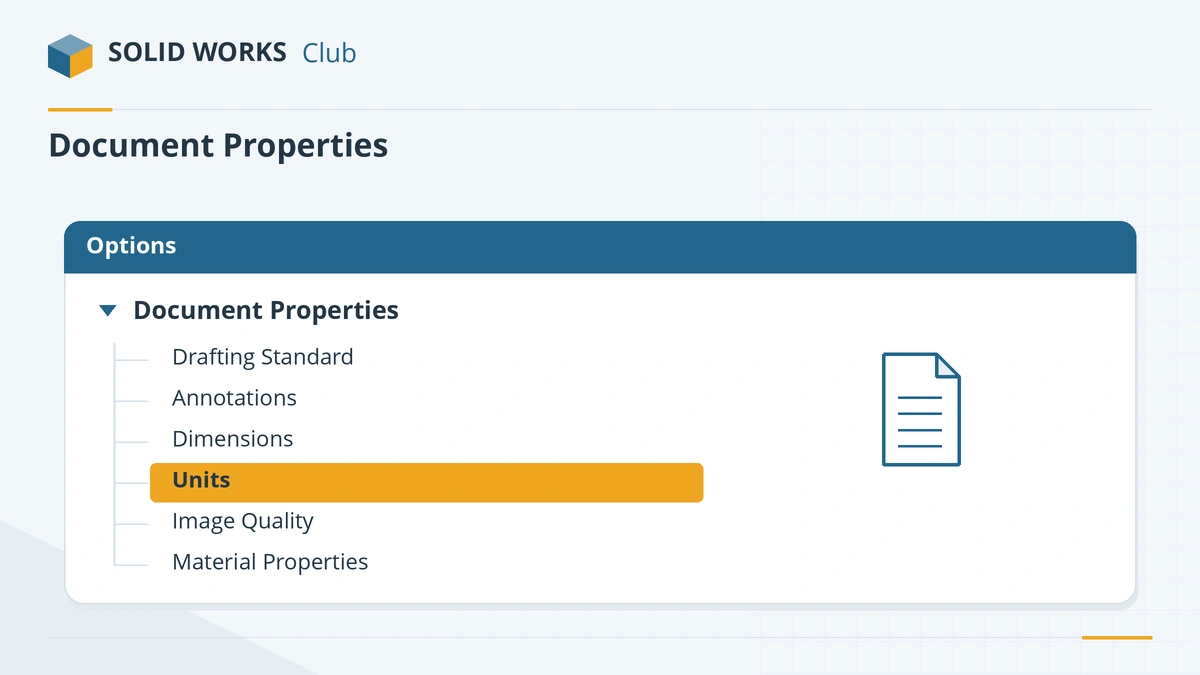
Set Document Properties first — they are what the template stores. -
4
Save as a template
File → Save As, set Save as type to Part Template (*.prtdot). SOLIDWORKS jumps to its own templates folder — browse to your folder instead, name the file (for example
Part MM ISO.prtdot) and save. Repeat for assemblies (.asmdot) and drawings (.drwdot). -
5
Tell SOLIDWORKS where your templates are
Tools → Options → System Options → File Locations → Show folders for: Document Templates → Add your folder and move it to the top. Each folder appears as a tab in the New dialog, in the same order; subfolders with at least one template become extra tabs.
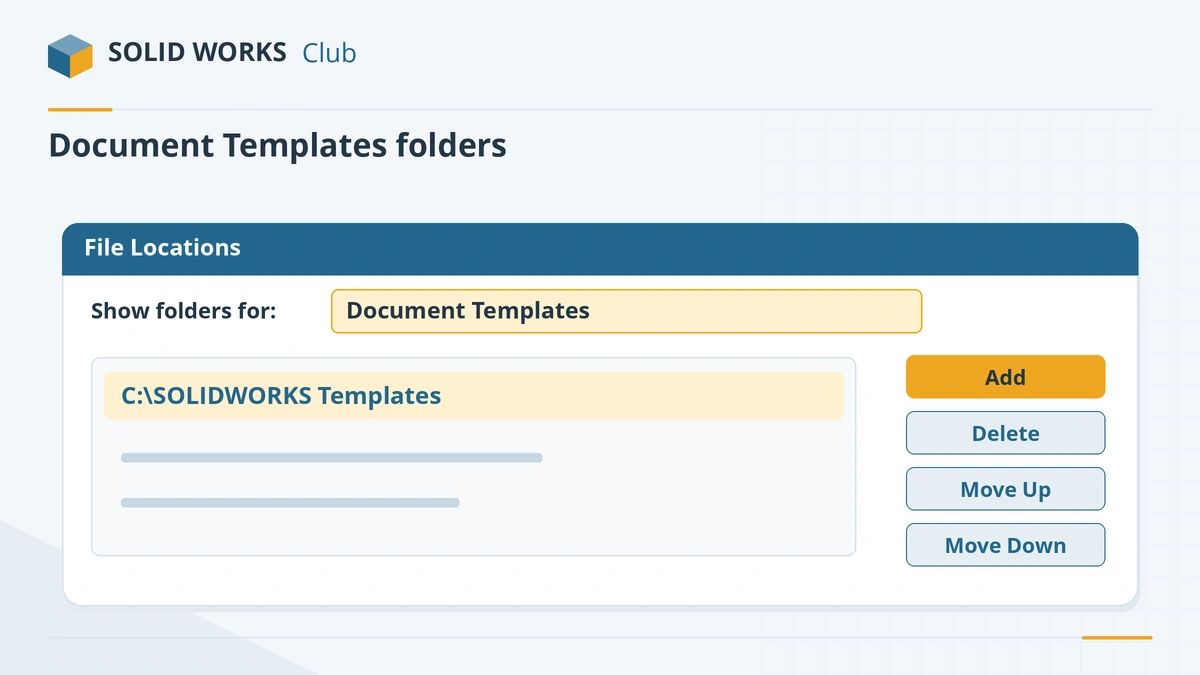
Each folder in this list becomes a tab in the New SOLIDWORKS Document dialog. -
6
Choose the default templates
System Options → Default Templates: pick your part, assembly and drawing templates. SOLIDWORKS uses them when it creates a file without asking — in Novice mode, for virtual components and for imported files.
-
7
Test it
Close everything, choose File → New, pick your template, and check units and standard in the status bar and Document Properties.
Common mistakes
- Saving the template inside the ProgramData folder of one version — it disappears from view when you upgrade or install a second version.
- Expecting existing files to change after editing the template. Templates are copied once, at creation.
- Forgetting the drawing sheet format. A drawing template sets styles; the sheet format (.slddrt) holds the border and title block.
- Mixing templates on one team. Put one set on a shared folder and point everyone's File Locations to it.
Sources
- Javelin — How to create templates in SOLIDWORKS (Apr 2026)
- Javelin — SOLIDWORKS template file locations (Jan 2024)
- CADimensions — Can I create new SOLIDWORKS templates from scratch?
- GoEngineer — How to adjust template settings
- GoEngineer — Drawing templates vs sheet formats
- TriMech — How to open Document Properties in SOLIDWORKS
Checked November 2026. SOLID WORKS Club is independent; menu names can differ slightly between releases.
Frequently asked questions
Where are SOLIDWORKS templates stored?
+
The default templates are in C:\ProgramData\SOLIDWORKS\SOLIDWORKS 20xx\templates, one folder per installed version. Your own templates can be anywhere; add their folder under File Locations → Document Templates.
What is the difference between a drawing template and a sheet format?
+
The drawing template (.drwdot) is used once when you create a drawing and sets its standards, units and properties. The sheet format (.slddrt) is the sheet size, border and title block, and can be changed at any time.
Why does the New dialog not show my templates?
+
It is in Novice mode — click Advanced. If your folder is still missing, add it under System Options → File Locations → Document Templates.
Will changing a template update my old parts?
+
No. A template only sets the starting values of new files. Change old files individually in Document Properties.
Related
- How to change units in SOLIDWORKSChange units in SOLIDWORKS from the status bar or Document Properties: MMGS, IPS, MKS, CGS or custom. Set decimals, dual dimensions and default units.
- SOLIDWORKS options — System Options vs Document PropertiesHow SOLIDWORKS settings work — System Options for every file vs Document Properties saved in each file — the pages to set first, and how to back up or reset.
- SOLIDWORKS default file locationsDefault SOLIDWORKS folders for templates, sheet formats, the Design Library, BOM templates, profiles and materials, and how to point to shared folders.
- What is an SLDDRW file?An SLDDRW file is a SOLIDWORKS 2D drawing linked to its part or assembly. How to open it without SOLIDWORKS and convert it to PDF, DWG or DXF for others.