Getting Started
How to uninstall SOLIDWORKS completely
SOLIDWORKS is removed with its own Installation Manager, which starts when you uninstall it from Windows. A normal uninstall removes the program but leaves settings, the Toolbox and downloaded files. A clean uninstall — ticking the advanced options — removes those too, which resellers use to fix stubborn problems. Your own parts, assemblies and drawings are never deleted. Deactivate the license first.
 Kevin Walsh
Where to find it
Windows Settings → Apps → Installed apps → SOLIDWORKS 20xx → Uninstall
Normal vs clean uninstall
| Normal | Clean | |
|---|---|---|
| Program files | Removed | Removed |
| Settings (registry) | Kept | Removed |
| Data folders (Toolbox, templates in ProgramData) | Kept | Removed |
| Downloaded install files | Kept | Removed |
| Your models | Kept | Kept |
| Use it when | Removing an old version | Fixing problems before a reinstall |
After a clean uninstall, resellers sometimes also delete leftover SOLIDWORKS folders by hand; their guides list the exact folders. If you are reinstalling, follow how to install SOLIDWORKS and restore your settings with the Settings Wizard. If the reinstall fails, see installation errors.
Step by step
-
1
Deactivate the license
In SOLIDWORKS: Help → Licenses → Deactivate, select all products, Next. This frees the activation so you can use it on another PC or after reinstalling. The uninstaller also offers to deactivate if you forget.
-
2
Back up what you want to keep
Save your settings with the Settings Wizard (Tools → Save/Restore Settings) to a
.sldregfile. Copy your templates, sheet formats, custom materials, macros and the Toolbox folder (C:\SOLIDWORKS Data) if you changed them. -
3
Start the uninstall from Windows
Signed in as an administrator, open Settings → Apps → Installed apps (or Control Panel → Uninstall a program), find SOLIDWORKS 20xx and choose Uninstall. The SOLIDWORKS Installation Manager opens with the products to remove.
-
4
Choose the advanced options for a clean uninstall
Click Change next to Advanced Options. Besides Program Files and Folders you can tick Registry Entries, Data Files and Folders and Download Files and Folders. Ticking them all is what resellers call a clean uninstall. Some boxes are greyed out when another version of SOLIDWORKS is still installed. Then Back to Summary.
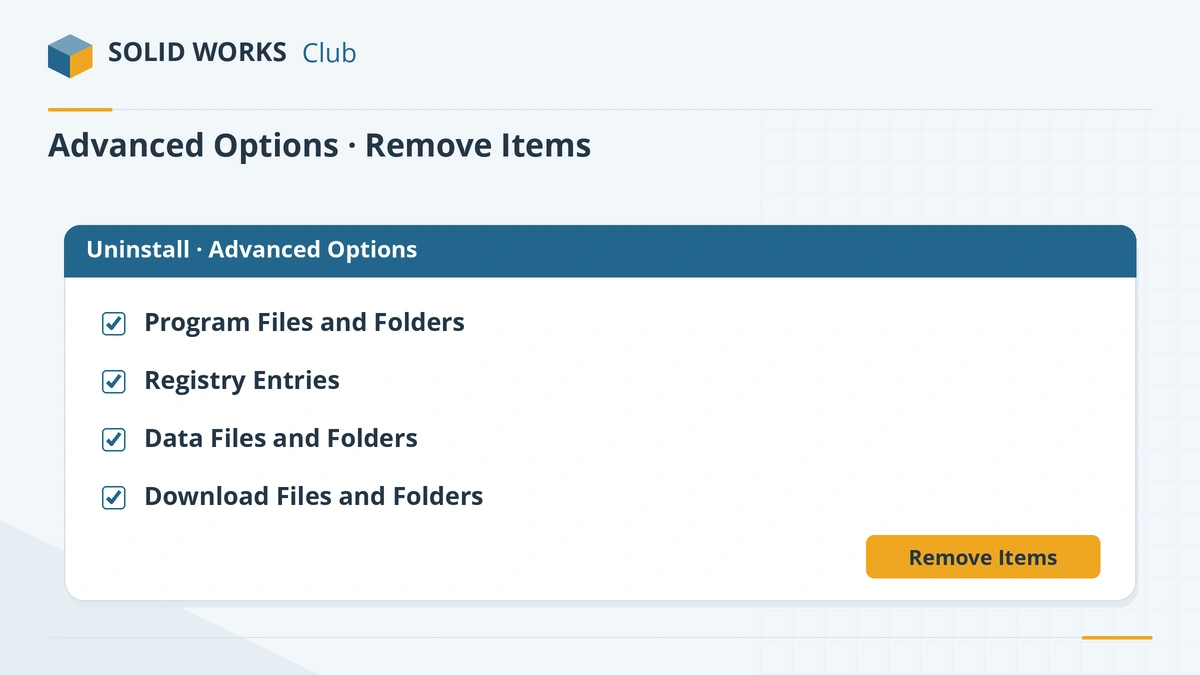
Tick all advanced options for a clean uninstall. -
5
Remove and restart
Click Remove Items, wait for it to finish and restart Windows.
Common mistakes
- Uninstalling before deactivating — the activation stays used up on a PC that no longer has SOLIDWORKS.
- Deleting the Toolbox folder that another installed version or your team still uses.
- Expecting the uninstall to delete your models. It does not; remove project files yourself if needed.
Sources
- Hawk Ridge — How to uninstall SOLIDWORKS
- GoEngineer — Complete SOLIDWORKS clean uninstall guide
- SOLIDWORKS 2026 Installation Guide (PDF, German edition)
- GoEngineer — How to deactivate SOLIDWORKS (Feb 2025)
- Javelin — How to use the SOLIDWORKS Settings Wizard (Jul 2026)
- Solid Solutions — 10 things to do before upgrading to SOLIDWORKS 2026 (Dec 2025)
Checked November 2026. SOLID WORKS Club is independent; menu names can differ slightly between releases.
Frequently asked questions
Does uninstalling SOLIDWORKS delete my files?
+
No. Parts, assemblies and drawings you saved are not removed. Only the program, and with the advanced options its settings, data and download files.
What is a clean uninstall of SOLIDWORKS?
+
An uninstall with all advanced options ticked — registry entries, data files and download files — so no settings or leftovers remain. It is used before a fresh reinstall to fix persistent problems.
Do I need to uninstall the old version before upgrading?
+
No. The Installation Manager can upgrade the old version in place or install the new one alongside it. Uninstall the old one later if you no longer need it.
Why are some uninstall options greyed out?
+
Shared data and registry items cannot be removed while another version of SOLIDWORKS still uses them.
Related
- How to install SOLIDWORKS step by stepInstall SOLIDWORKS step by step — download SolidWorksSetup.exe, run the Installation Manager, enter your serial, choose products and folders, then activate.
- How to activate SOLIDWORKSActivate SOLIDWORKS after installing, automatically over the internet or by email, plus the yearly reactivation and how to move a license to a new PC.
- SOLIDWORKS installation errors and how to fix themFix SOLIDWORKS Installation Manager errors: pending reboot, cannot connect, additional files needed, 1722 and 1603, and where to find the install logs.
- How to update SOLIDWORKSUpdate SOLIDWORKS to the latest service pack with Check for Updates, or upgrade to a new major version: when to do it, what to back up, what changes.