Getting Started
SOLIDWORKS options — System Options vs Document Properties
Everything in Tools → Options lives in one of two places. System Options belong to your SOLIDWORKS installation and apply to every file you open — colours, performance, file locations. Document Properties belong to the file itself — units, drafting standard, dimension styles — and travel with it to anyone who opens it. Templates are simply files whose Document Properties you set once and reuse.
 Kevin Walsh
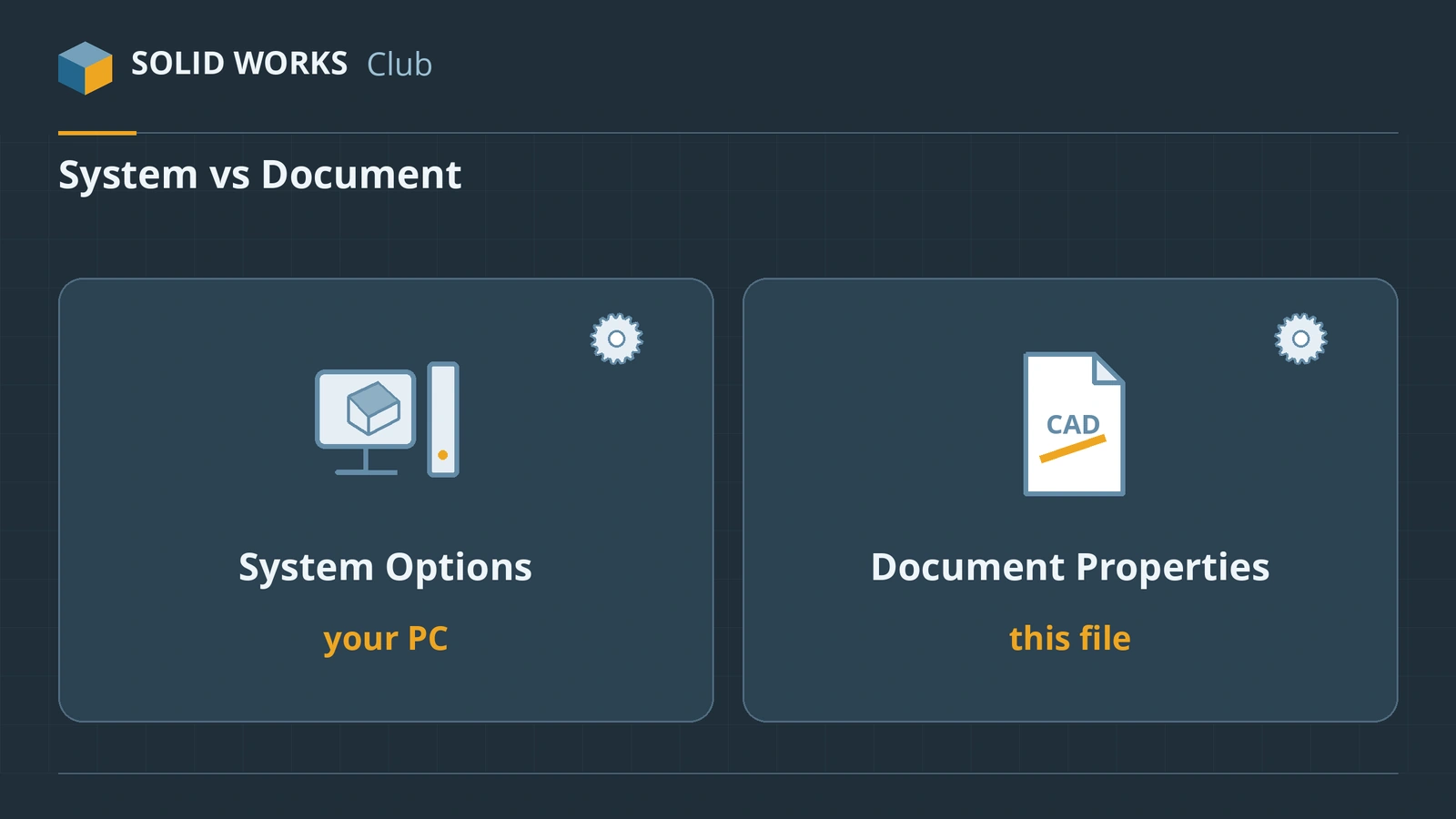
Two kinds of settings
| System Options | Document Properties | |
|---|---|---|
| Applies to | Every file you open | Only this file |
| Stored in | Your Windows user profile (registry) | The file and its template |
| Travels with the file | No | Yes |
| Available | Always | Only with a document open |
| Typical pages | Colors, Performance, File Locations, Backup/Recover, FeatureManager | Drafting Standard, Units, Dimensions, Annotations, Grid/Snap, Image Quality |
| Change for future files | Change once | Change in your templates |
Open both from Tools → Options or the gear icon. Changing Document Properties in one part does not change your other parts — that is the most common surprise for beginners.
System Options worth setting on day one
- Colors — Interface Brightness (Light, Medium, Dark).
- Backup/Recover — auto-recover every 10 minutes or so, to a local folder.
- File Locations — where SOLIDWORKS looks for templates, sheet formats and materials. See file locations.
- Performance — leave Verification on rebuild off unless you are chasing errors; see speed settings.
- Default Templates — which template SOLIDWORKS uses when it creates a file without asking.
Document Properties worth setting (in your templates)
- Drafting Standard — ANSI, ISO, DIN, JIS, BSI, GOST or GB. It sets dimension and annotation style.
- Units — MMGS or IPS for most users; see units.
- Dimensions — text height, arrows, decimal places.
- Material — a default material in part templates, so mass properties are not zero.
Back up, move or reset your settings
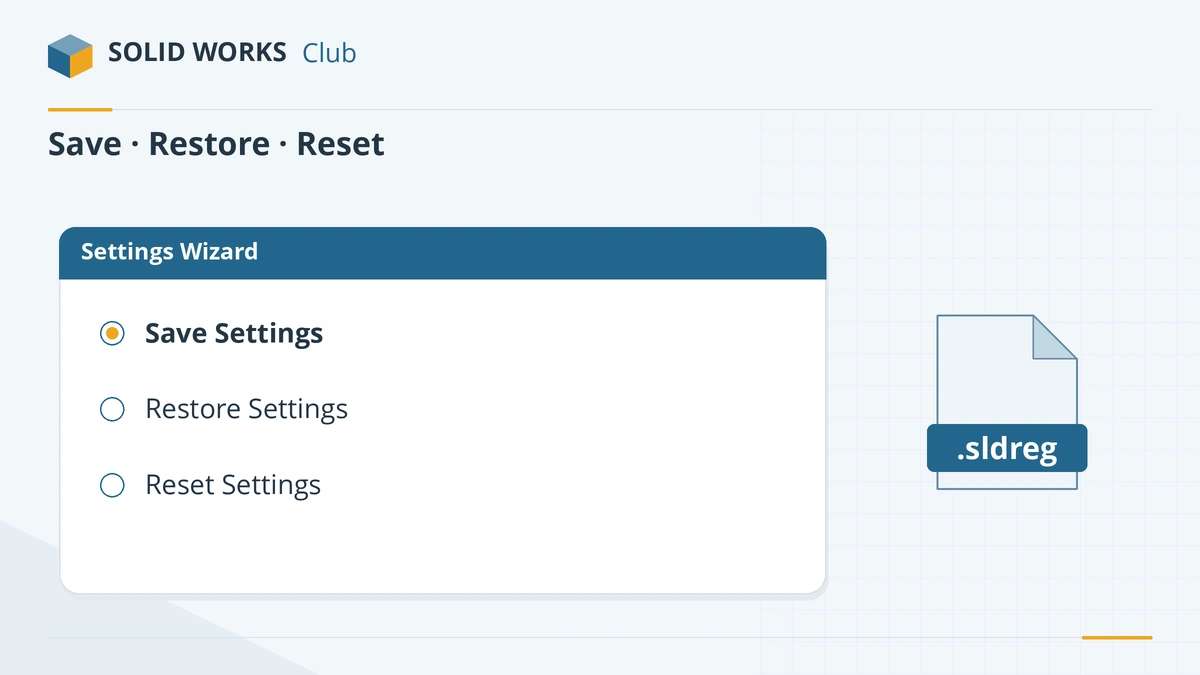
The Settings Wizard (called Copy Settings Wizard until 2022) saves System Options and your customisations — toolbars, keyboard shortcuts, mouse gestures, menus — into a .sldreg file. It does not save Document Properties; those are in your templates. Start it from Tools → Save/Restore Settings or from SOLIDWORKS Tools in the Windows Start menu.
Since 2023 the same wizard has Reset Settings, which returns SOLIDWORKS to its defaults — the first thing resellers try when SOLIDWORKS behaves strangely. Save your settings first with Save and Reset Settings.
Sources
- TriMech — How to open Document Properties in SOLIDWORKS
- GoEngineer — How to adjust template settings
- Javelin — How to use the SOLIDWORKS Settings Wizard (Jul 2026)
- Hawk Ridge — Save or restore SOLIDWORKS settings
- Solid Solutions — How to reset SOLIDWORKS to default settings
- CATI — SOLIDWORKS interface brightness
- Javelin — SOLIDWORKS template file locations (Jan 2024)
Checked November 2026. SOLID WORKS Club is independent; menu names can differ slightly between releases.
Frequently asked questions
What is the difference between System Options and Document Properties?
+
System Options apply to everything you open on your computer and are stored with your Windows user. Document Properties apply only to the open file and are saved inside it, so they travel with the file.
Why is the Document Properties tab missing?
+
Document Properties only appear when a document is open. Open or create a part, assembly or drawing first, then go to Tools → Options.
How do I copy my SOLIDWORKS settings to another computer?
+
Use the Settings Wizard (Tools → Save/Restore Settings, or SOLIDWORKS Tools in the Windows Start menu) to save a .sldreg file, then restore it on the other computer.
How do I reset SOLIDWORKS to default settings?
+
In SOLIDWORKS 2023 and later, open the Settings Wizard and choose Reset Settings — optionally saving your current settings first. It resets menus, toolbars, shortcuts and file locations.
Related
- How to create SOLIDWORKS templatesCreate SOLIDWORKS part, assembly and drawing templates (.prtdot, .asmdot, .drwdot), save them to your own folder and set them as the defaults.
- How to change units in SOLIDWORKSChange units in SOLIDWORKS from the status bar or Document Properties: MMGS, IPS, MKS, CGS or custom. Set decimals, dual dimensions and default units.
- SOLIDWORKS default file locationsDefault SOLIDWORKS folders for templates, sheet formats, the Design Library, BOM templates, profiles and materials, and how to point to shared folders.
- SOLIDWORKS running slow — how to speed it upSpeed up a slow SOLIDWORKS with Performance Evaluation, large assembly settings, lightweight mode, image quality, local files and the right graphics setup.