Getting Started
How to change units in SOLIDWORKS
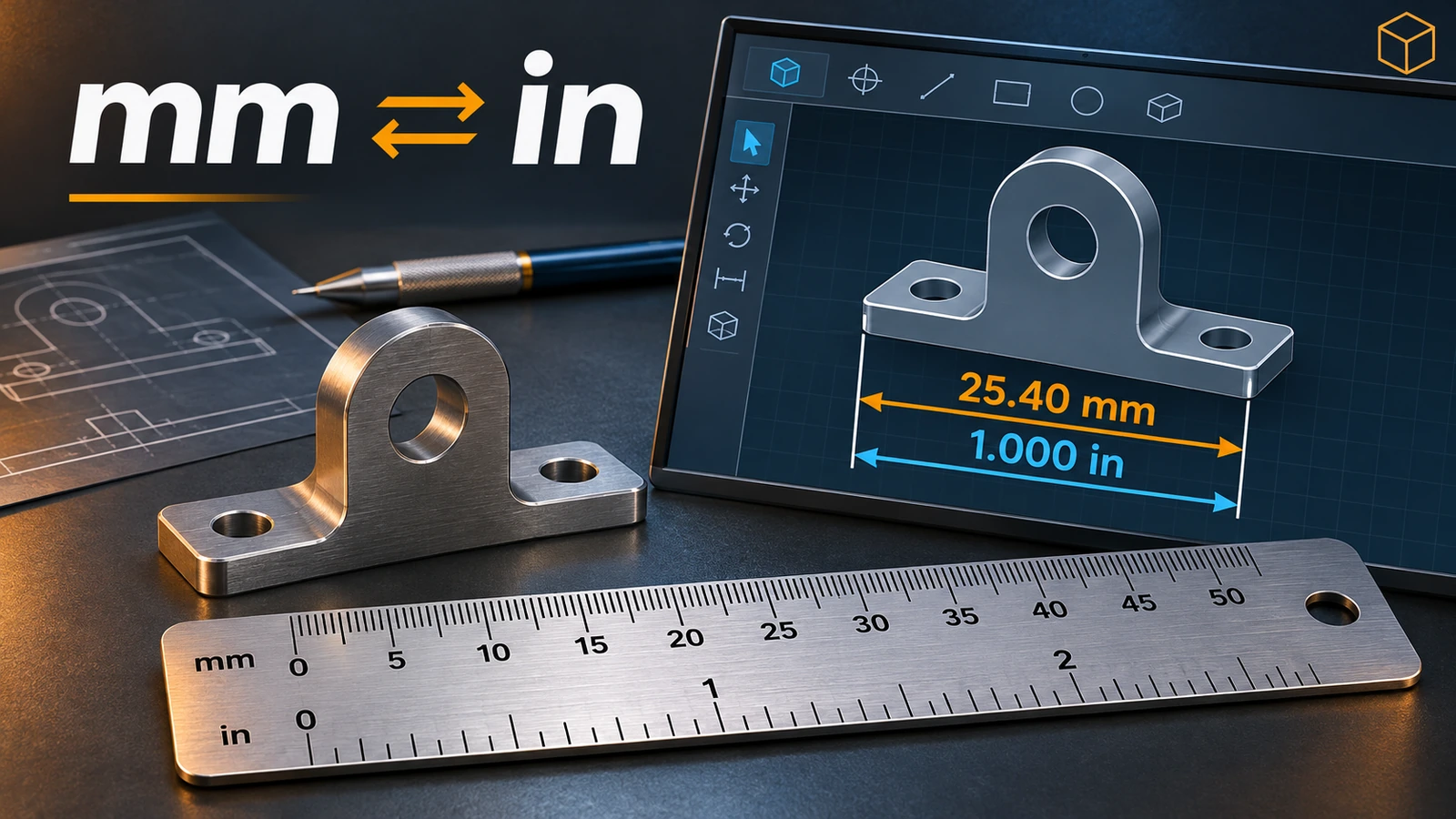
Units in SOLIDWORKS are a Document Property: each part, assembly and drawing has its own. The fastest way to change them is the units menu at the bottom right of the status bar. To make every new file start in millimetres or inches, set the units in your template. You can also type a unit while entering any value — "25mm" works in an inch part.
 Kevin Walsh
Where to find it
Tools → Options → Document Properties → Units, or the units menu at the bottom right
The unit systems
| System | Length | Mass | Time | Typical use |
|---|---|---|---|---|
| MMGS | millimetre | gram | second | Most metric mechanical design, CSWA exams |
| IPS | inch | pound | second | US mechanical design |
| MKS | metre | kilogram | second | Large structures, SI calculations |
| CGS | centimetre | gram | second | Rare in mechanical design |
| Custom | your choice | your choice | your choice | Mixed needs |
Resellers recommend MMGS for metric users and IPS for imperial users. Drafting standard (ANSI, ISO, DIN, JIS, BSI, GOST, GB) is a separate Document Property; most ISO users pair it with MMGS, ANSI users with IPS.
Units in exams and calculations
Mass and volume answers depend on units and density units. If you practise for the CSWA, check your answers with our mass calculator, which converts between g/cm³, kg/m³ and lb/in³. Then try a part of your own in your first part.
Step by step
-
1
Quick change from the status bar
Click the unit system shown at the bottom right of the window (for example MMGS) and pick another one. The change applies to the open file only.
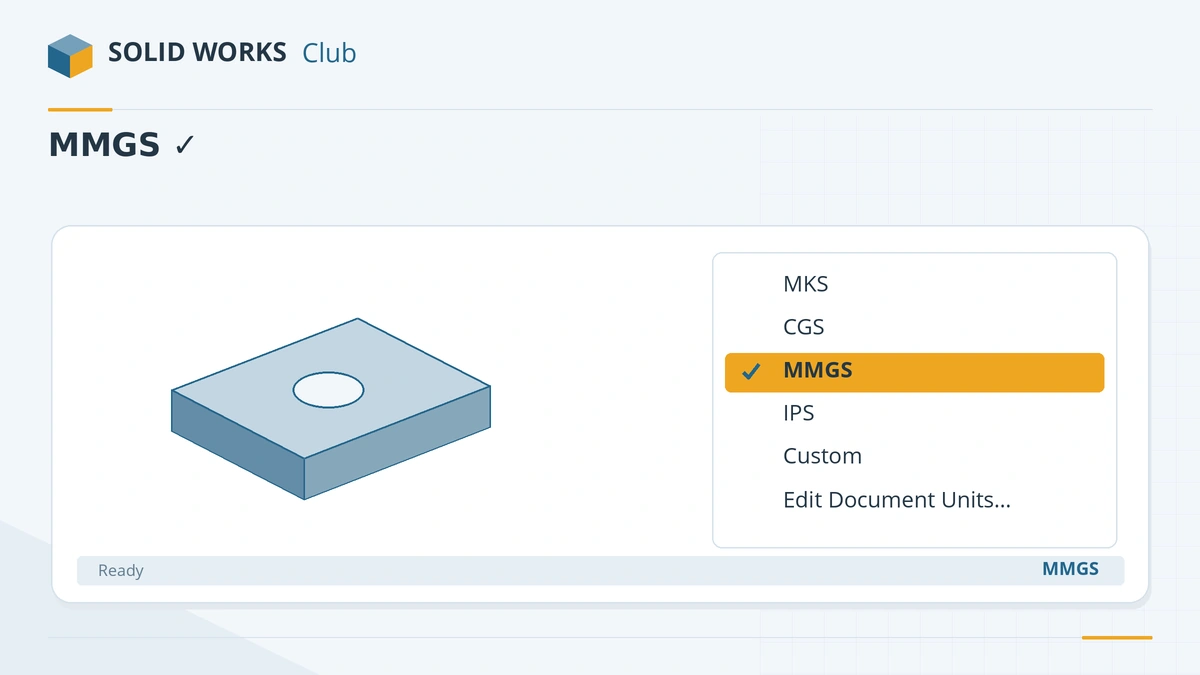
The quickest way to switch units for the open file. -
2
Full control in Document Properties
Tools → Options → Document Properties → Units. Choose the unit system, then fine-tune the table: length, dual dimension length, angle (degrees or radians), mass, volume, time, and the number of decimal places for each (from none to 8). With IPS you can show fractions.
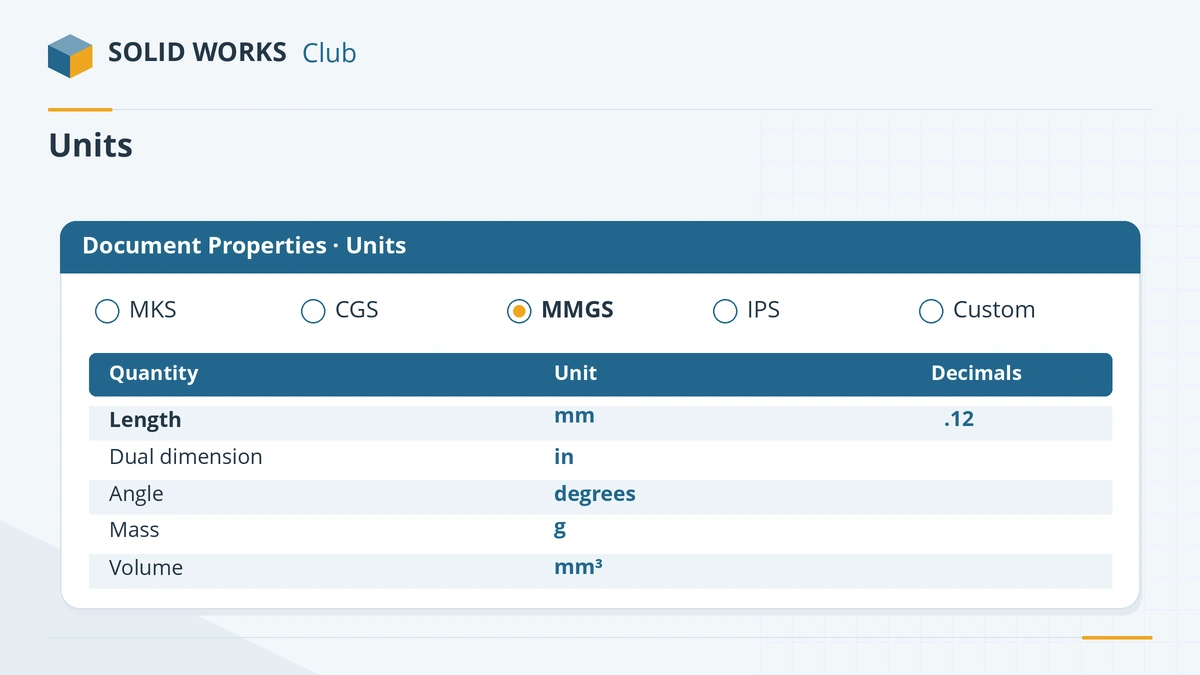
The Units page lets you set each quantity and its decimals. -
3
Type a unit when you need a one-off value
In any dimension or value box, type the number with its unit —
2inin a millimetre part, or50mmin an inch part — and SOLIDWORKS converts it. -
4
Make it the default for new files
Set the units in a new part, then save it as a template (File → Save As → Part Template). Do the same for assemblies and drawings, and choose these templates under System Options → Default Templates. Full steps: SOLIDWORKS templates.
Common mistakes
- Changing units in one part and expecting others to follow. Units belong to each file.
- Assemblies and their parts in different units — it works, but values in the assembly show in the assembly's units, which confuses reviews. Keep one system per project.
- Using a mass or density from the wrong unit system in calculations. The CSWA uses MMGS unless a question says otherwise.
Sources
- Solid Solutions — How to change units in SOLIDWORKS (Jul 2023)
- Hawk Ridge — Choosing a unit system in SOLIDWORKS
- Javelin — How to change units in SOLIDWORKS
- Javelin — SOLIDWORKS template file locations (Jan 2024)
- TriMech — How to open Document Properties in SOLIDWORKS
Checked November 2026. SOLID WORKS Club is independent; menu names can differ slightly between releases.
Frequently asked questions
How do I change SOLIDWORKS from inches to mm?
+
Click the unit system at the bottom right of the window and choose MMGS, or go to Tools → Options → Document Properties → Units. To start every new file in mm, save the setting in your part template.
What does MMGS mean?
+
Millimetre, gram, second. The other systems are MKS (metre, kilogram, second), CGS (centimetre, gram, second) and IPS (inch, pound, second), plus Custom.
Why do my units keep going back to inches?
+
New files come from your template, and your default template is in inches. Save a millimetre template and select it under System Options → Default Templates.
Can SOLIDWORKS show mm and inches together?
+
Yes. Turn on dual dimensions in Document Properties → Dimensions and set the dual unit on the Units page.
Related
- How to create SOLIDWORKS templatesCreate SOLIDWORKS part, assembly and drawing templates (.prtdot, .asmdot, .drwdot), save them to your own folder and set them as the defaults.
- SOLIDWORKS options — System Options vs Document PropertiesHow SOLIDWORKS settings work — System Options for every file vs Document Properties saved in each file — the pages to set first, and how to back up or reset.
- Mass calculator for SOLIDWORKS and CSWA problemsCalculate part mass from volume and density in mm, cm, m or inches, with typical densities for steel, aluminium, brass and copper. Built for CSWA checks.
- Your first SOLIDWORKS part, step by stepModel your first SOLIDWORKS part in 15 minutes: a sketch on the Front Plane, Smart Dimension, Extruded Boss, a hole and fillets, with a check mass.