Getting Started
How to update SOLIDWORKS
SOLIDWORKS has two kinds of updates. A service pack (SP1, SP2 …) fixes bugs in the version you have and does not change the file format — install it freely. A major upgrade (2025 → 2026) brings new features and a new file format that older versions cannot edit, so upgrade together with the people you exchange files with. Both are installed with the Installation Manager, started from Help → Check for Updates, and need an active subscription.
 Kevin Walsh
Where to find it
Help (?) → Check for Updates
Service pack vs major upgrade
| Service pack | Major upgrade | |
|---|---|---|
| Example | 2026 SP3 → 2026 SP4 | 2025 → 2026 |
| New features | Rarely | Yes |
| File format changes | No | Yes — older versions cannot edit the files |
| Installs | Over the existing version | Upgrade in place or alongside |
| Toolbox upgrade | Sometimes | Yes |
| When | As soon as practical | When your team and partners are ready |
The full calendar of releases and service packs is on the release schedule. For working with partners on older versions, see version compatibility — since 2024 you can save files back up to two releases.
Hotfixes
Between service packs, SOLIDWORKS may publish hotfixes for business-critical problems, only for the latest service pack of a release and only during its hotfix period. Most users never need one — the next service pack includes the fix. Technical alerts and new downloads are announced on the official Technical Alerts & News page.
Step by step
-
1
Check which version you have
Help → About SOLIDWORKS shows the version and service pack, for example SOLIDWORKS 2026 SP4.1. Compare it with the latest release in the versions overview.
-
2
Close SOLIDWORKS and back up settings
For a service pack a settings backup is optional; for a major upgrade save your settings with the Settings Wizard, back up the Toolbox and templates, and check in any PDM files.
-
3
Open Check for Updates
Help (?) → Check for Updates starts the Installation Manager. It needs administrator rights. Pick the service pack — or the new major version — from the list.
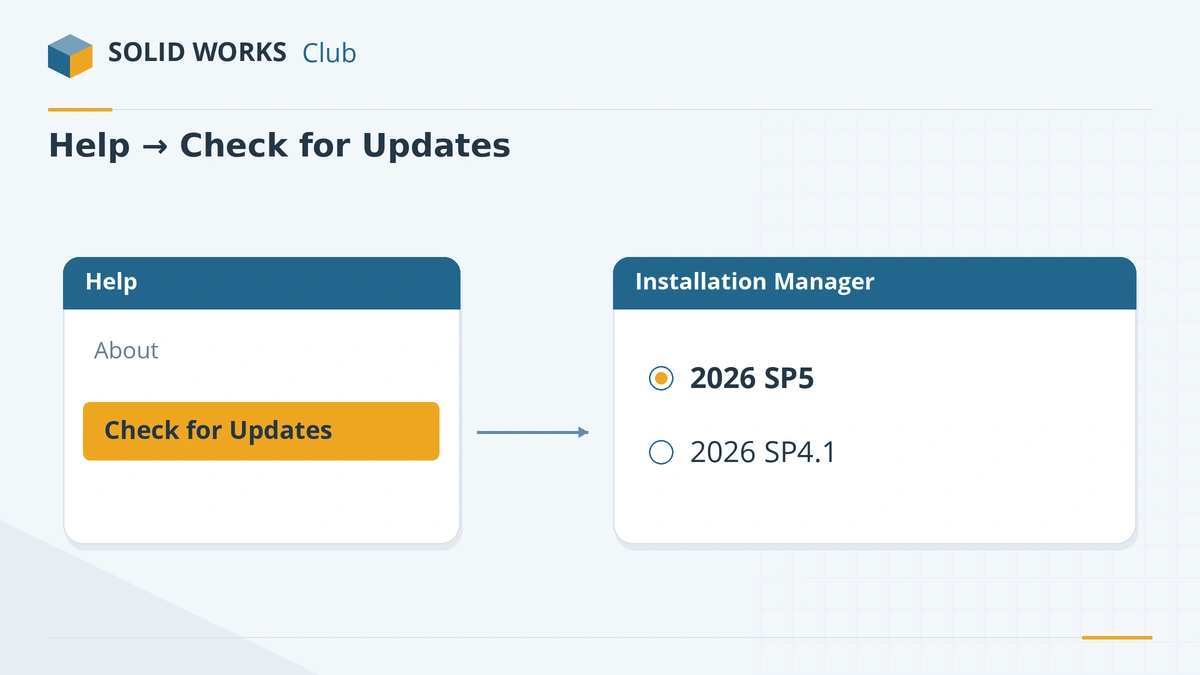
Check for Updates opens the Installation Manager with the available versions. -
4
Choose upgrade or new instance (major versions)
For a new major version the Installation Manager asks whether to upgrade the existing installation or install a new instance alongside it. A side-by-side install lets you keep the old version for files you must send to customers.
-
5
Review the Summary and install
Check products, download folder and Toolbox options, then Download and Install. A service pack replaces the previous one of the same version (SP1 replaces SP0).
-
6
Reactivate if asked
After a major upgrade SOLIDWORKS may ask you to activate again. Network offices must upgrade the SolidNetWork License Manager before the clients — see license errors.
Common mistakes
- Upgrading a major version in the middle of a project while suppliers or colleagues stay on the old one — they cannot edit your new files.
- Upgrading the Toolbox shared by an older version. Toolbox upgrades cannot be undone.
- Staying on SP0 of a new release. Many companies wait for SP1 or later before a major upgrade.
Sources
- SOLIDWORKS — Support lifecycle and service pack schedule
- SOLIDWORKS — Technical alerts & news
- Hawk Ridge — SOLIDWORKS service packs best practices
- GoEngineer — Upgrade SOLIDWORKS to a newer version
- Hawk Ridge — How to download SOLIDWORKS
- SOLIDWORKS 2026 Installation Guide (PDF, German edition)
- PLM Group — Download installation files with Check for Updates
- SOLIDWORKS — General hotfixes
- Solid Solutions — 10 things to do before upgrading to SOLIDWORKS 2026 (Dec 2025)
Checked November 2026. SOLID WORKS Club is independent; menu names can differ slightly between releases.
Frequently asked questions
How often does SOLIDWORKS release service packs?
+
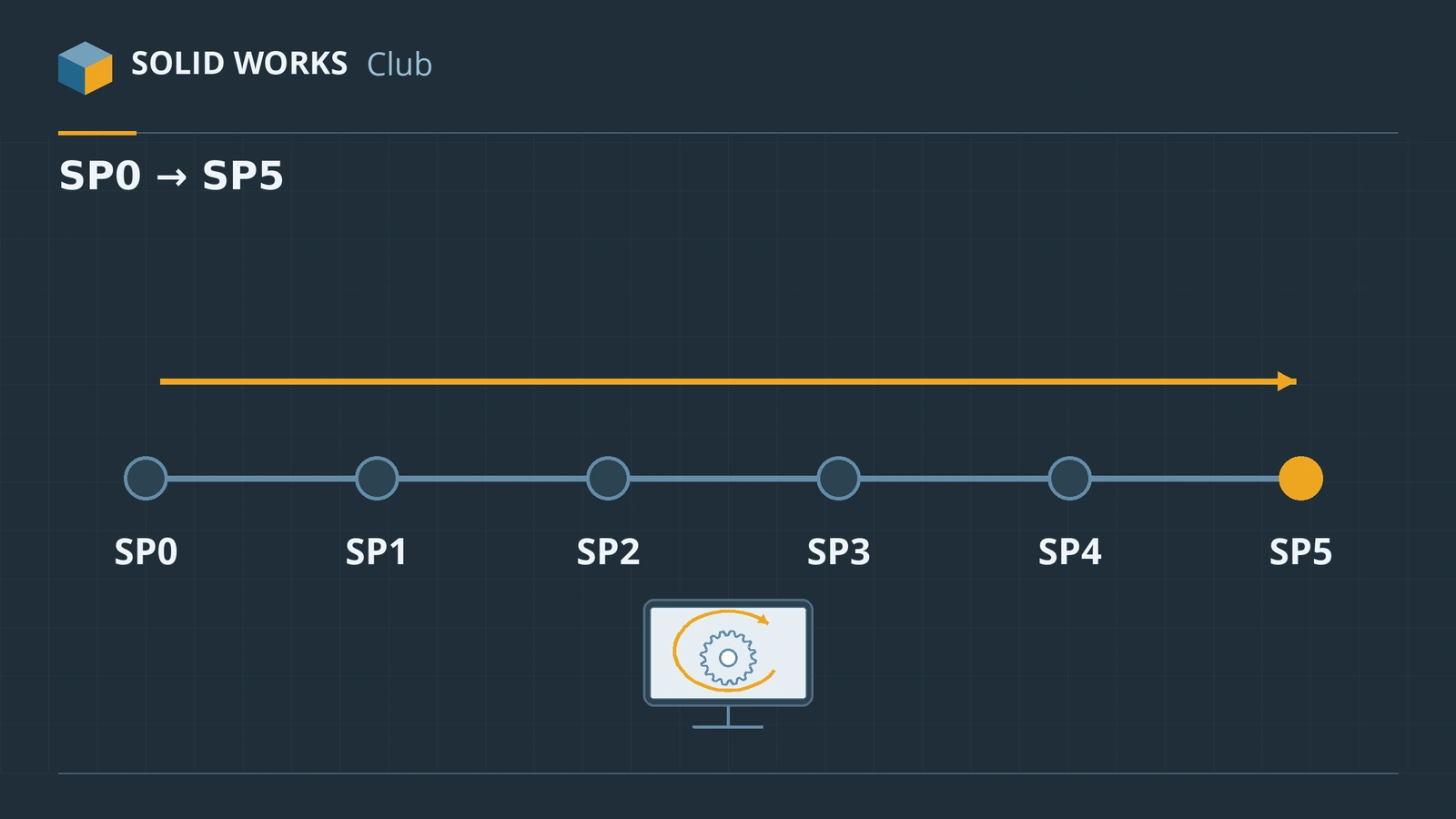
Each version starts with SP0 in the autumn (mid-November for 2025 and 2026), followed by service packs every two to three months up to SP5. Intermediate builds such as SP4.1 fix urgent problems.
Do service packs change the file format?
+
No. Files saved in 2026 SP4 open normally in 2026 SP0. Only a new major version changes the format.
Do I need a subscription to update SOLIDWORKS?
+
Yes. Service packs and new versions are available to customers with an active subscription. Perpetual licenses without subscription keep the last version they were entitled to.
What is a SOLIDWORKS hotfix?
+
A fix for a business-critical problem affecting few users, provided on request for the latest service pack of a release while that release is in its hotfix period. Later service packs include it.
Related
- SOLIDWORKS release schedule: service packs, FD releases and supportWhen SOLIDWORKS releases come out — Preview, PR, SP0 to SP5 and the FD releases since 2026 — plus support end dates and the best time to upgrade.
- SOLIDWORKS version compatibility: will my file open?Check whether a SOLIDWORKS file opens in another version. Save as previous version (2024+), Future Version mode and STEP explained, with a free checker.
- How to install SOLIDWORKS step by stepInstall SOLIDWORKS step by step — download SolidWorksSetup.exe, run the Installation Manager, enter your serial, choose products and folders, then activate.
- SOLIDWORKS versions and the latest releaseThe latest SOLIDWORKS version is 2026 (2027 is in pre-release). Every release from 2020 to 2027 with dates, Windows support and end of support.