Errors & Fixes
SOLIDWORKS running slow — how to speed it up
SOLIDWORKS gets slow for three different reasons, and each has its own fix: the model is heavy (long rebuilds), the graphics are struggling (laggy rotation), or the files travel over a slow network (slow opening and saving). Find out which one you have first — SOLIDWORKS can tell you exactly which features eat rebuild time — then change only the settings that matter.
 Kevin Walsh
Applies to: SOLIDWORKS 2022–2027. Option names from Tools → Options in 2025–2026.
Most likely causes
- Heavy features: threads, patterns, in-context references, complex fillets (slow rebuilds)
- Large assemblies opened fully resolved with high image quality (slow opening)
- Integrated graphics, uncertified driver or Software OpenGL left on (laggy rotation)
- Files, backups or auto-recover on a network drive, VPN or sync folder (slow open/save)
- Too little RAM — Windows swaps to disk (slow everything)
- Slow add-ins and background indexing (slow start-up)
Which kind of slow do you have?
| Symptom | Bottleneck | Start with |
|---|---|---|
| Every change takes ages to rebuild | Processor and model complexity | Fixes 1–2, CPU guide |
| Rotating, zooming and panning stutter | Graphics card or driver | Fixes 6–7, graphics cards |
| Opening and saving take minutes | Network, VPN, disk | Fixes 8–10 |
| Everything gets slower over a session | Memory, GDI objects | Fix 11, low memory |
| Start-up alone takes minutes | Add-ins, licensing, network paths | Fix 9 |
The settings that matter most
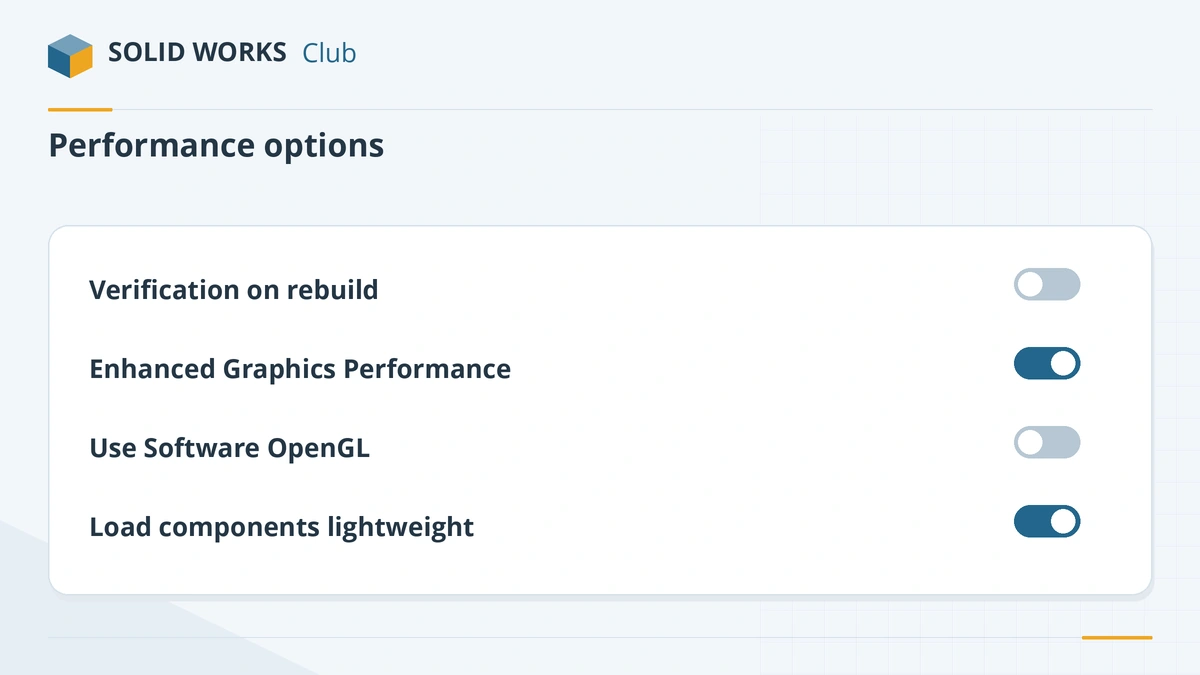
Changing many options at once makes it hard to see what helped. Change one, test with the same model, and keep a note. Large assembly resellers recommend these in particular:
- Verification on rebuild off.
- Load components lightweight on, with Large Assembly Mode for big assemblies.
- Image quality moderate, applied to referenced parts.
- Enhanced Graphics Performance on (with a certified driver), Software OpenGL off.
Modelling habits that keep files fast
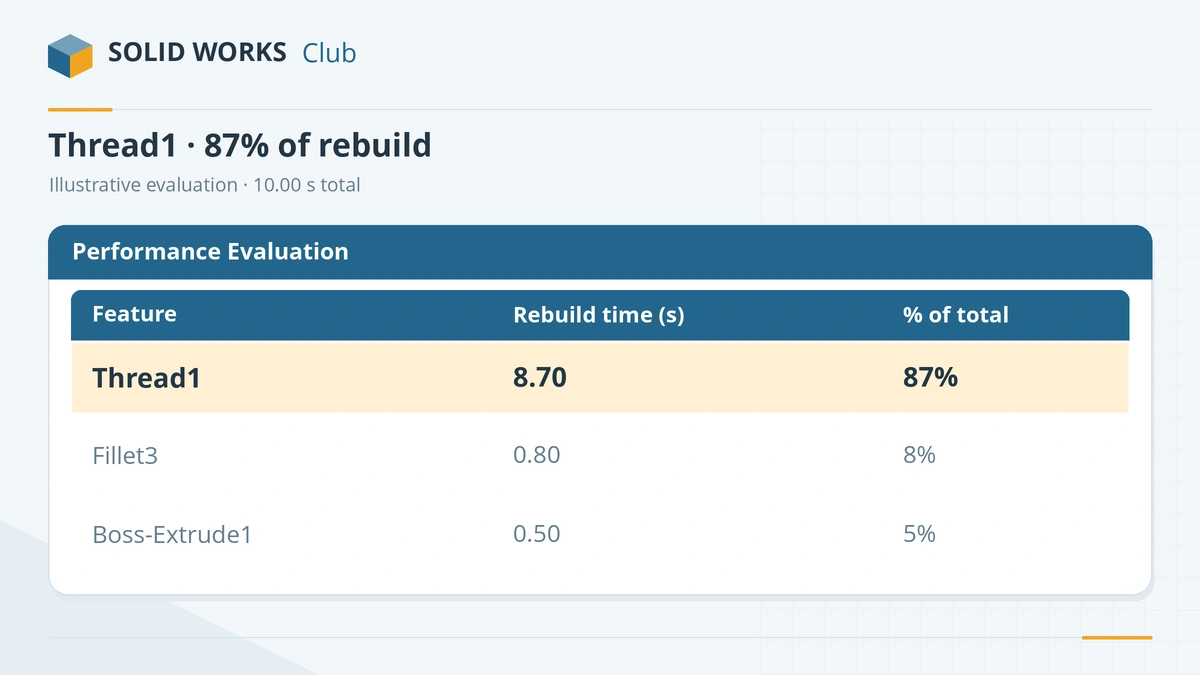
- Use cosmetic threads instead of modelled helical threads. In the SOLIDWORKS team's own example, one thread feature took 87% of a part's rebuild time.
- Avoid unnecessary in-context references in assemblies; lock or break them when the design is settled.
- Pattern the feature, not the body, and keep pattern counts sensible.
- Add fillets and cosmetic features last so that edits higher up do not rebuild them over and over.
- Split very large assemblies into subassemblies and use SpeedPak or simplified configurations at the top level.
If upgrades are on the table, our system requirements guide and PC build guide show what makes the most difference for each kind of work.
Modelled threads are a common cause of slow parts — compare cosmetic threads and the Thread feature.
Faster patterns: see the performance notes in Linear Pattern; lighter variants with configurations.
Big assemblies: Large Design Review and lightweight and SpeedPak.
Fixes, in order
1. Run Performance Evaluation on the slow model
With the part or assembly open, go to the Evaluate tab of the CommandManager → Performance Evaluation. It lists the rebuild time of each feature and its share of the total. Suppress or simplify the worst offenders: cosmetic threads instead of modelled threads, fewer pattern instances, fillets added last.
2. Turn off Verification on rebuild
Tools → Options → System Options → Performance → Verification on rebuild: off. It runs extra geometry checks on every rebuild. Turn it on only when you are hunting a rebuild error.
3. Use Large Assembly Mode and lightweight components
System Options → Assemblies: tick Use Large Assembly Mode and set the component count that triggers it. Also in Performance, set Load components lightweight. Large Assembly Mode switches off costly display effects such as RealView. For reviews, open with Large Design Review; for top-level work, use SpeedPak or simplified configurations of subassemblies.
4. Lower image quality
Tools → Options → Document Properties → Image Quality: move the shaded slider towards the middle or lower and tick Apply to all referenced part documents. High tessellation makes files bigger and rotation slower, especially with curved parts.
5. Change open and rebuild options
Set Rebuild assembly on load to Prompt, turn off shaded previews in the open dialog, and in drawings load only the sheets you need. Turn off Level of detail (or set it to Less).
6. Check Enhanced Graphics Performance and Software OpenGL
In System Options → Performance, Enhanced Graphics Performance (on by default since 2021) speeds up display on certified cards — it needs a restart to change. Make sure Use Software OpenGL is off; it makes everything slow and greys out RealView.
7. Make a laptop use the dedicated GPU
Windows 11: Settings → System → Display → Graphics, add
SLDWORKS.exe, set High performance. Plug monitors into the ports of the dedicated card. See best GPU for SOLIDWORKS.8. Work locally, not over the network
SOLIDWORKS writes temporary files next to the files you open, so a network folder slows every save. Copy the files to a local SSD (or use the PDM local cache) and test. Point the Backup and Auto-recover folders to the local
C:drive.9. Turn off what runs in the background
Set SOLIDWORKS Search indexing to idle-only or off, turn off the news feed, and untick add-ins you do not use (Tools → Add-Ins; check the Last Load Time column).
10. Clean temp and backup folders
SOLIDWORKS Rx → System Maintenance → Start Maintenance. It clears the SOLIDWORKS backup and temp folders and Windows temp files.
11. Check memory use
Watch Task Manager while you work. If memory is near 100% and the disk is busy, Windows is paging and you need more RAM — the official requirement is 16 GB minimum and 32 GB recommended. See how much RAM SOLIDWORKS needs.
12. Run the Performance Benchmark
SOLIDWORKS Rx → Benchmark times processor, graphics and disk tasks (all scores in seconds — lower is better). Restart first and close other programs; it can take 30 minutes. Compare your results with shared scores to see which part of the PC holds you back.
Sources
- Javelin — Evaluate and improve SOLIDWORKS performance
- CATI — Improving large assembly performance: SOLIDWORKS settings
- SOLIDWORKS Tech Blog — Top 10 tips for large assemblies
- GoEngineer — SOLIDWORKS 2021 Enhanced Graphics Performance
- CADimensions — The Use Software OpenGL setting
- Hawk Ridge — Slow SOLIDWORKS performance on the network
- SPK — Slow SOLIDWORKS performance: general troubleshooting
- Javelin — Slow SOLIDWORKS startup (add-in load times)
- Javelin — Improve SOLIDWORKS graphics performance on laptops (Jul 2024)
- Javelin — SOLIDWORKS hardware performance benchmark (Feb 2025)
- SOLIDWORKS — Share your score (benchmark results)
- SOLIDWORKS Tech Blog — Complete guide to using SOLIDWORKS Rx
- SOLIDWORKS system requirements
Checked November 2026. SOLID WORKS Club is independent; menu names can differ slightly between releases.
Frequently asked questions
Why is SOLIDWORKS so slow on my new computer?
+
Common reasons are a laptop running SOLIDWORKS on integrated graphics, a graphics driver that is not the certified one, Software OpenGL left on, or files opened from a network or sync folder. Large models also run slowly with Verification on rebuild switched on.
Does SOLIDWORKS use multiple CPU cores?
+
Rebuilding a single part is mostly single-threaded, so a processor with a high clock speed matters most. Some tasks — such as rendering, simulation and some drawing work — use more cores.
How do I find which feature slows down my part?
+
Use Performance Evaluation on the Evaluate tab. It lists every feature's rebuild time and its share of the total, sorted so the slowest ones are easy to spot.
What is Large Assembly Mode?
+
A set of performance settings that SOLIDWORKS turns on when an assembly has more components than the limit you choose. It turns off costly display options, such as RealView, to keep big assemblies responsive.
Related
- SOLIDWORKS low memory and low resources warnings"Available system memory is low" or "open document capacity is low" in SOLIDWORKS? What the Resource Monitor measures, GDI objects, and how to fix it.
- SOLIDWORKS not responding or freezing — how to fix itSOLIDWORKS freezing or showing "Not Responding"? Find the cause with SOLIDWORKS Rx safe modes, then fix drivers, settings, add-ins and network files.
- Best CPU for SOLIDWORKS in 2026Why SOLIDWORKS needs a fast CPU rather than many cores, the best Intel and AMD processors for modelling and simulation in 2026, and why ARM is not supported.
- SOLIDWORKS certified graphics cards and driversWhich graphics cards are certified for SOLIDWORKS 2026, why GeForce cards are not, how to find the certified driver for your card, and what RealView needs.