Errors & Fixes
SOLIDWORKS low memory and low resources warnings
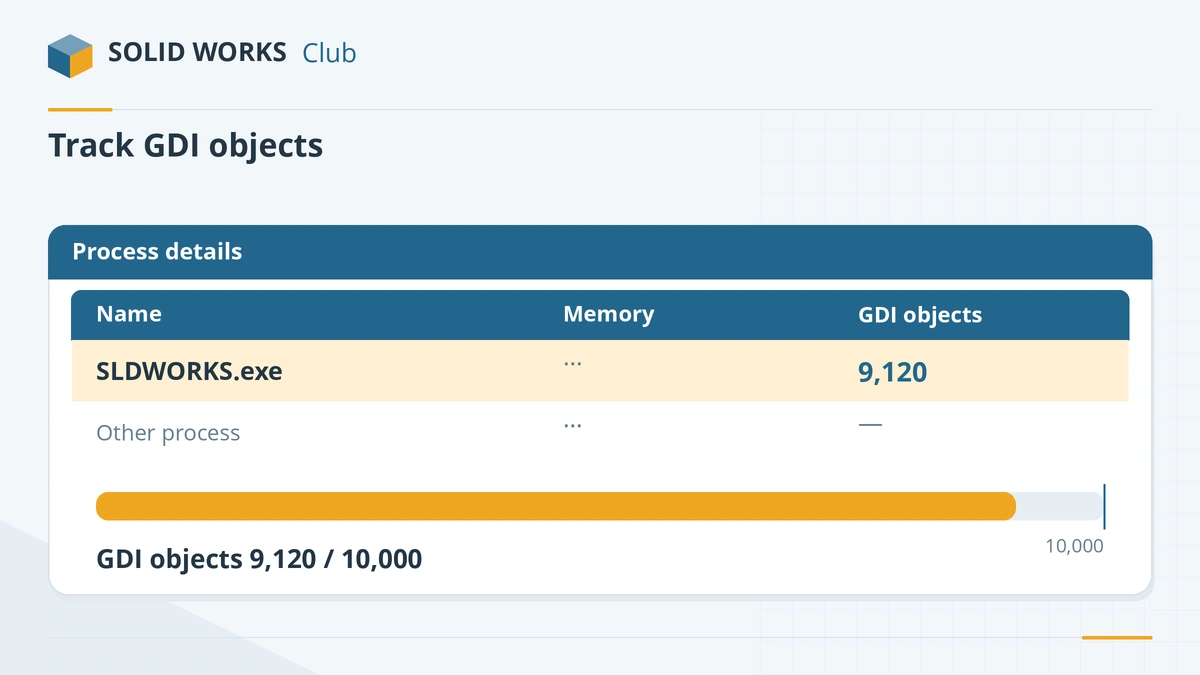
The SOLIDWORKS Resource Monitor watches four things: physical memory, virtual memory, and two kinds of Windows objects (USER and GDI) that every open window, toolbar and document uses. When one of them gets close to its limit, it warns you before SOLIDWORKS becomes unstable. The warning can appear even when Task Manager shows plenty of free RAM — in that case it is usually the GDI objects.
 Kevin Walsh

Applies to: SOLIDWORKS 2022–2027 on 64-bit Windows 10 and 11.
Most likely causes
- Too many open documents or drawing sheets (GDI objects near the 10,000 limit) ('document capacity' warning)
- Not enough RAM for the assembly — Windows paging to disk ('system memory' warning)
- Page file too small or switched off (common)
- Add-ins or macros that create many objects (GDI leak) (occasional)
- Other heavy programs open at the same time (occasional)
The two warnings mean different things
| Warning | What is running out | Typical fix |
|---|---|---|
| Available system memory is low | Physical RAM or virtual memory (commit) | Close programs, page file, add RAM |
| Available open document capacity is low | GDI / USER objects (per program) | Close documents, restart SOLIDWORKS |
| …Critically Low | Either, almost exhausted | Save now and restart |
The Resource Monitor has tracked these four resources since SOLIDWORKS 2010. Thresholds quoted by resellers differ slightly (about 80% of RAM; 85–90% of the GDI limit), so treat any warning as a signal to save.
Why it happens more with drawings
Every drawing sheet, view and open window costs GDI objects. A drawing with many sheets plus the assembly it shows, a few parts and an open browser can use a large share of the limit. Load only the sheets you need when opening big drawings, and close finished documents rather than keeping them minimised.
When it comes with freezes or crashes
If the warning is followed by freezing, see SOLIDWORKS not responding; if SOLIDWORKS closes, read SOLIDWORKS crashing and recover your work from the auto-recover folder. For general speed problems, see SOLIDWORKS running slow.
Fixes, in order
1. Save, then restart SOLIDWORKS
Save everything first. Closing documents does not always free GDI objects; restarting SOLIDWORKS resets the count. If you see Critically Low, save immediately — a crash is likely.
2. See which resource is low
Task Manager → Details, right-click a column header → Select columns → tick GDI objects. Watch SLDWORKS.exe: the default limit per process is 10,000, and resellers say the warning appears from about 85–90% of it. On the Performance tab check memory in use and the Committed figure.
3. Open fewer things at once
Close documents and drawing sheets you are not using, and close other programs. In large assemblies, open subassemblies lightweight, use Large Assembly Mode, or open with Large Design Review for viewing.
4. Set the page file to system-managed
System Properties → Advanced → Performance Settings → Advanced → Virtual memory → Change: tick Automatically manage paging file size for all drives. Older SOLIDWORKS advice used a custom size of twice the RAM; current reseller guidance recommends letting Windows manage it.
5. Add RAM
If physical memory is regularly above about 80% during your normal work, add memory. The official requirements are 16 GB minimum and 32 GB recommended; large assemblies and simulation need more — see how much RAM SOLIDWORKS needs.
6. Check add-ins and macros
If GDI objects stay near 10,000 even with no files open, something is leaking. Turn off add-ins and stop macros one by one, then report it to your reseller.
7. Raising the GDI limit (last resort)
Windows stores the per-process limit in the registry value GDIProcessHandleQuota. Raising it is a Windows change that SOLIDWORKS does not test or certify, and very high values can make Windows itself unstable. Do it only with IT, after a registry backup.
Sources
- SOLIDWORKS blog — Warning: SOLIDWORKS resources running low
- Javelin — SOLIDWORKS Resource Monitor warning
- GoEngineer — Fix: SOLIDWORKS resources running low
- Hawk Ridge — Low resource warning (Resource Monitor)
- SOLIDWORKS system requirements
- SOLIDWORKS Tech Blog — Top 10 tips for large assemblies
Checked November 2026. SOLID WORKS Club is independent; menu names can differ slightly between releases.
Frequently asked questions
Why does SOLIDWORKS say memory is low when I have free RAM?
+
The warning also covers GDI and USER objects — Windows resources used by every open window and document. SOLIDWORKS can reach the 10,000 GDI object limit with lots of RAM still free, typically with many documents or drawing sheets open.
How much RAM do I need to avoid low memory warnings?
+
The official minimum is 16 GB and 32 GB is recommended. Large assemblies, big drawings and simulation work benefit from 64 GB.
Can I turn off the Resource Monitor warning?
+
You can dismiss some notifications from the Resource Monitor icon in the Windows notification area, but hiding the warning does not fix the problem. Save your work when it appears.
What is a GDI object?
+
A Windows resource for drawing on screen — fonts, pens, bitmaps. Each program can use up to 10,000 by default. SOLIDWORKS uses many for its windows, toolbars and documents.
Related
- How much RAM does SOLIDWORKS need?SOLIDWORKS needs 16 GB of RAM minimum and 32 GB is recommended. How to size memory for your largest assembly, when 64 or 128 GB pays off, and ECC.
- SOLIDWORKS running slow — how to speed it upSpeed up a slow SOLIDWORKS with Performance Evaluation, large assembly settings, lightweight mode, image quality, local files and the right graphics setup.
- SOLIDWORKS not responding or freezing — how to fix itSOLIDWORKS freezing or showing "Not Responding"? Find the cause with SOLIDWORKS Rx safe modes, then fix drivers, settings, add-ins and network files.
- SOLIDWORKS keeps crashing — causes and fixesSOLIDWORKS crashing on start-up or while you work? Recover your file, read the crash logs, test with Rx safe modes and fix drivers, settings and installs.