Features · Lesson 12
SOLIDWORKS Cosmetic Thread
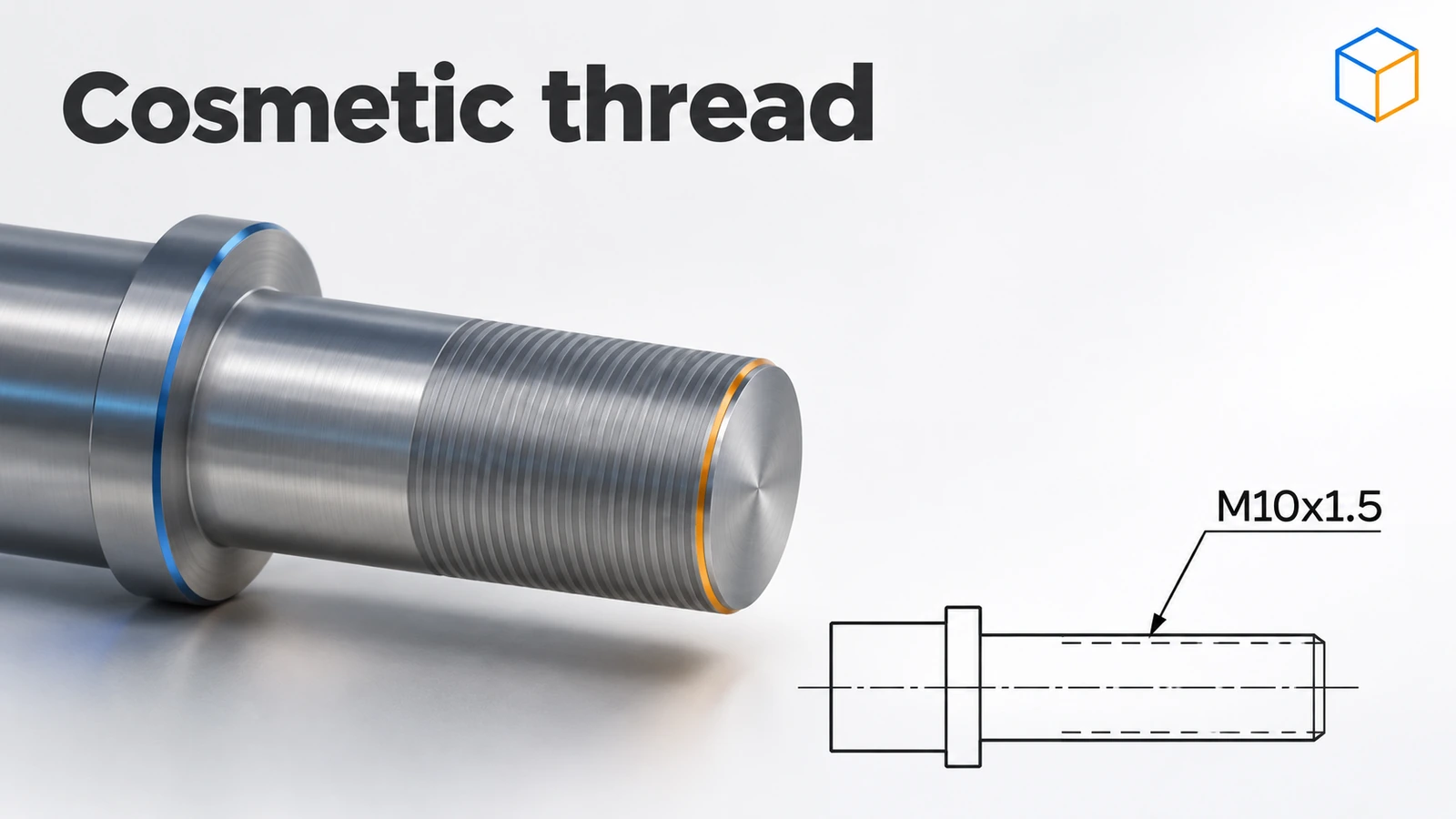
A cosmetic thread shows a thread without modelling it. It is a graphic and a set of data — standard, size, length — attached to a round face, so drawings show the correct thread symbol and callout while the model stays light and fast. For almost all mechanical design, cosmetic threads are the right choice; model real threads only when the geometry itself is needed, for example for 3D printing.
 Kevin Walsh
Where to find it
Insert → Annotations → Cosmetic Thread (or the Hole Wizard cosmetic thread option)
Cosmetic vs modelled threads
| Cosmetic thread | Thread feature / helical sweep | |
|---|---|---|
| Geometry | None — display and data | Real helical geometry |
| Rebuild time | Practically none | Large — in one reseller test the thread was 96% of a part's rebuild time |
| Drawing callout | Automatic | Must be added |
| 3D printing | Not printed | Printed |
| Best for | Almost all mechanical parts | Printed parts, renderings, unusual threads |
Since SOLIDWORKS 2019 cosmetic threads use a new architecture; older files can be upgraded through a document option. When you really need geometry, use the Thread feature.
Practise it: add cosmetic threads to the M10 bolt and nut.
Step by step
-
1
Make a shaft
Extrude a Ø10 circle on the Top Plane 30 mm up.
-
2
Add the cosmetic thread
Insert → Annotations → Cosmetic Thread. Select the circular edge at the top of the shaft. Choose the standard (ISO), type and size (M10), and the thread length.
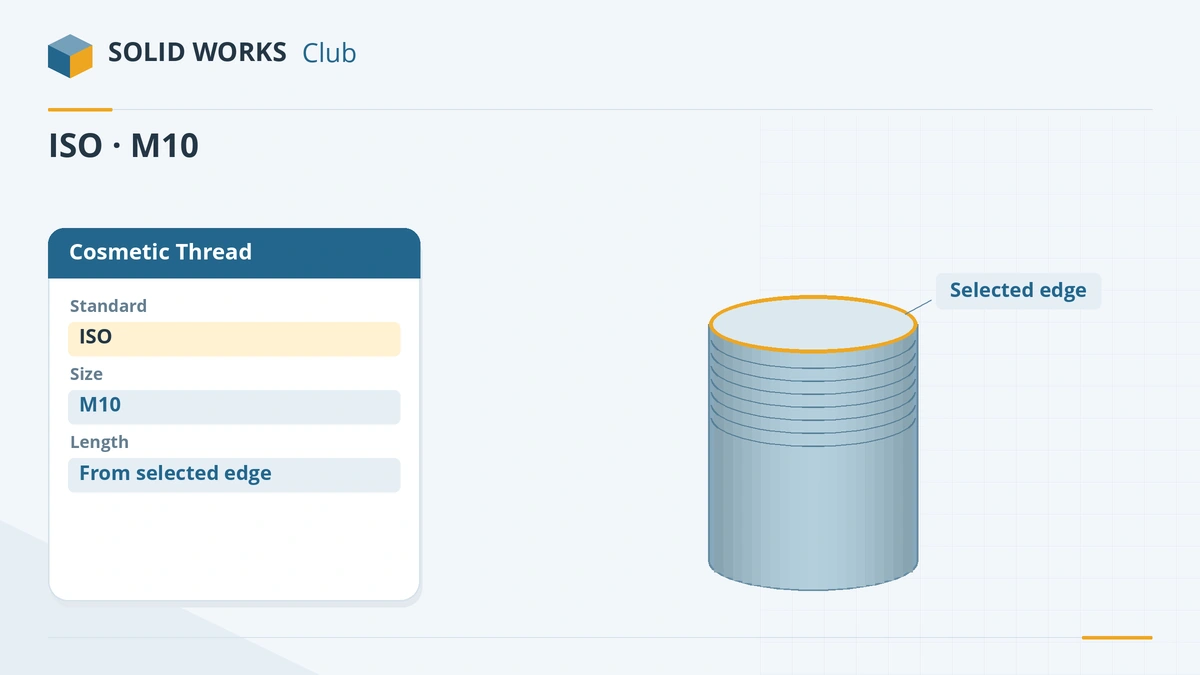
Pick the circular edge, then the standard, size and length. -
3
Show it shaded
If you see nothing, open Tools → Options → Document Properties → Detailing and turn on Cosmetic threads and Shaded cosmetic threads.
-
4
Check the geometry is unchanged
Mass Properties shows the same volume as before — the thread is a display, not a cut.
Common mistakes
- Threads not visible because the Detailing display options are off, or annotations are hidden.
- Expecting shaded threads in non-shaded drawing views — they only appear in shaded views.
- Modelling threads for every bolt in a big assembly. Cosmetic threads add no geometry and keep rebuilds fast.
- Old files with legacy threads — upgrade them only if you understand that it cannot be undone.
Lesson 12 of 18 in the features course.
Practice
Add an M10 cosmetic thread to a Ø10 × 30 mm shaft. Check: volume stays 2,356.19 mm³ before and after — the thread changes the display, not the solid.
Sources
- TriMech — How to use cosmetic threads
- SOLIDWORKS blog — Show cosmetic threads
- GoEngineer — Create custom cosmetic threads (2024)
- GoEngineer — Missing cosmetic threads: how to fix them
- GoEngineer — Cosmetic threads best practices
- GoEngineer — Cosmetic thread upgrades (2019)
- CATI — SOLIDWORKS threads compared
- GoEngineer — Performance: physical vs cosmetic threads
Checked November 2026. SOLID WORKS Club is independent; menu names can differ slightly between releases.
Frequently asked questions
Why are my cosmetic threads not showing?
+
Turn on Cosmetic threads and Shaded cosmetic threads in Document Properties → Detailing, make sure annotations are visible, and in drawings use a shaded view or insert them with Model Items.
Do cosmetic threads work on holes?
+
Yes. Tapped holes from the Hole Wizard can include a cosmetic thread automatically through the cosmetic thread option.
Do cosmetic threads slow SOLIDWORKS down?
+
No. They are graphics, not helical geometry, so they add almost no rebuild time — which is why resellers recommend them for large assemblies.
Where do the thread sizes come from?
+
From the same Hole Wizard database, so cosmetic threads and tapped holes use the same standards and sizes.
Related
- SOLIDWORKS Hole WizardHow to use the SOLIDWORKS Hole Wizard: hole types, standards, sizes and fit, the Type and Positions tabs, cosmetic threads, slots, favourites and Advanced Hole.
- SOLIDWORKS Thread featureHow to model real threads with the SOLIDWORKS Thread feature: die and tap profiles, cut or extrude, trim with faces, and keeping rebuilds fast.
- SOLIDWORKS running slow — how to speed it upSpeed up a slow SOLIDWORKS with Performance Evaluation, large assembly settings, lightweight mode, image quality, local files and the right graphics setup.
- SOLIDWORKS Extruded Boss/BaseHow to use Extruded Boss/Base in SOLIDWORKS: every end condition from Blind to Mid Plane, Direction 2, draft, thin features, Selected Contours and Merge result.