Features · Lesson 14
SOLIDWORKS Sweep
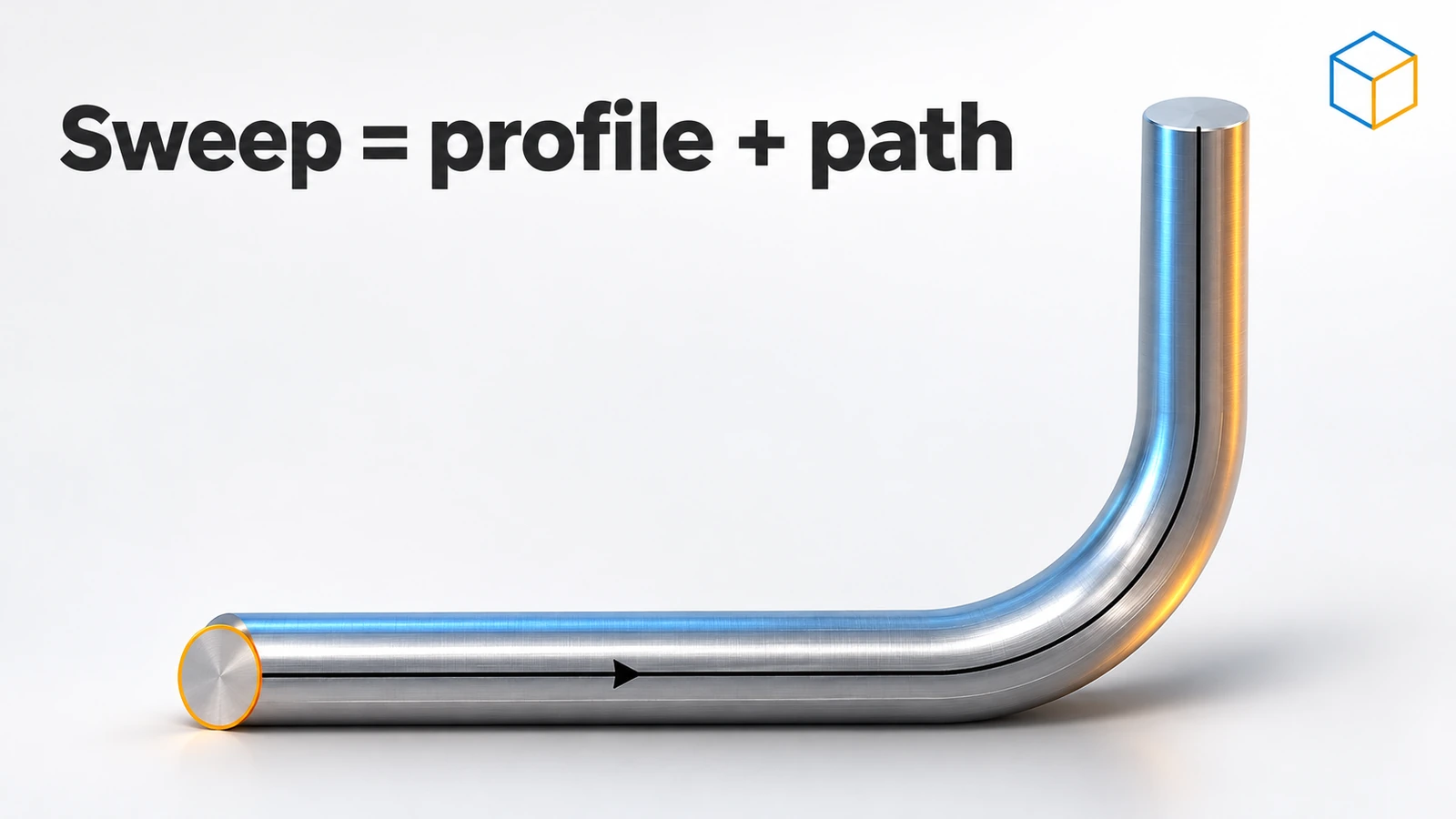
Sweep moves a profile along a path, like squeezing toothpaste along a curve. It makes pipes, handles, springs, wires and O-rings. You need two sketches: a closed profile and a path that crosses the profile's plane. For round sections you can skip the profile sketch entirely — since SOLIDWORKS 2016 a circular profile just needs a diameter.
 Kevin Walsh
Where to find it
Features tab → Swept Boss/Base; Swept Cut
Sweep options
| Option | What it does |
|---|---|
| Sketch Profile / Circular Profile | Sketched shape, or just a diameter (since 2016) |
| Solid Profile (Swept Cut only) | Sweeps a tool body — e.g. a cutter — along a path |
| Profile orientation | Follow Path (default) or Keep Normal Constant |
| Profile Twist | Twist along the path in degrees or revolutions |
| Guide Curves | Extra curves that change the profile's size or shape along the path |
| Thin Feature | Hollow sweep, e.g. a tube |
Tips
- Draw the path first, then put the profile on a plane at its start.
- Multiple guide curves can live in one sketch.
- For coiled springs, sweep along a helix; for threads, see Thread.
- Paths that bend in space come from a 3D sketch.
Practise it: the compression spring and swept handle exercises.
Practise it: the compression spring, the helical gear and the thread of the bottle.
When it fails: sweep and loft errors covers Pierce relations, self-intersection and guide curves.
Step by step
-
1
Sketch the path
On the Front Plane, starting at the origin, draw a horizontal line of 50 mm, a tangent arc of R20 turning 90° upward, and a vertical line of 50 mm. Fully define it and exit the sketch.
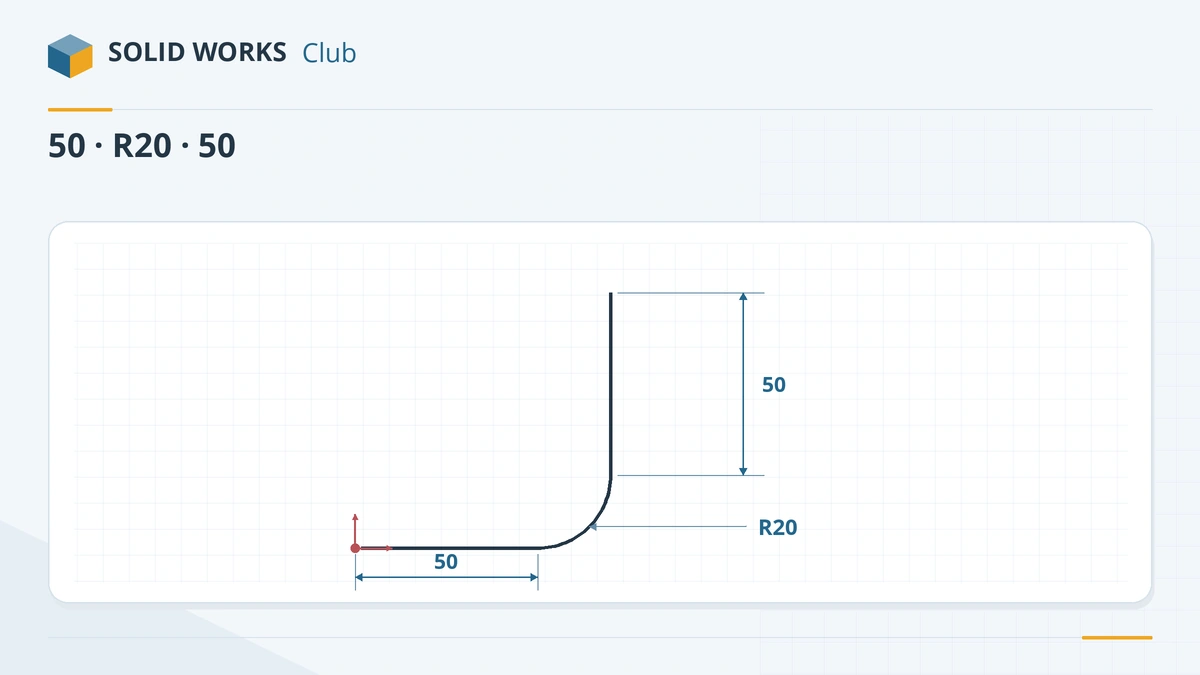
A path of two lines joined by a tangent arc. -
2
Start the sweep with a circular profile
Features → Swept Boss/Base. Choose Circular Profile, select the path and type a diameter of 10 mm. No profile sketch is needed.
-
3
Or use a sketched profile
For other shapes, sketch the profile on a plane normal to the start of the path (select the path's end point and the plane, or select the edge near its end and click Sketch), and add a Pierce relation between the profile centre and the path.
-
4
Confirm
Leave Profile orientation at Follow Path and click the tick. You get a bent rod.
Common mistakes
- The path does not cross the profile's plane. Add a Pierce relation from the profile to the path.
- A path with sharp corners and a profile too large for the bend radius — the sweep self-intersects and fails. Use tangent arcs larger than the profile radius.
- Self-intersecting profiles or paths are not allowed.
- Using Sweep for a straight section — Extrude is simpler.
Lesson 14 of 18 in the features course.
Practice
Sweep a Ø10 circular profile along the path above (50 mm line, R20 90° tangent arc, 50 mm line). Check: volume 10,321.38 mm³ — the circle's area times the path length (131.42 mm).
Sources
- Hawk Ridge — Sweep feature basics
- Javelin — How to use swept features (Oct 2026)
- Javelin — Sweep circular profile (2016)
- SOLIDWORKS Tech Blog — Advanced sweep techniques
- GoEngineer — SOLIDWORKS sweeps FAQ
- Javelin — Sweep with twist
- CATI — Tool body for a swept cut (Dec 2021)
- Javelin — Sketch normal to an edge
Checked November 2026. SOLID WORKS Club is independent; menu names can differ slightly between releases.
Frequently asked questions
What do I need for a sweep in SOLIDWORKS?
+
A closed profile and a path. The path can be open or closed and must cross the profile's plane. For round sections, Circular Profile needs only the path and a diameter.
What is the Pierce relation for?
+
It ties a point of the profile sketch to where the path passes through the profile's plane, so the profile always sits on the path.
What is the difference between Follow Path and Keep Normal Constant?
+
Follow Path keeps the profile at the same angle to the path as it bends. Keep Normal Constant keeps the profile parallel to its starting position.
Can I twist a sweep?
+
Yes. Profile Twist can specify a twist value in degrees or revolutions along the path, without needing a helix.
Related
- SOLIDWORKS LoftHow to use Lofted Boss/Base in SOLIDWORKS: profiles on offset planes, profile order, guide curves, end tangency, and fixing twisted lofts.
- 3D sketches in SOLIDWORKSHow to draw a 3D sketch in SOLIDWORKS: start it, switch planes with Tab, use the space handle and Along X/Y/Z relations, and build sweep paths.
- SOLIDWORKS Thread featureHow to model real threads with the SOLIDWORKS Thread feature: die and tap profiles, cut or extrude, trim with faces, and keeping rebuilds fast.
- SOLIDWORKS reference planesHow to create reference planes in SOLIDWORKS: offset, angled, mid plane, tangent to a cylinder, normal to an edge, several at once, and Ctrl-drag.