Advanced parts · Lesson 4
SOLIDWORKS Mirror and Mirror Part
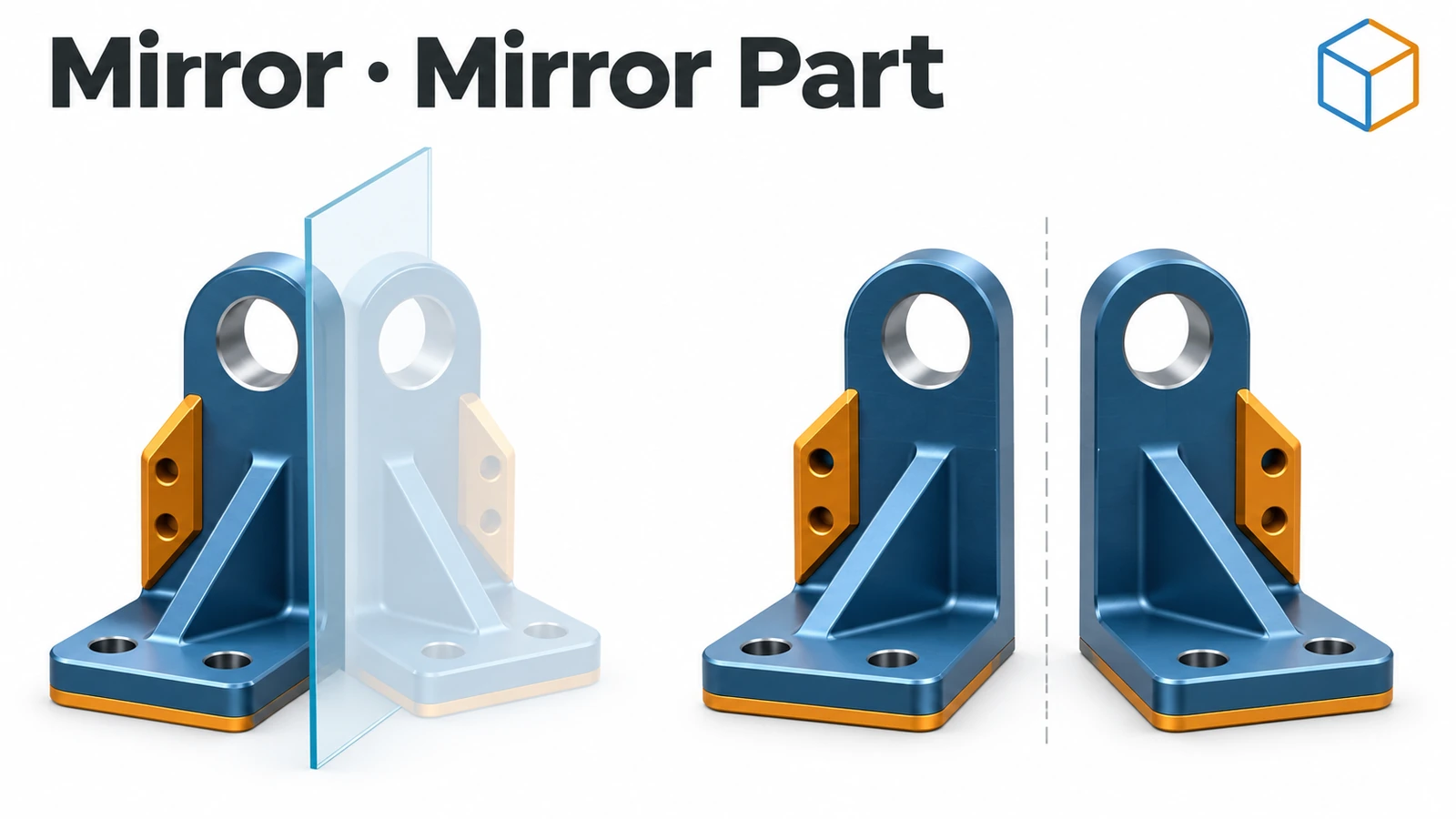
Mirror copies features, faces or whole bodies to the other side of a plane or planar face, so you model half of a symmetric part and let SOLIDWORKS make the rest. Since SOLIDWORKS 2022 a secondary mirror plane can mirror in two directions at once. For left- and right-hand versions of a part, Mirror Part creates a new, linked opposite-hand part file.
 Kevin Walsh
Where to find it
Features tab → Linear Pattern flyout → Mirror; Insert → Mirror Part
Mirror feature vs Mirror Part
| Mirror feature | Mirror Part | |
|---|---|---|
| Result | Symmetric geometry in the same part | New opposite-hand part file |
| Link | Feature in the tree | Derived part linked to the original |
| Transfers | — | Bodies, Hole Wizard data, sheet metal info, material, custom properties, sketches |
| Since | — | Material and appearance carry-over since 2018 |
Mirror inside a sketch is covered in Mirror Entities.
Mirroring components in an assembly: Mirror Components.
Step by step
-
1
Model one half
On the Front Plane sketch a 40 × 30 mm Corner Rectangle that starts on the origin and goes to the right, and extrude it 10 mm. Its left face lies on the Right Plane.
-
2
Mirror the body
Features → Mirror. Mirror Face/Plane: the Right Plane. Under Bodies to Mirror pick the block, and tick Merge solids so the halves join.
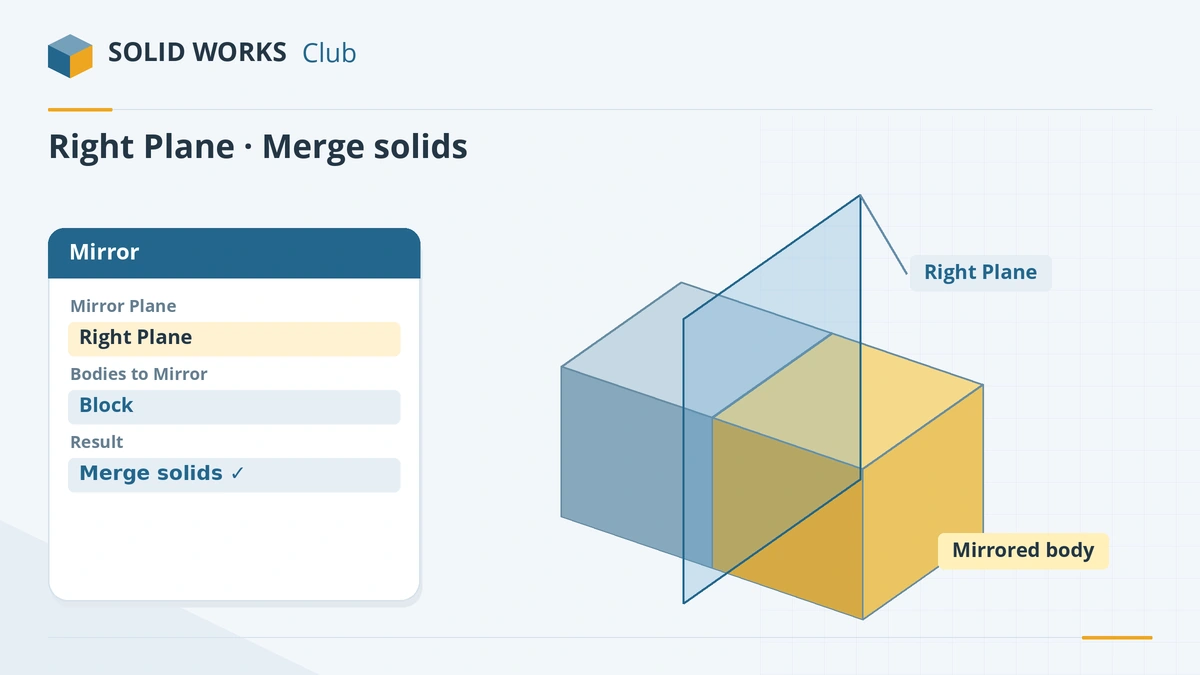
Mirror the whole body across the Right Plane and merge the halves. -
3
Make an opposite-hand part
Save the part. Select the Right Plane first, then Insert → Mirror Part. Choose what to transfer (bodies, material, Hole Wizard data), confirm, and save the new part — it is linked to the original.
Common mistakes
- Merge solids ticked when the halves do not touch — there is nothing to merge.
- Forgetting to pick the plane before Insert → Mirror Part, so the command is greyed out.
- Breaking the link of a mirror part — it cannot be restored.
- Mirroring features one by one when the whole body is symmetric. Mirror the body.
Lesson 4 of 16 in the advanced parts course.
Practice
Mirror the 40 × 30 × 10 mm half block about the Right Plane with Merge solids. Check: one body of 24,000 mm³, centred on the Right Plane.
Sources
- Javelin — How to use patterns in SOLIDWORKS (Jun 2026)
- Javelin — How to use SOLIDWORKS mirror tools (Sep 2022)
- SOLIDWORKS Tech Blog — Opposite-hand parts with Mirror Part (2018)
- Javelin — Opposite-hand mirror parts (Jan 2023)
- CATI — SOLIDWORKS 2018 pattern enhancements
Checked November 2026. SOLID WORKS Club is independent; menu names can differ slightly between releases.
Frequently asked questions
How do I mirror a part in SOLIDWORKS?
+
To mirror geometry within the part, use the Mirror feature with a plane and the features or bodies to mirror. To make a separate opposite-hand part, select a plane and use Insert → Mirror Part.
What does Merge solids do?
+
It joins the mirrored body to the original when they touch, giving one body instead of two.
Does a mirrored part update when the original changes?
+
Yes, Mirror Part creates a derived part linked to the original. Breaking the link makes it independent, and that cannot be undone.
Can I mirror in two directions at once?
+
Yes, since SOLIDWORKS 2022 the Mirror feature has a secondary mirror plane, so one feature can make four copies.
Related
- SOLIDWORKS Linear PatternHow to use Linear Pattern in SOLIDWORKS: one or two directions, spacing, Up to reference, skipping and varying instances, and Geometry pattern.
- Mirror sketch entities in SOLIDWORKSHow to mirror sketch geometry in SOLIDWORKS with Mirror Entities and Dynamic Mirror, choose a centerline, line, edge or plane, and keep the halves symmetric.
- SOLIDWORKS multibody partsWhat multibody parts are in SOLIDWORKS, how Merge result and Feature Scope work, Save Bodies to make an assembly, and when an assembly is better.
- SOLIDWORKS configurationsHow to use configurations in SOLIDWORKS: add them, change dimensions and suppress features per configuration, configuration tables and display states.