Sketching · Lesson 15
Mirror sketch entities in SOLIDWORKS
Mirror Entities copies sketch geometry to the other side of a line and ties each pair with Symmetric relations, so the two halves always match. Draw half of a symmetric shape, mirror it, and you dimension only one side. Dynamic Mirror goes a step further: it mirrors as you draw.
 Kevin Walsh
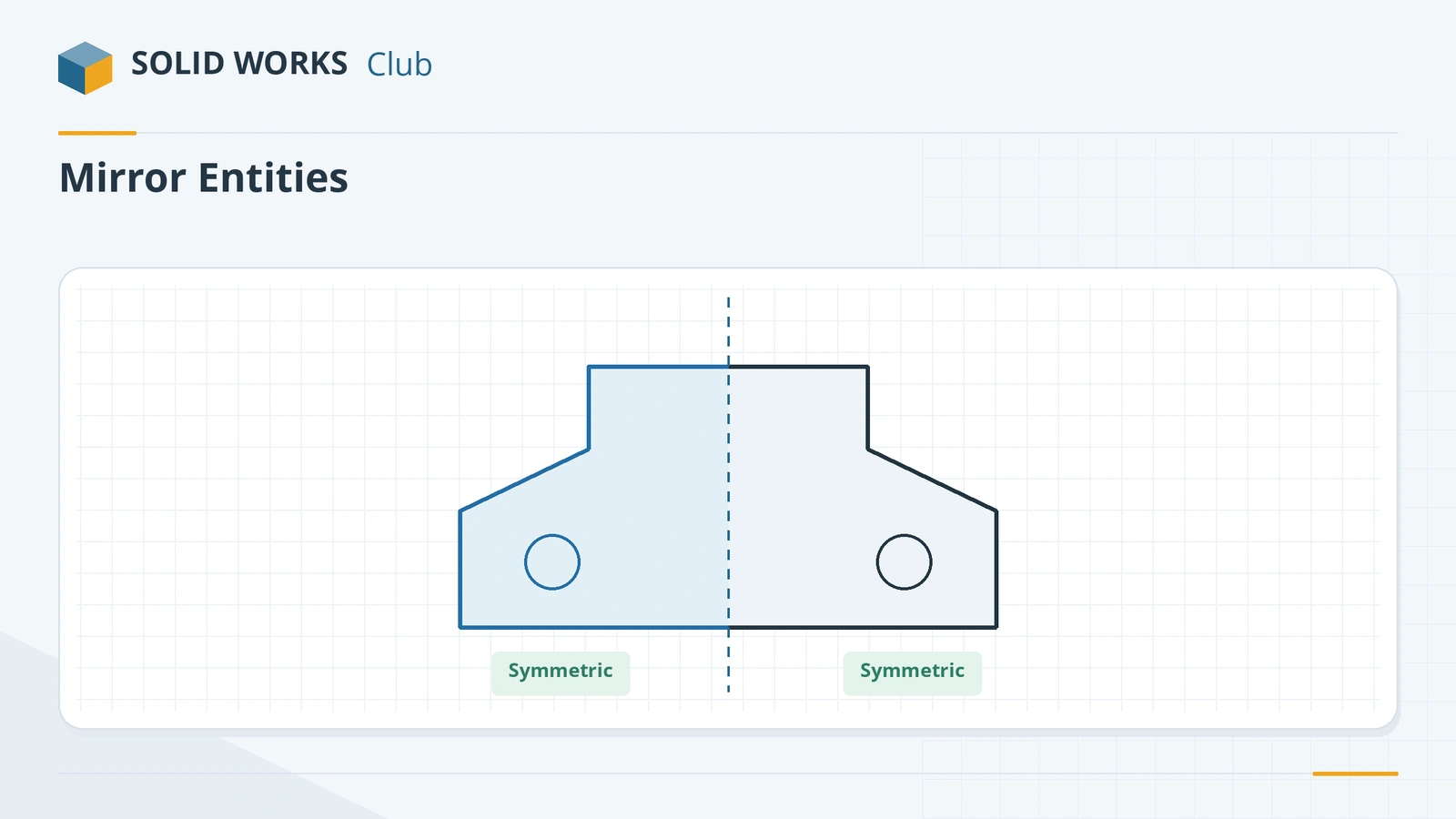
Where to find it
Sketch tab → Mirror Entities; Tools → Sketch Tools → Dynamic Mirror
Mirror Entities vs Dynamic Mirror
| Mirror Entities | Dynamic Mirror | |
|---|---|---|
| When | After you draw | While you draw |
| Where | Sketch tab | Tools → Sketch Tools (add it to the CommandManager if you use it often) |
| Mirror about | Centerline, line, model edge or plane | Same since 2018; centerlines only before |
| Result | Copies with Symmetric relations | Mirrored entities as you sketch |
For many copies in a row or ring rather than a mirror image, use sketch patterns.
Step by step
-
1
Draw the centerline
On the Front Plane draw a vertical Centerline from the origin upward.
-
2
Draw half the shape
With the Line tool draw the right half of a trapezoid: from the origin 30 mm to the right, up 30 mm to a point 15 mm from the centerline, then back to the centerline. Dimension it.
-
3
Mirror
Click Mirror Entities. In Entities to mirror pick the three lines; in Mirror about pick the centerline. Click the tick.
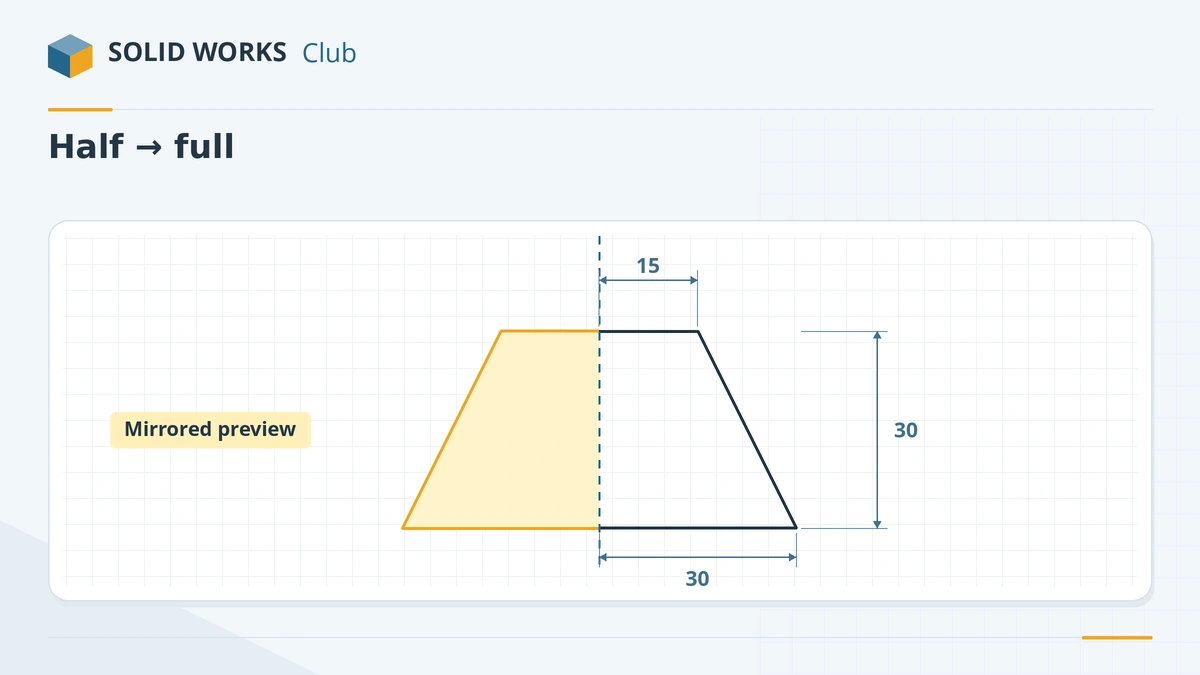
Draw one half, then mirror it about the centerline. -
4
Check symmetry
Change the 30 mm base half-width to 35 — the left side follows. The shape stays symmetric because of the Symmetric relations.
Common mistakes
- Drawing both halves and dimensioning each. Mirror one half instead.
- Mirroring about a normal line that then becomes part of the profile. Use a centerline, or switch the line to construction.
- Leaving the centerline floating. Start it on the origin so the whole sketch is positioned.
Lesson 15 of 17 in the sketching course.
Practice
Build the trapezoid above (base 60, top 30, height 30, mirrored about a vertical centerline through the origin) and extrude it 10 mm. Check: volume 13,500 mm³.
Sources
- GoEngineer — Mirror Entities and Dynamic Mirror
- Javelin — How to use SOLIDWORKS mirror tools (Sep 2022)
- CATI — Dynamic Mirror improvements (2018)
- SOLIDWORKS Help 2024 — Converting sketch entities to construction geometry
- GoEngineer — SOLIDWORKS sketch relations guide (Feb 2025)
Checked November 2026. SOLID WORKS Club is independent; menu names can differ slightly between releases.
Frequently asked questions
How do I mirror a sketch in SOLIDWORKS?
+
Click Mirror Entities, select the entities to mirror, then select a centerline, line, model edge or plane to mirror about, and confirm.
What is Dynamic Mirror?
+
A mode that mirrors entities while you draw them. Select a centerline, choose Tools → Sketch Tools → Dynamic Mirror, and draw on one side; the other side appears automatically. Click the command again to stop.
Can I mirror about a model edge?
+
Yes. Mirror Entities can use a sketch line, a centerline, a model edge or a plane. Since 2018 Dynamic Mirror accepts the same types.
Should I mirror in the sketch or with a Mirror feature?
+
Mirror in the sketch for symmetric outlines. Mirror features (in the Features tab) for whole features or bodies, which is usually faster to rebuild for complex shapes.
Related
- Linear and circular sketch patternsHow to use linear and circular sketch patterns in SOLIDWORKS: spacing, instances, angle, editing a pattern, and when a feature pattern is the faster choice.
- Construction geometry and centerlinesHow construction geometry works in SOLIDWORKS: centerlines, For construction, converting entities, and using them as mirror lines, revolve axes and references.
- SOLIDWORKS sketch relationsAll SOLIDWORKS sketch relations explained: horizontal, coincident, tangent, equal, symmetric, fix and more, plus how to add, view and delete them.
- SOLIDWORKS Offset EntitiesHow to use Offset Entities in SOLIDWORKS: offset sketch lines, edges and faces by a distance, reverse, both directions, cap ends and construction base.