Reference
SOLIDWORKS keyboard shortcuts
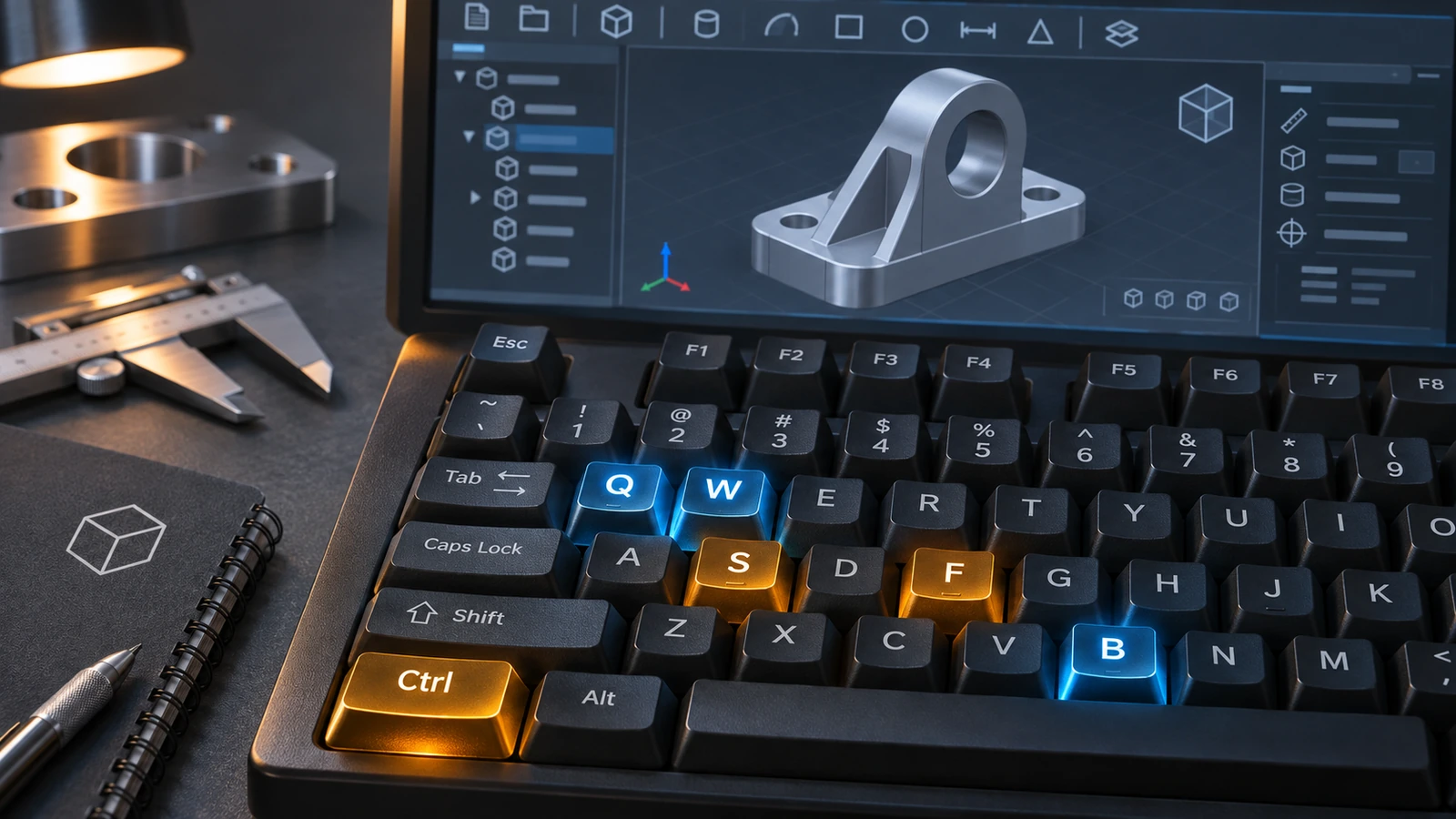
The SOLIDWORKS shortcuts worth learning first are Ctrl+B and Ctrl+Q to rebuild, Ctrl+1 to Ctrl+8 for standard views, F to zoom to fit, S for the shortcut bar, W to search commands and Enter to repeat the last command. Below is every default shortcut we could confirm, searchable and as a one-page PDF. You can change any of them in Tools → Customize → Keyboard.
 Kevin Walsh
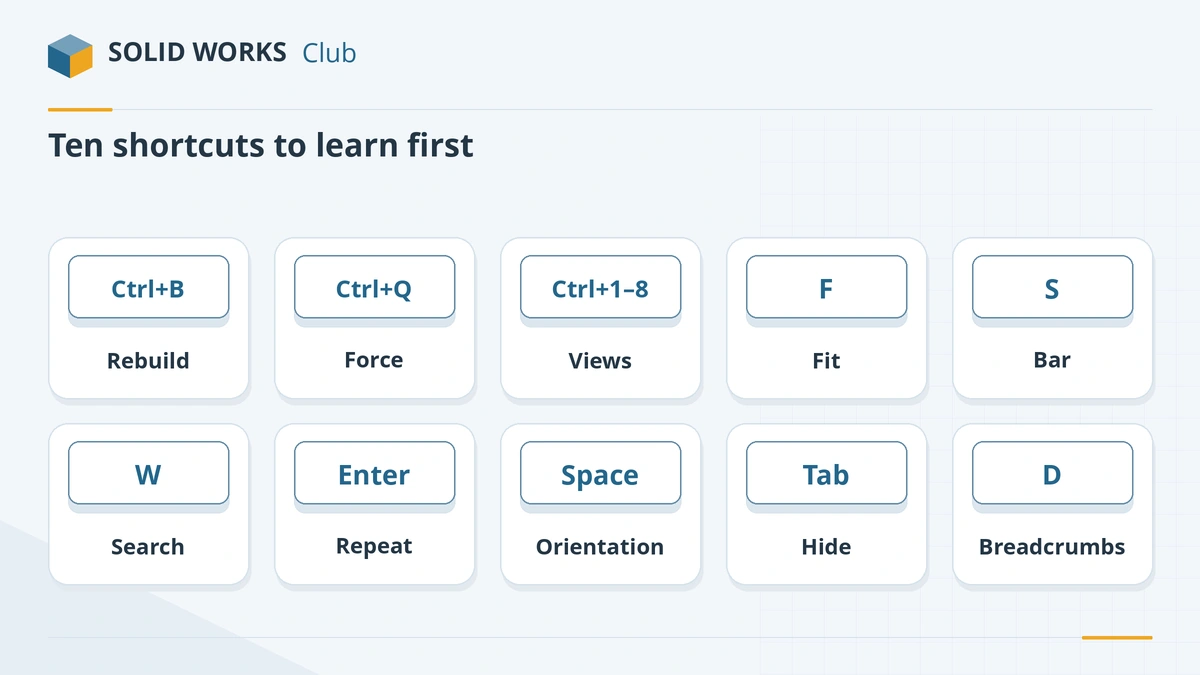
The 10 to learn first
| Keys | What it does | Why it matters |
|---|---|---|
| Ctrl + B | Rebuild | Updates changed features after an edit |
| Ctrl + Q | Force rebuild | Rebuilds everything — use when something looks wrong |
| Ctrl + 1…8 | Standard views | Front, back, left, right, top, bottom, isometric, normal to |
| Spacebar | Orientation dialog | All views, including saved ones |
| F | Zoom to fit | Brings the whole model back into view |
| S | Shortcut bar | Your favourite commands at the pointer — see the S key |
| W | Search commands | Find any command by name |
| Enter | Repeat last command | Fillet after fillet without clicking |
| Tab | Hide component under the pointer | Look inside assemblies quickly |
| D | Bring OK/Cancel to the pointer | Less mouse travel |
How we checked these shortcuts
The searchable list at the top of this page includes only default shortcuts. We confirmed them against a list printed from SOLIDWORKS' own default settings (Javelin) and at least one other source: the official SOLIDWORKS blog, SOLIDWORKS Help, or reseller references from GoEngineer, CATI and Hawk Ridge Systems. Many lists online mix in customised keys — such as C for Circle or T for Trim — which are not defaults. Shortcuts we could not confirm (for example Ctrl+F2 for the Welcome dialog) are left out. Checked 2026-11-06.
Mouse shortcuts
| Mouse | Action |
|---|---|
| Middle button drag | Rotate (pan in drawings) |
| Ctrl + middle drag | Pan |
| Shift + middle drag | Zoom |
| Alt + middle drag | Roll about the axis normal to the screen |
| Mouse wheel | Zoom about the pointer |
| Double-click middle button | Zoom to fit |
| Right button drag | Mouse gesture |
Mouse gestures — the radial menu you get with a right-button drag — are explained in SOLIDWORKS mouse gestures.
Customise your shortcuts
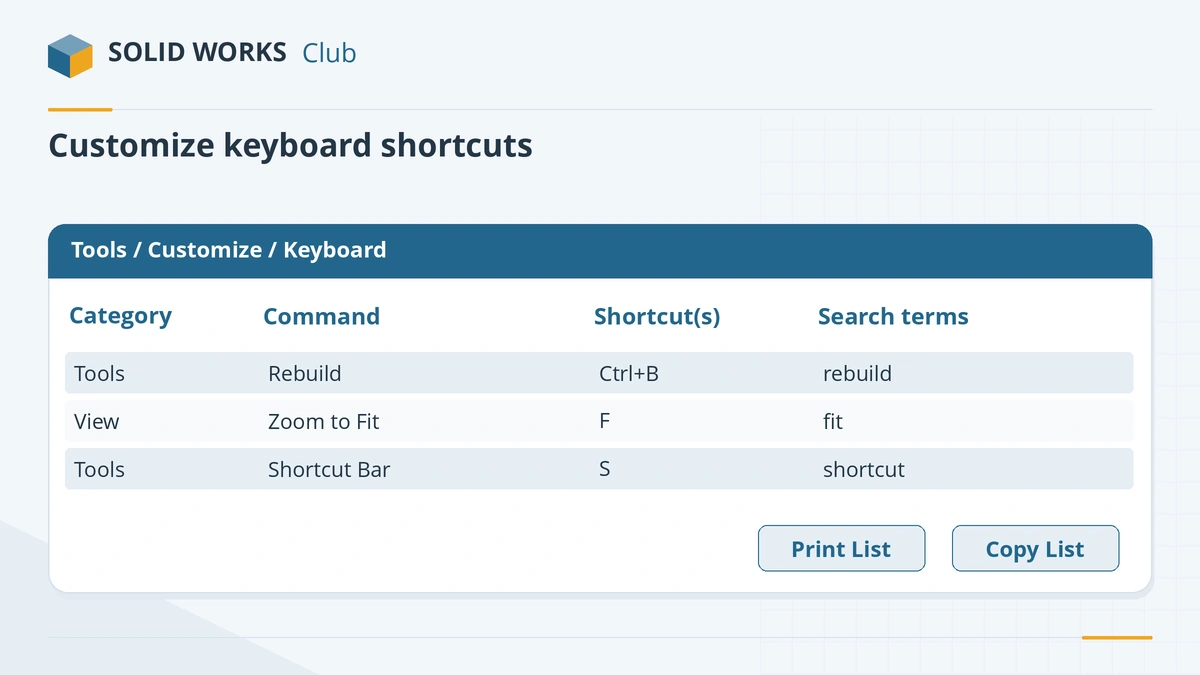
- Open Tools → Customize → Keyboard (or right-click the CommandManager → Customize).
- Set Show to "All commands", find the command, and type a key into its Shortcut(s) cell. SOLIDWORKS warns you if the key is already in use.
- The Search terms column lets you add your own words for Command Search (W); since SOLIDWORKS 2026 you can personalise these terms (SOLIDWORKS blog).
- Print List prints what is shown — print to PDF to keep a copy — and Copy List copies it to the clipboard.
Popular custom keys people add: L for Line, C for Circle (after moving Expand/Collapse), T for Trim, M for Mate, Ctrl+Shift+S for Save As. Pick letters near your left hand so your right hand stays on the mouse.
Back up and move your shortcuts
The SOLIDWORKS Settings Wizard (Tools → Save/Restore Settings, or Start → SOLIDWORKS Tools) saves keyboard shortcuts, mouse gestures, toolbars and system options to a .sldreg file. Restore it on another PC or after reinstalling (Hawk Ridge Systems, Javelin).
Download the PDF
The one-page PDF cheat sheet is generated from the same list as the searchable table, so they always match. Print it on A4 or Letter and keep it next to your keyboard. More reference guides are in the reference section, and SOLIDWORKS terms are explained in the glossary.
Ctrl + Q for troubleshooting: a forced rebuild of every feature is the quickest way to check a model after fixing rebuild errors.
Just starting? Learn the screen in the SOLIDWORKS interface explained.
Sketch shortcuts in context: see the Line tool (L, A) and 3D sketch (Tab) lessons.
Frequently asked questions
What is the difference between Ctrl+B and Ctrl+Q in SOLIDWORKS?
+
Ctrl+B rebuilds only the features that changed since the last rebuild. Ctrl+Q forces a rebuild of every feature, which takes longer but catches problems a normal rebuild can miss. In an assembly, Ctrl+Q rebuilds the top-level assembly.
Is L the shortcut for Line in SOLIDWORKS?
+
Default printouts from some installs list L for Line, but we could not confirm it on an official page, so it is not in our table. Check your own Tools → Customize → Keyboard list; if it is missing, assign it in a few seconds. C and T are not Circle and Trim by default — C expands or collapses tree items.
How do I see all my SOLIDWORKS shortcuts?
+
Open Tools → Customize → Keyboard and set Show to "Commands with Keyboard Shortcuts". Print List prints the list (choose a PDF printer to save it), and Copy List copies it to the clipboard.
How do I move my shortcuts to a new computer?
+
Use the SOLIDWORKS Settings Wizard (called the Copy Settings Wizard before 2023), from Tools → Save/Restore Settings or the Windows Start menu. It saves keyboard shortcuts, mouse gestures, toolbars and system options to a .sldreg file you restore on the new PC.
Why does a shortcut not work?
+
Usually because a command is not available in the current mode (for example a sketch tool outside a sketch), focus is in another window, or the key was reassigned. Check Tools → Customize → Keyboard.
Related
- SOLIDWORKS mouse gesturesHow SOLIDWORKS mouse gestures work, how to choose 2 to 12 directions, assign your own commands for parts, assemblies, drawings and sketches, and turn them off.
- The SOLIDWORKS S key shortcut barPress S in SOLIDWORKS to open the shortcut bar at the pointer. How it changes by environment, how to search from it and how to customise it.
- SOLIDWORKS glossaryPlain-English definitions of SOLIDWORKS terms — FeatureManager, PropertyManager, mates, configurations, fully defined, K-factor, SpeedPak, Pack and Go.
- SOLIDWORKS referenceSOLIDWORKS reference — keyboard shortcuts with a PDF, mouse gestures, the S key, file formats, STEP, STL and DXF export, version compatibility and a glossary.