Sketching · Lesson 1
SOLIDWORKS Line tool
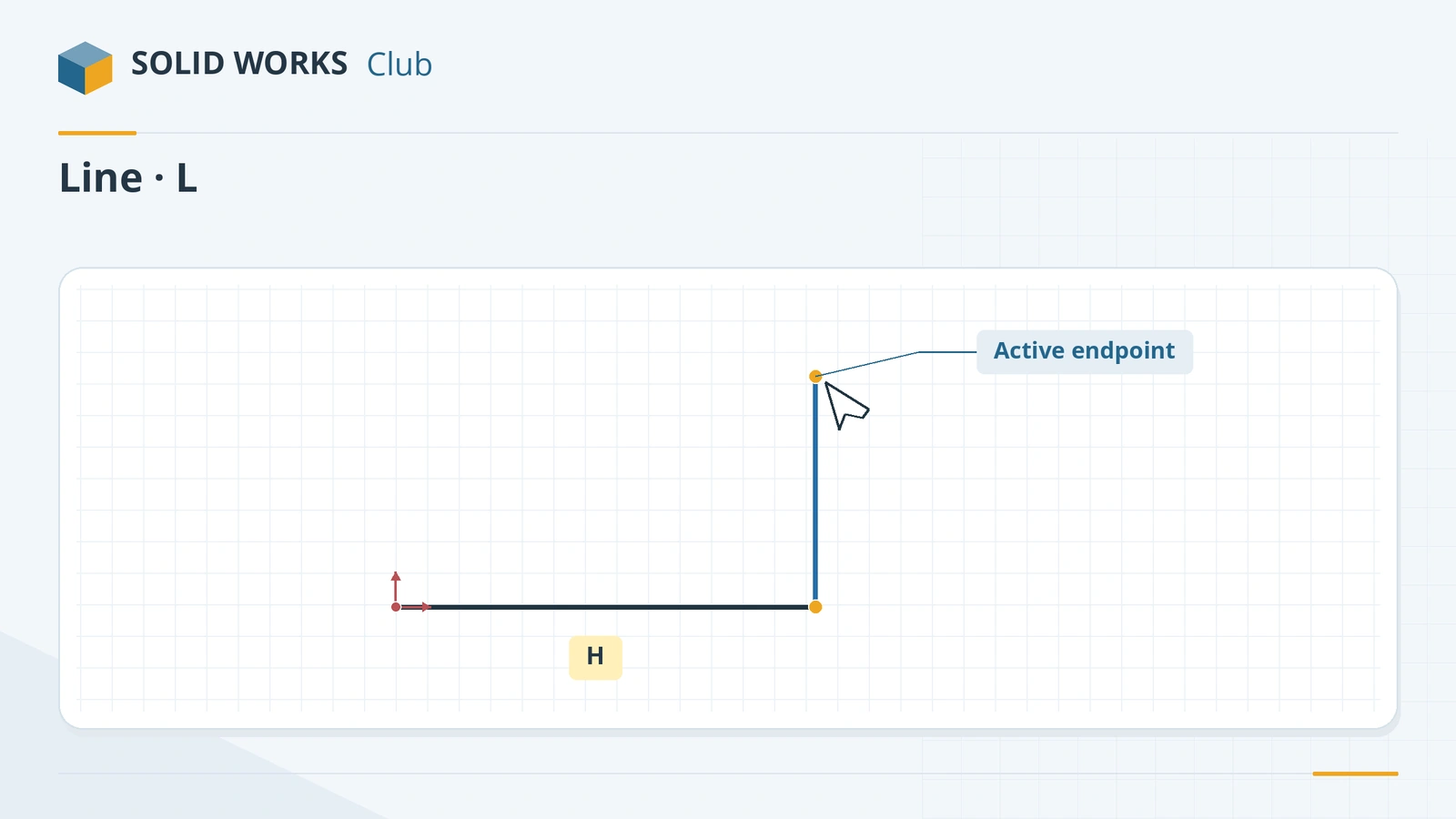
The Line tool draws straight segments. Click, release and click again to draw a chain of connected lines — the fastest way to sketch an outline — and double-click or press Esc to stop. The same flyout holds Centerline (construction lines for symmetry and revolve axes) and Midpoint Line, which grows symmetrically from its middle. Press L with a plane selected to start a sketch and the Line tool in one go.
 Kevin Walsh
Where to find it
Sketch tab → Line (flyout: Line, Centerline, Midpoint Line)
Shortcut
L
Line tool options
| Option | What it does |
|---|---|
| As sketched | Line goes wherever you click |
| Horizontal / Vertical | Forces the direction; you only set the length |
| Angle | Forces a set angle |
| For construction | Makes the line construction geometry |
| Infinite length | Draws a line with no ends (for references) |
| Midpoint line | Starts from the middle, growing both ways (since SOLIDWORKS 2015) |
Options are in the Line PropertyManager on the left. Turning on Enable on screen numeric input in the sketch options lets you type length and angle while drawing; Tab moves between the fields.
The three line types
- Line — normal geometry used to build features.
- Centerline — dashed construction line for symmetry, mirroring and revolve axes. See construction geometry.
- Midpoint Line — click the middle, then one end; the line grows equally both ways, with a midpoint you can tie to the origin.
Step by step
-
1
Start the line
Select the Front Plane and press L (or open a sketch and click Line). Click on the origin to place the first point — a coincident relation ties it there.
-
2
Draw a chain
Move the pointer and click to end the first segment; the next segment starts from there automatically. When a yellow H or V icon appears, the line will get a Horizontal or Vertical relation.
-
3
Switch to an arc without changing tools
To continue with a tangent arc, move the pointer away from the last point, back onto it, then away again — the line turns into an arc. You can also press A to toggle between line and arc.
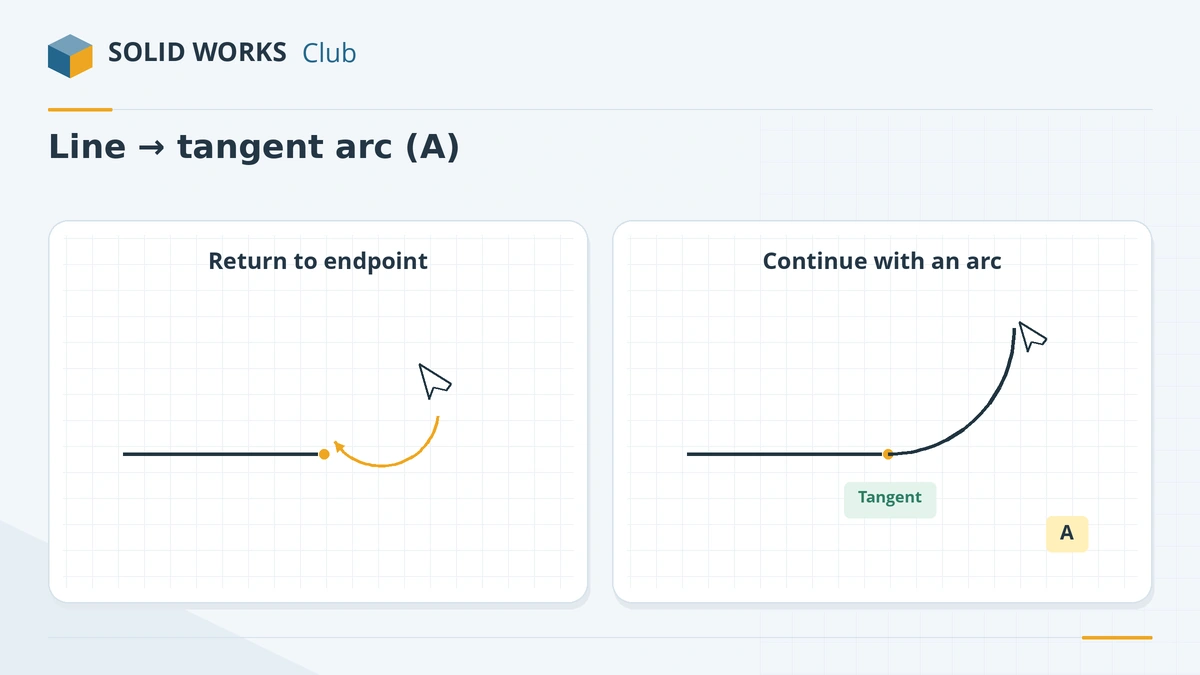
Move back onto the endpoint and away again to switch from line to tangent arc. -
4
Close and finish
Click the first point to close the outline, then double-click, press Esc or right-click → End chain. A closed outline is needed for Extrude, Cut and Revolve.
-
5
Dimension it
The length shown while drawing is only a preview. Add dimensions with Smart Dimension to fix the sizes.
Common mistakes
- Trusting the length shown while drawing — it is not stored. Add a dimension.
- Leaving a tiny gap where the outline should close; the extrude then fails. Turn on Shaded Sketch Contours to check.
- Using a normal line for a revolve axis or mirror line. Use a Centerline so it is construction geometry.
- Click-dragging when you wanted a chain — click-drag draws one separate line.
Lesson 1 of 17 in the sketching course.
Practice
On the Front Plane draw an L-shaped outline with the Line tool: 60 mm wide, 40 mm tall, both legs 10 mm thick, with the outer corner on the origin. Extrude it 10 mm. Check: Mass Properties should show a volume of 9,000 mm³.
Sources
- Javelin — Tips and tricks for line drawing (Oct 2022)
- Javelin — SOLIDWORKS line tool shortcut
- Javelin — Default keyboard shortcuts list (PDF)
- Hawk Ridge — Sketching basics in SOLIDWORKS (updated Sep 2026)
- Javelin — Choosing the best sketch method (Dec 2025)
- CATI — Line to tangent arc transition
- Javelin — Using arc tools in SOLIDWORKS (Jul 2025)
- CATI — Midpoint Line (What's new 2015)
- Solid Solutions — Automatic sketch relations
- Planchard — SOLIDWORKS 2020 Reference Guide, sketch chapter (sample PDF)
Checked November 2026. SOLID WORKS Club is independent; menu names can differ slightly between releases.
Frequently asked questions
What is the shortcut for the Line tool in SOLIDWORKS?
+
L. With a plane or flat face selected, pressing L also opens a new sketch on it.
How do I stop drawing lines in SOLIDWORKS?
+
Double-click, press Esc, or right-click and choose End chain. Clicking the start point closes the outline.
How do I draw an arc from the end of a line?
+
Without leaving the Line tool, move the pointer back onto the last endpoint and away again, or press A. The next segment becomes a tangent arc.
What is the difference between Line and Centerline?
+
A centerline is construction geometry: it is not used to build the solid. Use it for symmetry, mirror lines and revolve axes.
Related
- SOLIDWORKS rectangle toolsHow to sketch rectangles in SOLIDWORKS: Corner, Center, 3 Point Corner, 3 Point Center and Parallelogram, with construction lines and centring.
- SOLIDWORKS Smart DimensionHow to use Smart Dimension in SOLIDWORKS: linear, angular, diameter and arc length dimensions, Shift for circle edges, the Modify box and equations.
- Construction geometry and centerlinesHow construction geometry works in SOLIDWORKS: centerlines, For construction, converting entities, and using them as mirror lines, revolve axes and references.
- SOLIDWORKS sketching — basics and all toolsLearn SOLIDWORKS sketching from scratch: start and exit a sketch, read colours and status, then 17 lessons from lines and arcs to relations and 3D sketches.