Reference
SOLIDWORKS mouse gestures
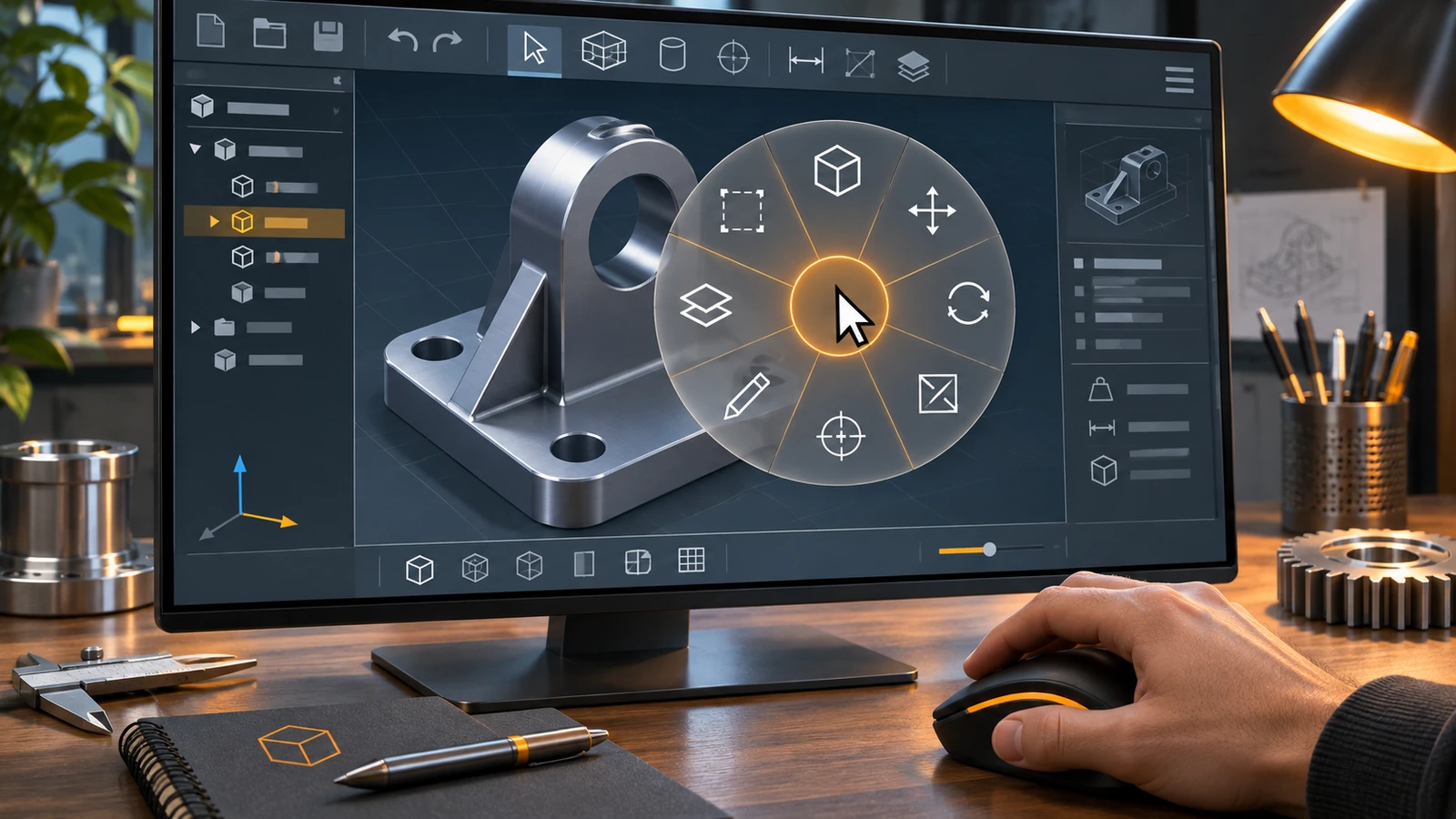
Mouse gestures run a command when you hold the right mouse button and flick the pointer in a direction. SOLIDWORKS shows a wheel of commands — a separate one for parts, assemblies, drawings and sketches — and you can set how many directions it has (up to 12) and which command sits in each, in Tools → Customize → Mouse Gestures.
 Kevin Walsh
Where to find it
Tools → Customize → Mouse Gestures
How mouse gestures work
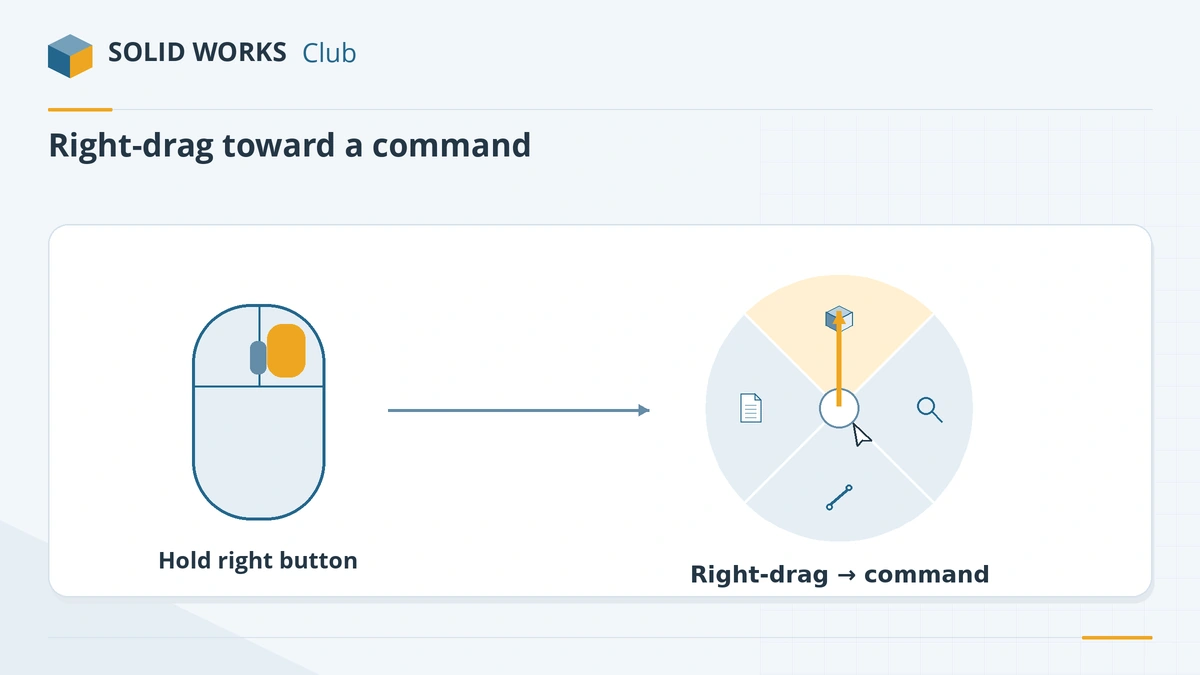
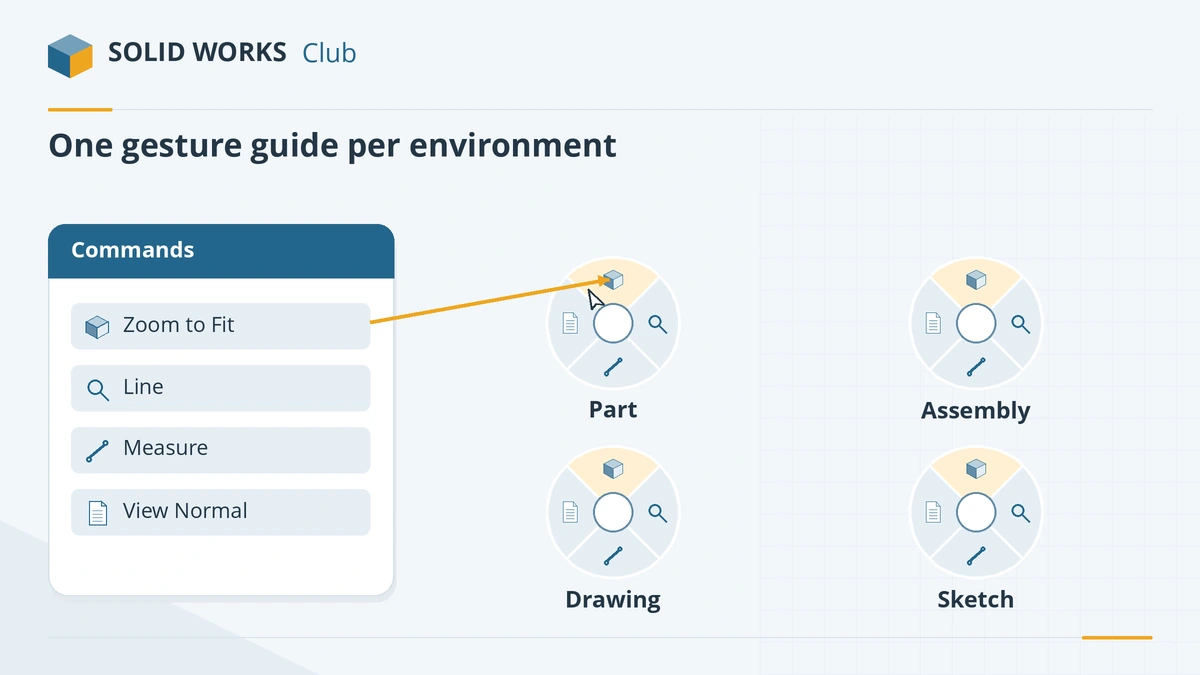
A gesture is a right-button drag. SOLIDWORKS draws a guide wheel around the pointer and runs the command in the sector you move into. Each environment — part, assembly, drawing and sketch — has its own set of gestures, so the same flick can mean different things in a sketch and in an assembly.
The number of directions is configurable. SOLIDWORKS 2018 added more options than the original 4 and 8 (Javelin); Javelin's current guide lists 2, 3, 4, 8 and 12, with 4 as the default (Javelin).
A good starting layout
These are suggestions, not defaults — assign whatever you use most:
| Direction | Part / assembly | Sketch | Drawing |
|---|---|---|---|
| Up | Normal To | Smart Dimension | Smart Dimension |
| Down | Isometric | Line | Note |
| Left | Extruded Boss/Base | Circle | Model Items |
| Right | Mate (assemblies) / Fillet (parts) | Trim Entities | Section View |
Gestures, the S key and context toolbars
| Tool | How you open it | Best for |
|---|---|---|
| Mouse gestures | Right-drag | 4–8 commands you use constantly |
| Shortcut bar | Press S | A larger set of commands, with search |
| Context toolbar | Appears after you select something | Commands that depend on the selection |
| Keyboard shortcuts | Keys | Commands you can trigger without moving the mouse |
GoEngineer's guide to customising the interface covers all of these in one place.
More on toolbars and panels: the SOLIDWORKS interface explained.
Step by step
-
1
Try a gesture
In the graphics area, hold the right mouse button and drag a short distance. A guide wheel appears; moving into a sector runs that command. A quick right-click without dragging still opens the normal context menu.
Hold the right button and flick toward a command. -
2
Open the Mouse Gestures tab
Go to Tools → Customize and open the Mouse Gestures tab. Make sure mouse gestures are enabled.
-
3
Choose the number of directions
Pick how many gestures the wheel has from the drop-down. Reseller Javelin lists 2, 3, 4, 8 and 12 in current releases, with 4 as the default. More directions mean more commands but less room for error.
-
4
Assign commands
The tab shows a guide for each environment — part, assembly, drawing and sketch. Find a command in the list and drag it onto a sector; it replaces whatever was there. Hold Ctrl while dragging to copy a command between sectors.
Each environment has its own guide; drag commands onto sectors. -
5
Save your setup
Use the SOLIDWORKS Settings Wizard (Tools → Save/Restore Settings) to save gestures together with keyboard shortcuts and toolbars, so you can restore them after an upgrade or on another PC.
Common mistakes
- Dragging too far or too slowly — short, quick flicks are the most reliable.
- Putting rarely used commands on gestures; keep them for the five to eight commands you use all day.
- Using 12 directions before you have muscle memory for 4 or 8.
- Forgetting that sketch and drawing gestures are set separately from part gestures.
Frequently asked questions
How do I turn off mouse gestures in SOLIDWORKS?
+
Open Tools → Customize → Mouse Gestures and clear the option that enables mouse gestures. Right-click then behaves as a normal context menu only.
How many mouse gestures can SOLIDWORKS have?
+
Up to 12 directions per environment. Javelin lists 2, 3, 4, 8 and 12 as the choices in current releases; SOLIDWORKS 2018 added the options beyond the earlier 4 and 8.
What is the difference between mouse gestures and the S key?
+
Gestures run a command with a single flick and are best for a handful of very frequent commands. The S key opens a shortcut bar at the pointer with more commands and a search box. See the S key guide.
Related
- SOLIDWORKS keyboard shortcutsEvery default SOLIDWORKS keyboard shortcut in a searchable list and a one-page PDF — rebuild, views, zoom, filters, sketch and assembly keys — and customising.
- The SOLIDWORKS S key shortcut barPress S in SOLIDWORKS to open the shortcut bar at the pointer. How it changes by environment, how to search from it and how to customise it.
- SOLIDWORKS glossaryPlain-English definitions of SOLIDWORKS terms — FeatureManager, PropertyManager, mates, configurations, fully defined, K-factor, SpeedPak, Pack and Go.
- SOLIDWORKS referenceSOLIDWORKS reference — keyboard shortcuts with a PDF, mouse gestures, the S key, file formats, STEP, STL and DXF export, version compatibility and a glossary.