Weldments · Lesson 2
Custom weldment profiles
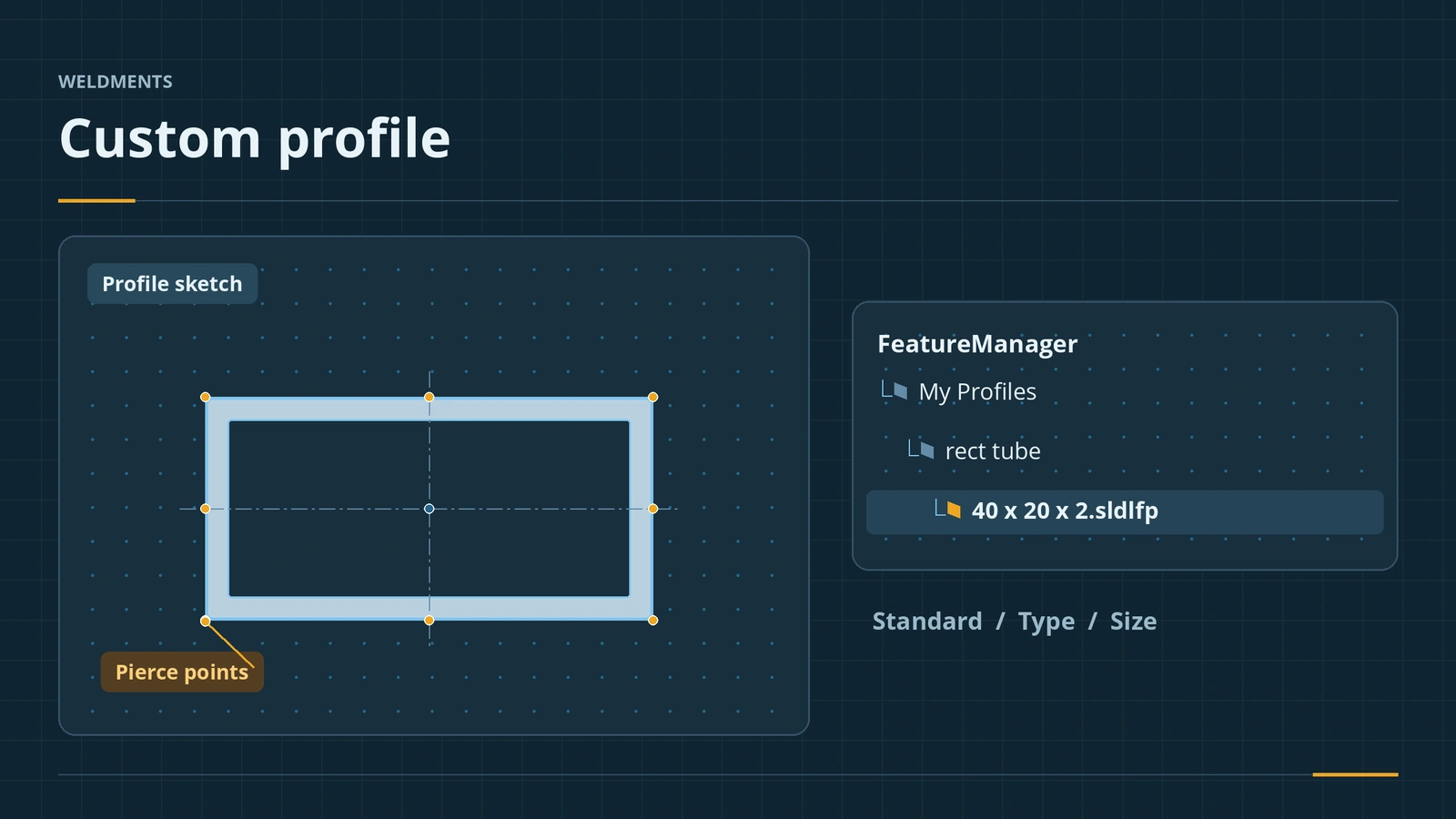
A weldment profile is just a fully defined sketch saved as a library feature part (.sldlfp) in the right folder. The folder names become the Standard and Type lists in Structural Member, the file name becomes the Size — or, in a configured profile, each configuration is a size. Add pierce points and properties once, and every member inherits them.
 Kevin Walsh
Where to find it
File → Save As → Lib Feat Part (*.sldlfp); Tools → Options → File Locations → Weldment Profiles
Folder structure
| Profile type | Folder → file |
|---|---|
| One size per file | Profiles folder → Standard → Type → Size.sldlfp |
| Configured profile | Profiles folder → Standard → Type.sldlfp, sizes as configurations |
Configurations can be driven by a design table for many sizes. Ready-made standards (ANSI, AS, BSI, CISC, DIN, GB, JIS) download from the Design Library.
Step by step
-
1
Sketch the section
In a new part, on the Front plane, sketch a 40 × 20 rectangle centred on the origin with a 2 mm offset inside it (a rectangular tube wall). Fully define it and exit the sketch.
-
2
Add pierce points
Add sketch points at the corners and mid-sides of the outer rectangle. The origin is the default pierce point; the others can be picked with Locate Profile.
-
3
Save as a library feature part
Select the sketch in the tree, then File → Save As → Lib Feat Part (*.sldlfp). Name it 40 x 20 x 2.
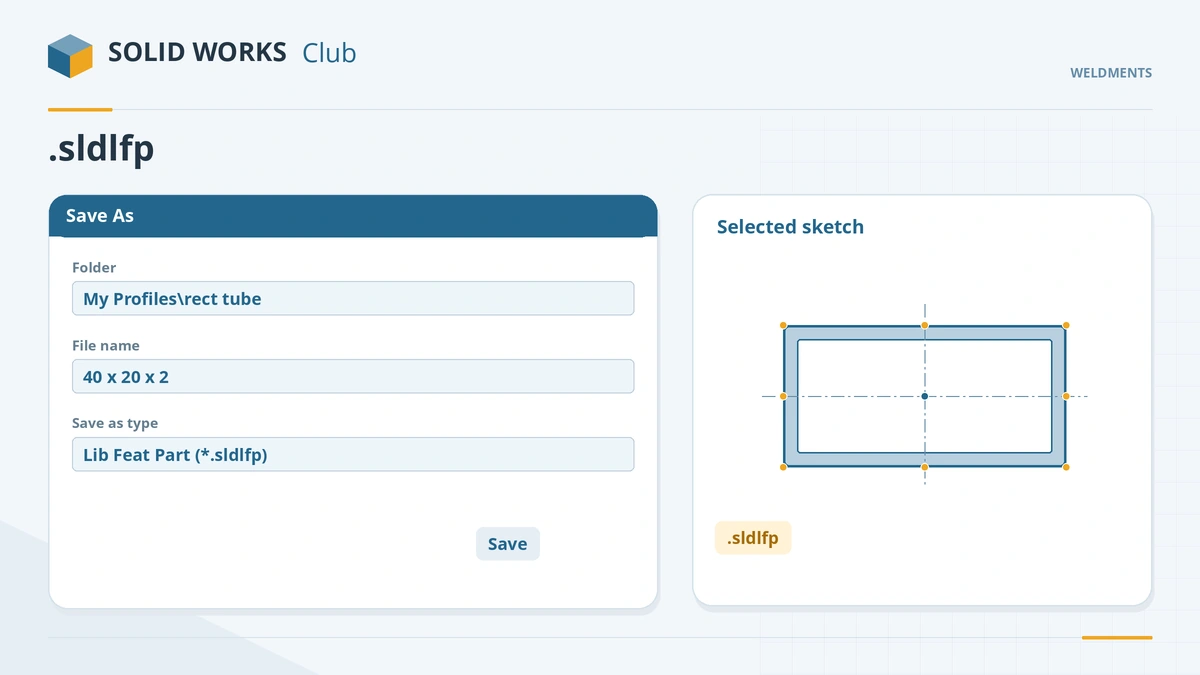
Save the selected sketch as a library feature part. -
4
Put it in the right folder
Save into a folder tree like My Profiles\rect tube\40 x 20 x 2.sldlfp and add My Profiles' parent under File Locations → Weldment Profiles. Restart Structural Member and pick it.
Common mistakes
- A folder one level too deep or too shallow — the tree must be profiles folder → standard → type → size.
- Custom profiles inside the install folder — an update or uninstall can delete them.
- Profiles stored on one PC only — others cannot rebuild models that use them; keep them in a shared folder.
Lesson 2 of 7 in the weldments course.
Practice
Save the 40 × 20 × 2 profile and use it for a new structural member. Check: Structural Member lists My Profiles → rect tube → 40 x 20 x 2, and Locate Profile offers your extra sketch points as pierce points.
Sources
- Hawk Ridge — How to create custom weldment profiles
- Javelin — 5 easy steps for custom weldment profiles (Jun 2025)
- SOLIDWORKS Tech Blog — How to create custom weldment profiles (Sep 2017)
- Engineers Rule — Weldments: how to use them and create your own (Dec 2025)
- CADimensions — Custom profile locations: configured vs unconfigured
- Dassault Systèmes — Working with Weldments, SolidPractices (rev. May 2025)
- GoEngineer — Cut list properties: where do they come from? (Dec 2020)
- Javelin — Download SOLIDWORKS weldment profiles (Oct 2023)
- Hawk Ridge — Downloading additional weldment profiles
- TriMech — Locating structural members in weldments
Checked November 2026. SOLID WORKS Club is independent; menu names can differ slightly between releases.
Frequently asked questions
How do I create a custom weldment profile in SOLIDWORKS?
+
Sketch the cross-section in a new part, select the sketch, and save it as a Lib Feat Part (.sldlfp) in a standard\type folder listed under File Locations → Weldment Profiles.
What is a configured profile?
+
One .sldlfp in the Standard folder whose file name is the type and whose configurations are the sizes. Since 2021 the default profiles are configured.
How do I get the description into the cut list?
+
Add custom properties such as Description and Material to the .sldlfp file. Members built from it pass them to the cut list.
Where are the default weldment profiles?
+
In the folder shown under File Locations → Weldment Profiles; recent versions keep it under C:\ProgramData\SOLIDWORKS\SOLIDWORKS 20xx.
Related
- Structural Member — your first weldment frameBuild a SOLIDWORKS weldment frame with Structural Member: layout sketch, standard, type and size, groups, corner treatment, trim order and locating the profile.
- SOLIDWORKS Design LibraryHow to use the SOLIDWORKS Design Library: default folders, adding your own folders, saving reusable library features (.sldlfp) and inserting them.
- SOLIDWORKS configurationsHow to use configurations in SOLIDWORKS: add them, change dimensions and suppress features per configuration, configuration tables and display states.
- Weldment cut listsHow the SOLIDWORKS weldment cut list works: grouping identical bodies, LENGTH and ANGLE properties, bounding boxes, properties and the cut list table.