Advanced parts · Lesson 16
SOLIDWORKS Design Library
The Design Library is a Task Pane tab for things you reuse: standard parts, features, annotations and sketch blocks. Drag an item onto your model to use it. Library features (.sldlfp files) are the most useful: save a feature once — a keyway, a mounting pattern, a vent slot — with its dimensions and references, and drop it onto any part.
 Kevin Walsh
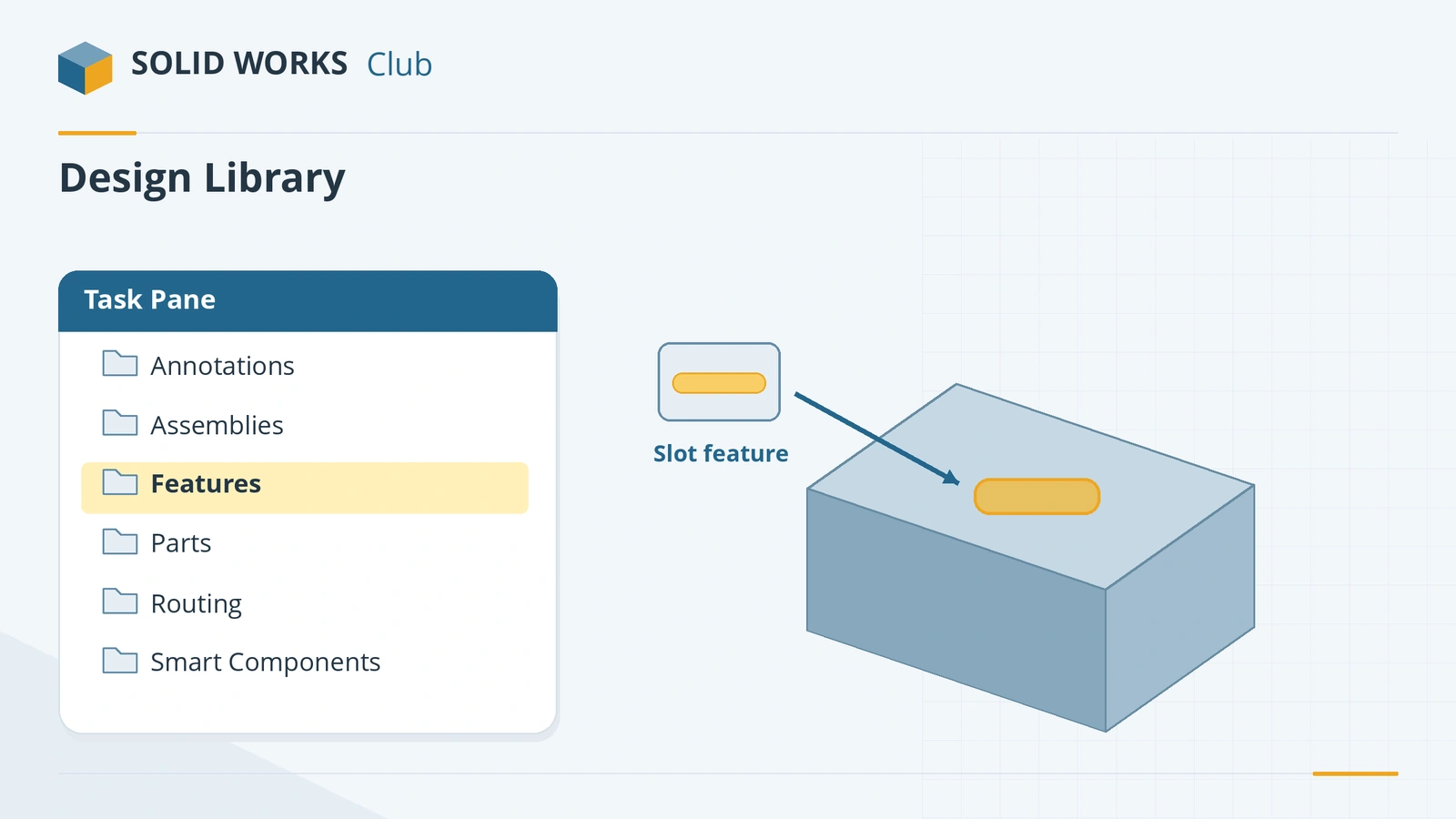
Where to find it
Task Pane → Design Library (stacked-books icon)
Default Design Library folders
| Folder | Holds |
|---|---|
| Annotations | Notes, symbols and blocks for drawings |
| Assemblies | Reusable sub-assemblies |
| Features | Library features (.sldlfp) |
| Forming tools | Sheet metal forming tools |
| Motion | Motion-related items |
| Parts | Standard parts |
| Routing | Routing components |
| Smart components | Components that bring features with them |
From GoEngineer's 2024 overview. Toolbox (Professional and Premium) appears alongside them; if it misbehaves, see Toolbox errors. Keep library folders in a shared location for teams — see organising files and folders. This is the last lesson of the course; next comes the assemblies course, starting with assembly basics.
Need more parts? Supplier and community libraries are compared in free SOLIDWORKS models and GrabCAD vs 3D ContentCentral.
Step by step
-
1
Add your own library folder
Create a folder such as
D:\CAD Library. In the Design Library tab click Add File Location and pick it (or add it under System Options → File Locations → Design Library). -
2
Model the feature to reuse
On a simple base block, cut a 20 × 10 mm slot 5 mm deep, dimensioned to two edges of the face. Those edges become the references.
-
3
Save it as a library feature
Select the slot feature (not the base), then File → Save As → Lib Feat Part (.sldlfp) — SOLIDWORKS jumps to the Design Library folder. Library features are marked with an L* in the tree.
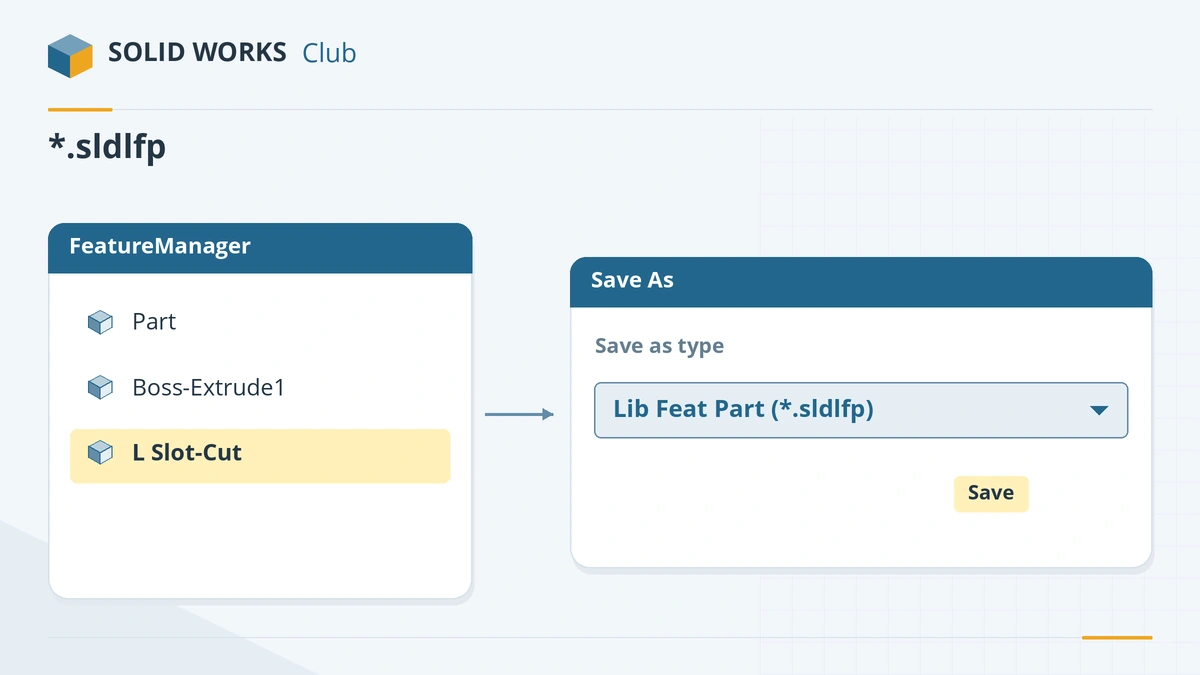
Save only the feature to reuse as a library feature. -
4
Insert it into another part
Drag the .sldlfp from the Design Library onto a face of another part. Pick the configuration, then select the edges that replace the original references when prompted.
Common mistakes
- Saving the base block as part of the library feature. Only the features to reuse should be library features; the base is placeholder geometry.
- References that are hard to map later. Dimension the feature to simple edges and faces.
- Keeping libraries in the hidden default ProgramData folder, which can be left behind on upgrades. Use your own folder.
Lesson 16 of 16 in the advanced parts course.
Practice
Save the 20 × 10 × 5 mm slot as a library feature and insert it into an 80 × 50 × 20 mm block. Check: the block's volume drops by 1,000 mm³ — from 80,000 to 79,000 mm³.
Sources
- GoEngineer — Getting started with the Design Library (May 2024)
- Javelin — How to add folders to the Design Library (Feb 2023)
- Javelin — Creating library feature parts (May 2023)
- SOLIDWORKS Tech Blog — 15 quick steps to set up a library feature (2017)
- GoEngineer — The SOLIDWORKS Task Pane
- GoEngineer — 3D ContentCentral for SOLIDWORKS users (2020)
Checked November 2026. SOLID WORKS Club is independent; menu names can differ slightly between releases.
Frequently asked questions
What is a library feature in SOLIDWORKS?
+
A feature saved as a .sldlfp file in the Design Library, with its dimensions and references, so it can be dragged onto other parts.
Where is the SOLIDWORKS Design Library stored?
+
By default in a hidden folder under ProgramData for each version. You can add your own folders with Add File Location or under File Locations.
Is Toolbox part of the Design Library?
+
Toolbox, available in SOLIDWORKS Professional and Premium, is reached from the Design Library tab. It has its own database and settings.
What is 3D ContentCentral?
+
An online library of supplier and user CAD models reached from the Design Library. Downloading needs an account.
Related
- SOLIDWORKS appearancesHow to apply appearances in SOLIDWORKS to faces, features, bodies and parts, understand the colour hierarchy, remove appearances, use RealView and add decals.
- SOLIDWORKS configurationsHow to use configurations in SOLIDWORKS: add them, change dimensions and suppress features per configuration, configuration tables and display states.
- SOLIDWORKS Toolbox and Hole Wizard errors — fixesFix SOLIDWORKS Toolbox errors: swbrowser.sldedb wrong version or missing, Hole Wizard database errors, fasteners changing size, read-only parts and PDM.
- How to organize SOLIDWORKS files and foldersSet up SOLIDWORKS project folders that keep references intact — folder structure, naming, local vs network vs cloud sync, Pack and Go, rename tools and backups.