Sketching · Lesson 12
Trim and extend sketch entities
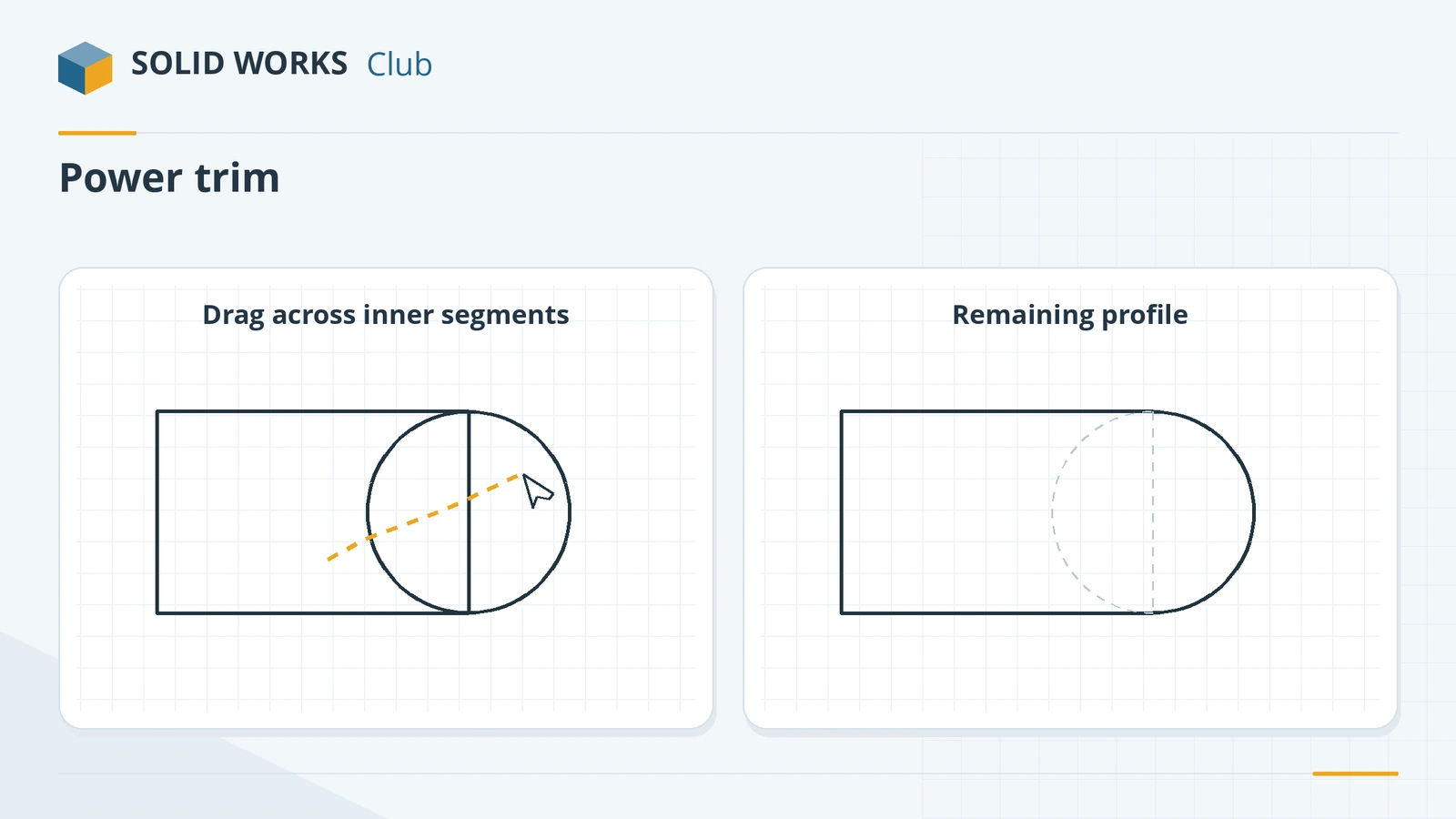
Trim Entities removes the parts of sketch lines and curves you do not need where they cross other entities. It lets you sketch overlapping simple shapes — a rectangle and a circle, say — and cut them back into one clean outline. Power trim, the default, trims everything your pointer drags across. The same tool can also extend entities to meet others.
 Kevin Walsh
Where to find it
Sketch tab → Trim Entities (flyout also holds Extend Entities)
Trim options
| Option | How it works |
|---|---|
| Power trim | Drag across pieces to trim them; a red square marks the last trim |
| Corner | Pick two entities; they are trimmed or extended to meet in a corner |
| Trim away inside | Pick two boundaries, then the entities to trim between them |
| Trim away outside | Removes what lies outside the two boundaries |
| Trim to closest | Click a segment; it is removed to the nearest intersections |
| Keep trimmed entities as construction geometry | Trimmed pieces stay as dashed lines |
| Ignore trimming of construction geometry | Protects centerlines from Power trim |
Trimming is often the fastest way to build complex outlines from simple shapes. For outlines that follow existing edges, Convert Entities and Offset Entities are faster still.
Step by step
-
1
Sketch overlapping shapes
On the Front Plane draw a Corner Rectangle 60 × 40 from the origin, and a Circle Ø40 with its centre on the midpoint of the right edge.
-
2
Power trim
Trim Entities → Power trim. Hold the left mouse button and drag across the part of the right rectangle edge that lies inside the circle, then across the left half of the circle (inside the rectangle). What the dotted trail touches is removed.
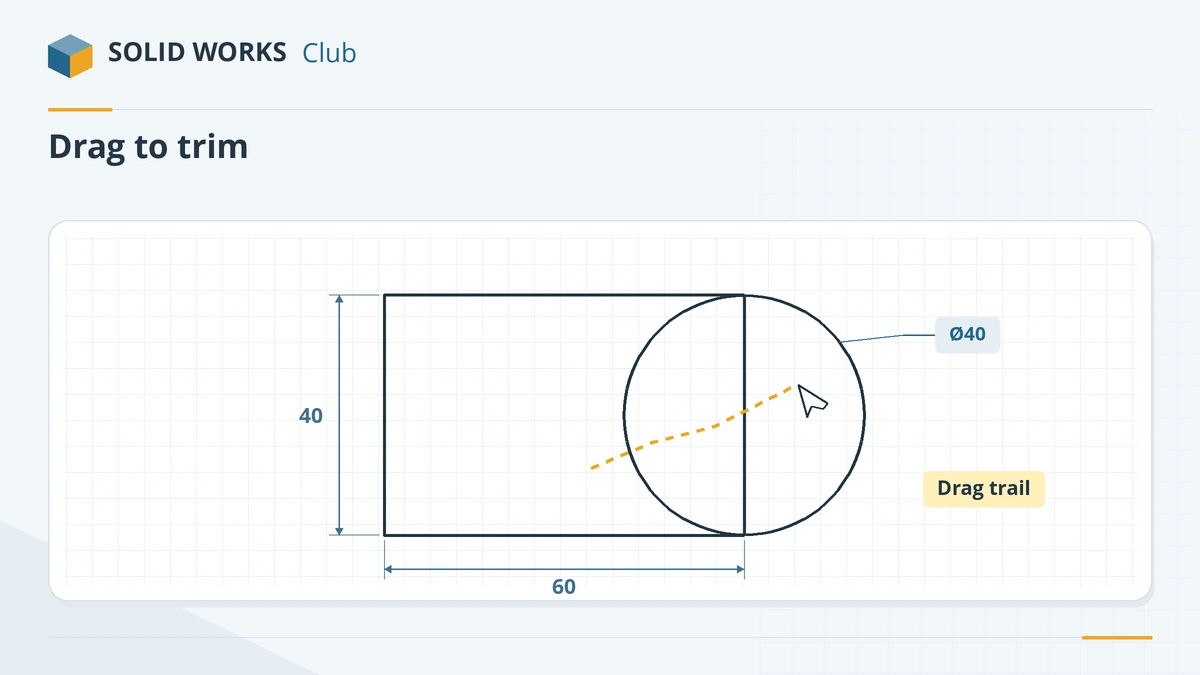
Drag across the pieces you want to remove. -
3
Check the outline
You should have a rectangle whose right end is a half-circle. Turn on Shaded Sketch Contours to see that it is one closed area.
-
4
Re-dimension if needed
Trimming can remove dimensions or relations attached to the deleted pieces. Check the status bar and add what is missing.
Common mistakes
- Trimming a piece that carried a dimension — the dimension disappears too. Trim first, dimension last, or check after trimming.
- Power-trimming across a centerline you wanted to keep. Tick *Ignore trimming of construction geometry*.
- Leaving tiny leftover segments after trimming; the feature then fails. Use Repair Sketch to find them.
Lesson 12 of 17 in the sketching course.
Practice
Build the shape above (60 × 40 rectangle with a Ø40 circle on the midpoint of the right edge, trimmed to one outline) and extrude it 10 mm. Check: volume 30,283.19 mm³.
Sources
- GoEngineer — Trim Entities command capabilities (Apr 2024)
- TriMech — Secret powers of the Trim tool
- SOLIDWORKS Tech Blog — Repair Sketch (2016)
- Javelin — Choosing the best sketch method (Dec 2025)
Checked November 2026. SOLID WORKS Club is independent; menu names can differ slightly between releases.
Frequently asked questions
What is Power trim in SOLIDWORKS?
+
The default trim option: hold the mouse button and drag across the pieces you want to remove. Everything the trail crosses is trimmed back to the nearest intersection.
How do I extend a line in a sketch?
+
Use Extend Entities in the Trim flyout and click the line near the end to extend, or in Power trim click a line and move to the side to preview the extension, then click again.
How do I trim without deleting the piece?
+
Tick Keep trimmed entities as construction geometry. The trimmed parts stay as dashed construction lines for reference.
Why did my dimension disappear after trimming?
+
It was attached to the piece you trimmed away. Add a new dimension to the remaining geometry.
Related
- SOLIDWORKS Offset EntitiesHow to use Offset Entities in SOLIDWORKS: offset sketch lines, edges and faces by a distance, reverse, both directions, cap ends and construction base.
- SOLIDWORKS circle toolsHow to sketch circles in SOLIDWORKS with the Circle and Perimeter Circle tools, dimension the diameter, add Equal relations and measure to the edge.
- SOLIDWORKS rectangle toolsHow to sketch rectangles in SOLIDWORKS: Corner, Center, 3 Point Corner, 3 Point Center and Parallelogram, with construction lines and centring.
- SOLIDWORKS sketch errors — over defined, unsolvable and open sketchesFix SOLIDWORKS sketch errors: over defined, no solution found, dangling relations, open or self-intersecting contours, with SketchXpert and Repair Sketch.