Sketching · Lesson 14
SOLIDWORKS Convert Entities
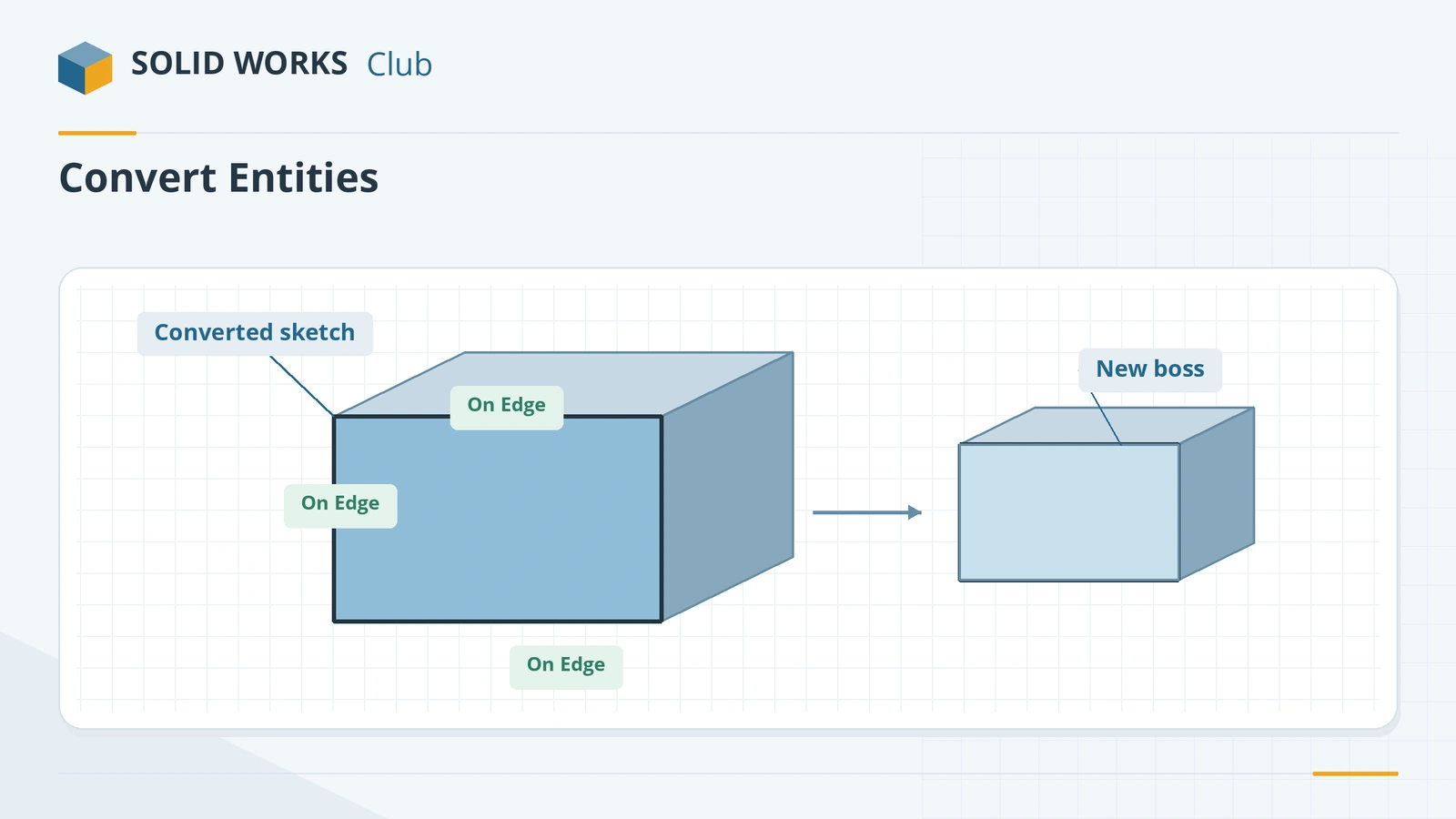
Convert Entities copies model edges, faces or other sketches into the sketch you are editing, projected onto its plane. The copies are tied to the original edges with an On Edge relation, so they follow when the model changes. Use it when a new feature must match the shape of an existing one — a lid on a box, a boss on a face, a cut through an outline.
 Kevin Walsh
Where to find it
Sketch tab → Convert Entities (flyout also holds Intersection Curve and Silhouette Entities)
Related projection tools
| Tool | What it creates |
|---|---|
| Convert Entities | Exact copies of selected edges, faces or sketch entities |
| Intersection Curve | Sketch lines where the sketch plane cuts the selected faces |
| Silhouette Entities (2020+) | The outline of a body as seen normal to the sketch plane |
| Offset Entities | Copies at a distance — see Offset Entities |
Since SOLIDWORKS 2024 SP1 converted entities can be created as construction geometry, for references you do not want to build on. In assemblies, converting edges of another part creates an external (in-context) reference; if those files are later moved or renamed, see missing references.
Step by step
-
1
Make a base block
Extrude an 80 × 50 mm Center Rectangle 10 mm on the Front Plane.
-
2
Sketch on the front face
Click the large front face of the block and click Sketch.
-
3
Convert the face edges
With the face still selected, click Convert Entities. The four outer edges are projected into the sketch instantly and turn black — they are fully defined by the model.
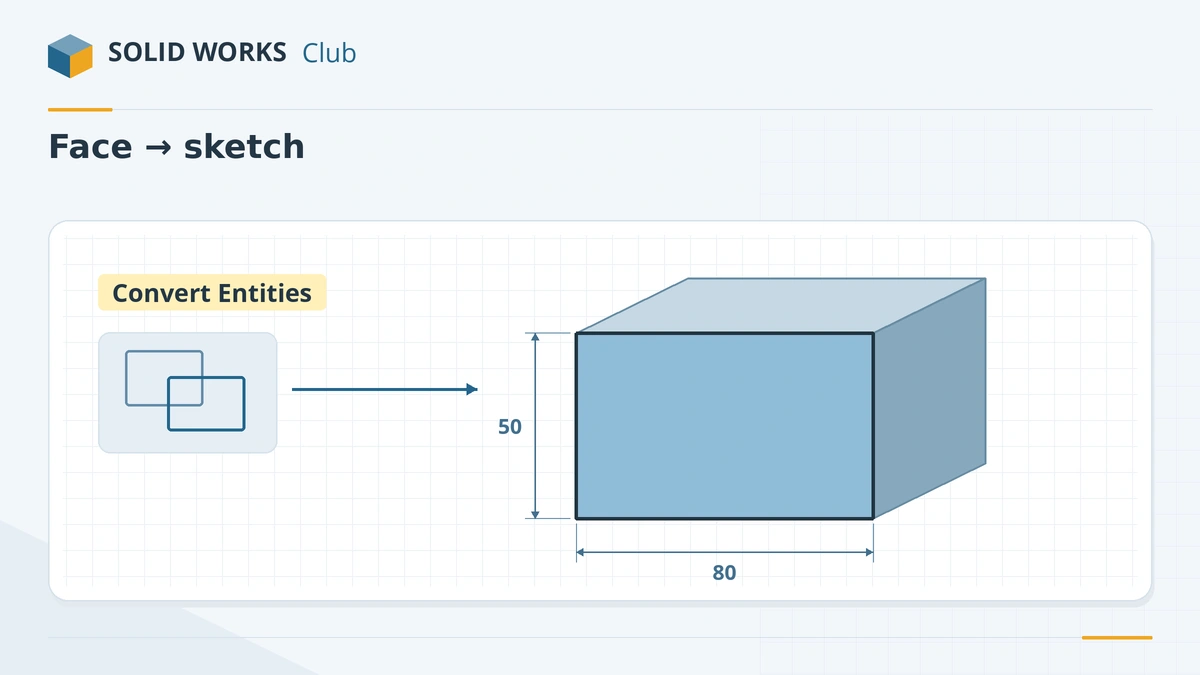
Select the face and click Convert Entities — the outline becomes sketch geometry. -
4
Build on it
Extrude the new sketch 5 mm away from the block. The boss matches the face exactly, and changes with it if the block is resized.
Common mistakes
- Converting edges in an assembly sketch without meaning to — it creates external references to other parts. Use it in parts where the reference is intended.
- Expecting inner loops (holes) to convert when you pick a face — only the outer loop is converted by default; use the inner-loop options.
- Dragging a converted endpoint — it can move along the edge, so check the shape after editing.
Lesson 14 of 17 in the sketching course.
Practice
Do the steps above: an 80 × 50 × 10 mm block with a converted-edge boss of 5 mm on its front face. Check: total volume 60,000 mm³. Change the block's width to 100 mm and rebuild (Ctrl + B) — the boss follows and the volume becomes 75,000 mm³.
Sources
- GoEngineer — Convert Entities quick tips
- GoEngineer — Intersection Curve tool explained
- GoEngineer — Silhouette Entities (What's new 2020)
- SOLIDWORKS Help 2024 — Converting sketch entities to construction geometry
Checked November 2026. SOLID WORKS Club is independent; menu names can differ slightly between releases.
Frequently asked questions
What does Convert Entities do in SOLIDWORKS?
+
It projects selected model edges, faces or sketch entities onto the current sketch plane and ties them with On Edge relations, so the sketch updates when the model changes.
How do I convert the edges of a hole?
+
Selecting a face converts its outer loop by default. Use the inner loops options in the Convert Entities PropertyManager, or select the hole edges directly.
What is the difference between Convert Entities and Offset Entities?
+
Convert copies edges exactly; Offset copies them at a distance. Both stay linked to the originals.
What is Silhouette Entities?
+
A tool added in SOLIDWORKS 2020 that projects the outline of a body or component as seen normal to the sketch plane — useful for round or complex parts with no single edge to convert.
Related
- SOLIDWORKS Offset EntitiesHow to use Offset Entities in SOLIDWORKS: offset sketch lines, edges and faces by a distance, reverse, both directions, cap ends and construction base.
- Construction geometry and centerlinesHow construction geometry works in SOLIDWORKS: centerlines, For construction, converting entities, and using them as mirror lines, revolve axes and references.
- 3D sketches in SOLIDWORKSHow to draw a 3D sketch in SOLIDWORKS: start it, switch planes with Tab, use the space handle and Along X/Y/Z relations, and build sweep paths.
- SOLIDWORKS missing references — unable to locate fileSOLIDWORKS "unable to locate file" when opening an assembly or drawing? How the search order works, how to repair references, and how to rename files safely.