Errors & Fixes
SOLIDWORKS sketch errors — over defined, unsolvable and open sketches
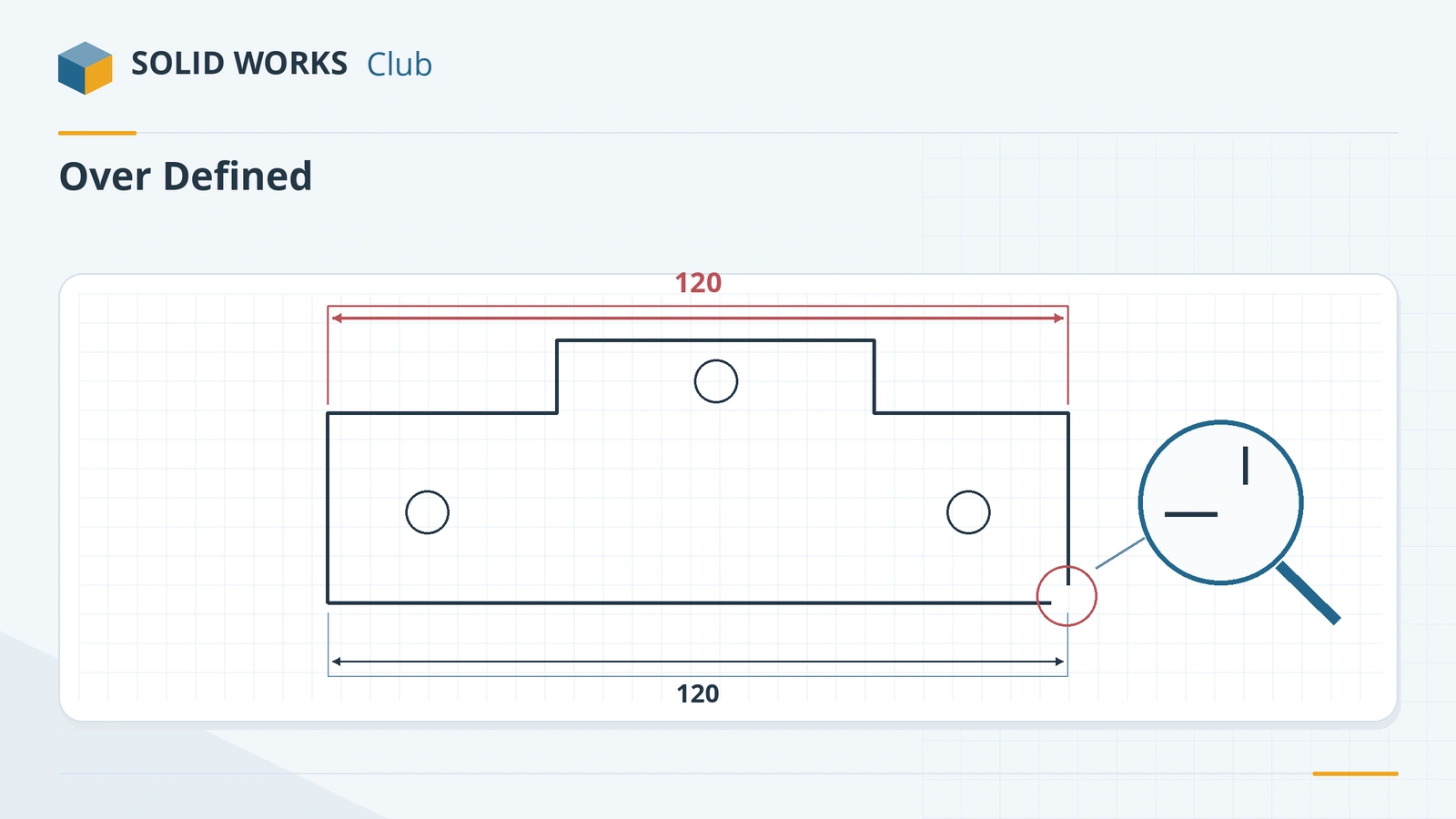
A sketch goes wrong in two main ways. Either its dimensions and relations disagree with each other — the sketch is over defined or cannot be solved — or its shape is not usable for the feature: a gap in the outline, lines crossing each other, or tiny overlapping pieces. SOLIDWORKS has a tool for each: SketchXpert for conflicting relations, and Check Sketch for Feature and Repair Sketch for bad outlines.
 Kevin Walsh
Applies to: SOLIDWORKS 2022–2027 2D sketches.
Most likely causes
- A dimension or relation that duplicates or contradicts another (over defined)
- Dimensions or relations to geometry that no longer exists (dangling) (after model changes)
- Small gap between endpoints — the outline is open (extrude fails)
- Lines crossing or overlapping, or tiny zero-length segments (self-intersecting)
- Several outlines where the feature expects one (occasional)
Sketch states at a glance
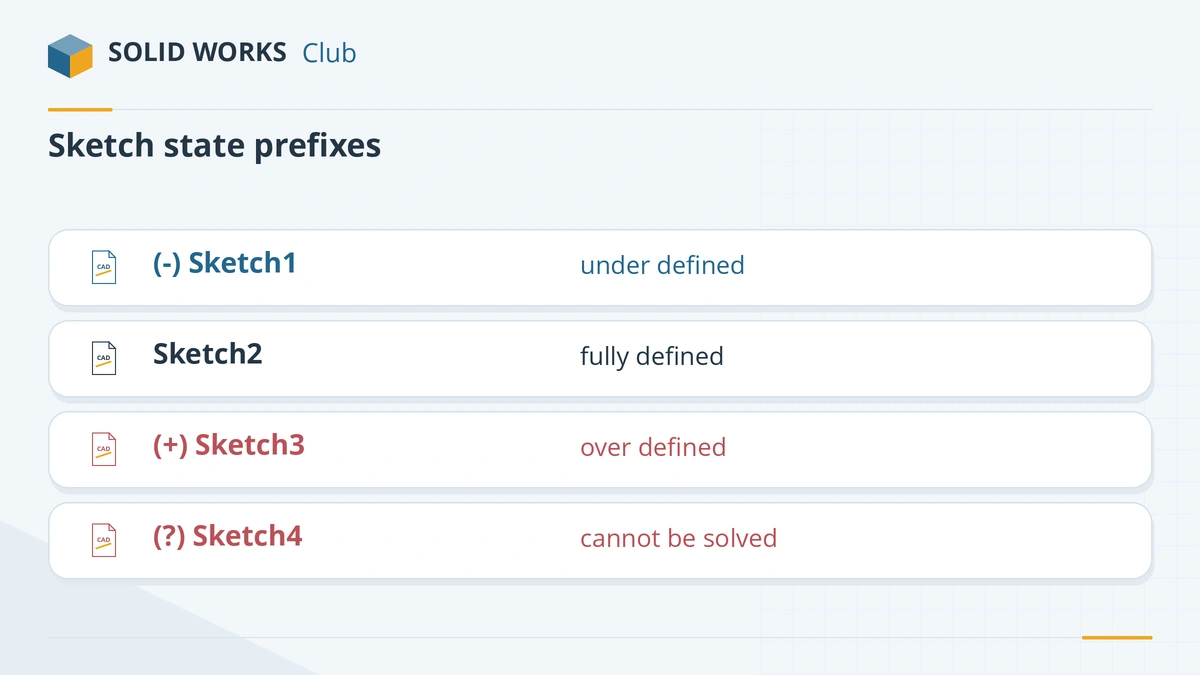
| Tree prefix | Colour (default) | Meaning |
|---|---|---|
(-) |
Blue | Under defined — can still move |
| none | Black | Fully defined |
(+) |
Red / yellow | Over defined — conflicting or repeated dimensions or relations |
(?) |
Red | Cannot be solved |
Prefixes are from the official FeatureManager conventions. Resellers describe the colours slightly differently (some call yellow over defined, others dangling), so rely on the prefix and the status bar.
Error messages and the tool that fixes them
| Message or symptom | Tool |
|---|---|
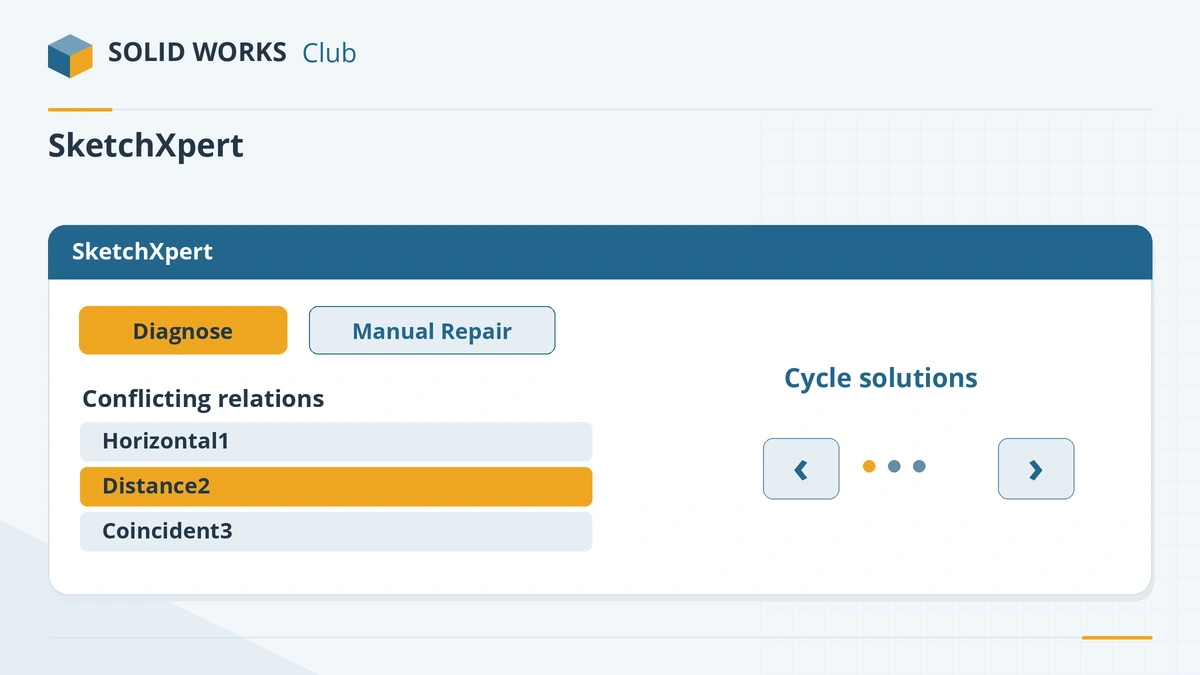
| No Solution Found, Over Defined | SketchXpert |
| Feature fails: outline open, crossing or extra contours | Check Sketch for Feature, Repair Sketch |
| Dimension or relation in a different colour after a model change | Display/Delete Relations (dangling) |
| Sketch moves when you drag it | Add dimensions/relations until it turns black |
When the sketch is fixed but the feature still fails, continue with rebuild errors. Terms such as driven dimension and relation are explained in the glossary.
Learn to avoid these errors from the start: fully defined sketches, sketch relations and trim entities.
Fixes, in order
1. Read the status bar and the tree prefix
In the FeatureManager tree,
(-)means under defined,(+)over defined and(?)cannot be solved; no prefix means fully defined. The status bar at the bottom shows the state of the open sketch. When it says No Solution Found or Over Defined, click that text to open SketchXpert.2. Use SketchXpert for conflicts
Tools → Sketch Tools → SketchXpert (or click the status-bar message). Diagnose cycles through solutions, each removing a different set of relations — accept the one that keeps your design intent. Manual Repair lists the conflicting relations and dimensions for you to delete.
3. Avoid the most common over-definition
Typical duplicates: a horizontal relation plus a vertical dimension of zero, two parallel relations and a dimension between the same lines, a coincident relation repeated by a dimension. When SOLIDWORKS asks whether to make a new dimension driven, say yes if it repeats an existing one — a driven (reference) dimension only reports a value.
4. Remove dangling relations
After an edge is changed, relations and dimensions that used it become dangling. Display/Delete Relations lists them — delete or reattach them. You can also drag the dangling endpoint onto the new edge.
5. Close open outlines
Inside the sketch, Tools → Sketch Tools → Check Sketch for Feature, choose the feature type (for example Base Extrude) and click Check. It reports open contours, crossings and extra outlines. Then Tools → Sketch Tools → Repair Sketch: set the maximum gap, refresh, and it marks gaps and overlaps with magnifiers so you can join the endpoints.
6. Fix crossings and overlaps
Trim the extra pieces with Trim Entities (Power trim), delete duplicate lines lying on top of each other, and remove very short segments. Then run Check Sketch for Feature again.
7. Use contour selection for several regions
If you meant to use only some regions of a sketch with several closed outlines, keep them and pick the regions in the feature's Selected Contours box instead of redrawing the sketch.
Sources
- Javelin — How to fix sketch errors in SOLIDWORKS (Sep 2026)
- CADimensions — Sketch troubleshooting guide
- GoEngineer — 7 important tips for new SOLIDWORKS users (May 2023)
- SOLIDWORKS Tech Blog — Two appreciated tools in the sketcher
- GoEngineer — Check Sketch for Feature explained
- SOLIDWORKS Help 2024 — FeatureManager design tree conventions
- SOLIDWORKS Help 2024 — Error messages overview
Checked November 2026. SOLID WORKS Club is independent; menu names can differ slightly between releases.
Frequently asked questions
What does over defined mean in SOLIDWORKS?
+
The sketch has more dimensions or relations than it needs, and at least two of them conflict or repeat each other. The sketch shows (+) in the tree. Remove the extra one, or use SketchXpert to find it.
What do the sketch colours mean?
+
By default blue geometry is under defined and black is fully defined. Over defined and conflicting geometry is shown in red or yellow, and dangling items in their own colour; sources describe yellow differently, and you can change colours under System Options → Colors.
Why does SOLIDWORKS say my sketch is open?
+
There is a gap between two endpoints somewhere in the outline, so it does not enclose an area. Use Check Sketch for Feature to find it and Repair Sketch to close it.
Do I have to fully define every sketch?
+
It is not required, but fully defined (black) sketches do not change shape unexpectedly when you edit other features, so most training recommends it for production models.
Related
- SOLIDWORKS rebuild errors and warnings — how to fix themFix SOLIDWORKS rebuild errors: red and yellow feature icons, the What's Wrong dialog, dangling references, zero-thickness geometry and failed fillets.
- SOLIDWORKS mate errors — over defined and failed matesFix SOLIDWORKS mate errors: over defined components, mates not satisfied, conflicting mates and fixed parts, using MateXpert and the Mates folder.
- SOLIDWORKS keyboard shortcutsEvery default SOLIDWORKS keyboard shortcut in a searchable list and a one-page PDF — rebuild, views, zoom, filters, sketch and assembly keys — and customising.
- SOLIDWORKS glossaryPlain-English definitions of SOLIDWORKS terms — FeatureManager, PropertyManager, mates, configurations, fully defined, K-factor, SpeedPak, Pack and Go.