Errors & Fixes
SOLIDWORKS Toolbox and Hole Wizard errors — fixes
Toolbox is the SOLIDWORKS library of standard fasteners and other parts, and the Hole Wizard uses the same database. Almost every Toolbox error has one of two causes: SOLIDWORKS points to a Toolbox folder of the wrong version (or one that no longer exists), or different users work with different Toolbox folders and settings. Fix the folder location first, then make everyone share the same Toolbox.
 Kevin Walsh
Applies to: SOLIDWORKS 2022–2027 Toolbox and Hole Wizard, local, network and PDM setups.
Most likely causes
- Hole Wizard/Toolbox option points to an old or deleted SOLIDWORKS Data folder (most common)
- Several SOLIDWORKS Data folders on one PC after upgrades (common)
- Each user has a separate local Toolbox or different settings (wrong sizes)
- Toolbox add-ins not loaded (Toolbox missing)
- Toolbox in use or read-only during an upgrade (upgrades)
Toolbox error messages
| Message | Cause | Fix |
|---|---|---|
| The database file …swbrowser.sldedb is not the expected version | Folder from another release | Fixes 1–2 |
| SOLIDWORKS database "sldbrowser.sldedb" is missing | Folder moved or deleted | Fixes 1–2 |
| Could not find the Standards database | Several Data folders, wrong one selected | Fixes 1–2 |
| The Hole Wizard … database is not the expected version | Same as above | Fixes 1–2 |
| Toolbox is currently in use | Toolbox open during upgrade | Fix 6 |
| Fasteners open at the wrong size | Different Toolboxes per user | Fix 4 |
Avoid it next time
- When you install a new release, click Change next to the Toolbox/Hole Wizard options in the Installation Manager and give the folder a year suffix, for example
C:\SOLIDWORKS Data 2026. Then you always know which folder belongs to which release. - Keep one shared Toolbox for the whole team.
- Use Pack and Go with Toolbox parts included when sending assemblies to people outside your company.
If parts other than Toolbox components are missing when you open an assembly, see missing references. Default folder locations are listed in SOLIDWORKS file locations.
How the Hole Wizard uses this database: Hole Wizard tutorial.
Using Toolbox in assemblies: Toolbox fasteners.
Fixes, in order
1. Find the right Toolbox folder
The default location is
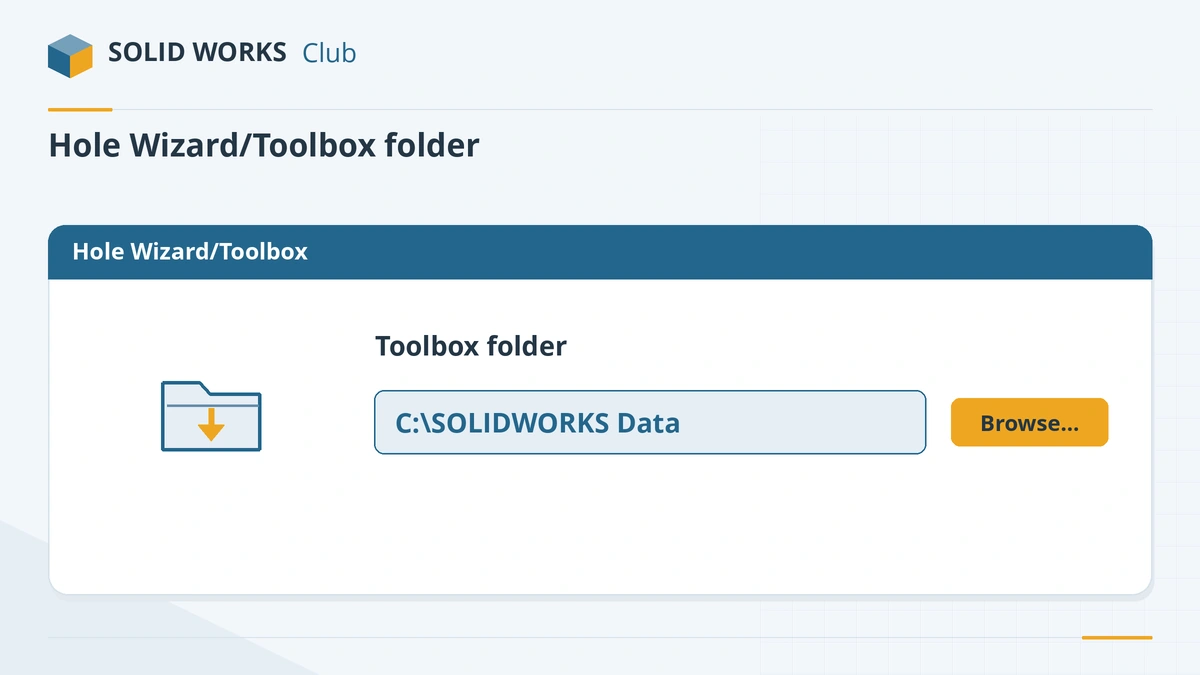
C:\SOLIDWORKS Data. Look for the folder that containslang\English\swbrowser.sldedb. To see which release a Toolbox belongs to, openToolboxFiles.indexin that folder with Notepad: the first number is the release — 34 = 2026, 33 = 2025, 32 = 2024.2. Point SOLIDWORKS to it
Tools → Options → System Options → Hole Wizard/Toolbox → click the … button and select the top-level folder (the one that contains
lang). Restart SOLIDWORKS. This fixes not the expected version, sldbrowser.sldedb is missing and could not find the Standards database.3. Turn on both Toolbox add-ins
Tools → Add-Ins: tick SOLIDWORKS Toolbox Library and SOLIDWORKS Toolbox Utilities in both columns (now and at start-up). Or click Add in now in the Design Library's Toolbox folder.
4. Stop parts changing size
When a fastener opens at the wrong size on someone else's PC, their Toolbox does not have that size and falls back to the default. Give everyone the same Toolbox: one shared network folder or PDM vault, or the same copied SOLIDWORKS Data folder — not a OneDrive copy. In Toolbox Settings → User Settings choose the same option for everyone (create parts or create configurations), and under Permissions set the same for all users.
5. Fix read-only Toolbox parts
Toolbox Settings has two choices for writing to read-only Toolbox parts: Always change read-only status of document before writing, or Error when writing to a read-only document. Choose the second with PDM so that files are checked out properly.
6. Upgrades — "Toolbox is currently in use"
Close SOLIDWORKS on all PCs that use the Toolbox, delete
swbrowser.ldbfrom the Toolbox data folder, and run the upgrade again. Back up the Toolbox before upgrading — the upgrade cannot be undone, and older releases cannot use the upgraded database.7. Toolbox in PDM
Copy SOLIDWORKS Data into the vault, enable Toolbox management in PDM Administration → SOLIDWORKS → Toolbox, and point Hole Wizard/Toolbox options on every client to the vault path. To upgrade, make sure no Toolbox files are checked out, check out
swbrowser.sldedb, upgrade, then check it back in.
Sources
- Hawk Ridge — Comprehensive Toolbox guide
- Hawk Ridge — swbrowser.sldedb is not the expected version
- Hawk Ridge — SOLIDWORKS database sldbrowser.sldedb is missing
- GoEngineer — Fix Hole Wizard and Toolbox database errors (Sep 2024)
- Javelin — Fix wrong-size Toolbox components (Dec 2025)
- Hawk Ridge — Upgrade error: Toolbox is currently in use
- Javelin — Toolbox in SOLIDWORKS PDM (Mar 2024)
- Solid Solutions — 10 things to do before upgrading to SOLIDWORKS 2026 (Dec 2025)
Checked November 2026. SOLID WORKS Club is independent; menu names can differ slightly between releases.
Frequently asked questions
Where is the SOLIDWORKS Toolbox folder?
+
By default in C:\SOLIDWORKS Data. The location in use is set under Tools → Options → System Options → Hole Wizard/Toolbox. Many offices move it to a shared network folder or a PDM vault.
Why do Toolbox bolts change size when someone else opens my assembly?
+
Their Toolbox is different from yours — another folder, version or settings — and does not contain that size, so the part falls back to the default configuration. Share one Toolbox between all users.
Can I use a Toolbox from a newer SOLIDWORKS version?
+
No. Each release needs a Toolbox database of the same version. Once a Toolbox is upgraded, older releases cannot use it, so back it up before upgrading.
Do I need Toolbox to use the Hole Wizard?
+
The Hole Wizard uses the same database file (swbrowser.sldedb) for its standard hole sizes, so a wrong Toolbox folder causes Hole Wizard errors too.
Related
- SOLIDWORKS installation errors and how to fix themFix SOLIDWORKS Installation Manager errors: pending reboot, cannot connect, additional files needed, 1722 and 1603, and where to find the install logs.
- SOLIDWORKS missing references — unable to locate fileSOLIDWORKS "unable to locate file" when opening an assembly or drawing? How the search order works, how to repair references, and how to rename files safely.
- SOLIDWORKS default file locationsDefault SOLIDWORKS folders for templates, sheet formats, the Design Library, BOM templates, profiles and materials, and how to point to shared folders.
- SOLIDWORKS rebuild errors and warnings — how to fix themFix SOLIDWORKS rebuild errors: red and yellow feature icons, the What's Wrong dialog, dangling references, zero-thickness geometry and failed fillets.