Errors & Fixes
SOLIDWORKS problems on Windows 11 and how to fix them
SOLIDWORKS has supported Windows 11 since SOLIDWORKS 2022 SP2, and from SOLIDWORKS 2026 Windows 11 is the only supported desktop Windows. Most problems after an upgrade are not Windows 11 bugs but setup issues: an old SOLIDWORKS version that does not support Windows 11, a Home edition, a license that was not deactivated, Windows Update swapping the graphics driver, or display scaling.
 Kevin Walsh
Applies to: SOLIDWORKS 2022 SP2 and later on Windows 11 Pro, Enterprise and Education.
Most likely causes
- SOLIDWORKS version older than 2022 SP2 (not supported on Windows 11) (older installs)
- Windows 11 Home edition (not supported) (new laptops)
- Windows Update replaced the certified graphics driver (common)
- Display scaling on high-resolution screens (common on laptops)
- Standalone license not deactivated before a reinstall or upgrade (after reinstalls)
- Windows security features blocking saves or programs (occasional)
Windows 11 support at a glance
| SOLIDWORKS | Windows 11 | Windows 10 |
|---|---|---|
| 2021 and earlier | Not supported | Supported while in lifecycle |
| 2022 SP2 – 2025 | Supported | Supported (ends with 2025 SP5) |
| 2026 and 2027 | Supported | Not supported |
Home editions and Windows To Go are not supported for any release, and Boot Camp on Intel Macs is not supported either. Details and server versions: SOLIDWORKS system requirements.
Before you upgrade a PC to Windows 11
- Deactivate standalone licenses (Help → Licenses → Deactivate).
- Back up your settings with the Copy Settings Wizard, and check in any PDM files.
- Upgrade Windows and install all updates.
- Repair SOLIDWORKS, reinstall the certified graphics driver, set high-performance graphics, then reactivate.
If activation fails afterwards, see activation errors.
Still not working?
If SOLIDWORKS will not install on Windows 11, read installation errors. If it installs but freezes or closes, work through not responding and crashing.
Fixes, in order
1. Check your SOLIDWORKS version and Windows edition
Windows 11 is supported from SOLIDWORKS 2022 SP2. Earlier releases are not supported on it. Windows Home editions are not supported in any version — upgrade to Pro (Settings → System → Activation). The full matrix is on our Windows 11 requirements page.
2. Repair SOLIDWORKS after an in-place upgrade
After moving from Windows 10 to 11, run Windows Update until nothing is left, then Programs and Features → SOLIDWORKS → Change → Repair. Installations made from an administrative image should be uninstalled before the Windows upgrade and reinstalled afterwards. Deactivate standalone licenses before any upgrade or reset.
3. Put the certified graphics driver back
Windows 11 often installs its own graphics driver. Reinstall the recommended driver from the hardware certification page and stop Windows Update from replacing it — see unsupported graphics card. On laptops, set SLDWORKS.exe to High performance in Settings → System → Display → Graphics.
4. Fix blurry text and wrong scaling
Right-click
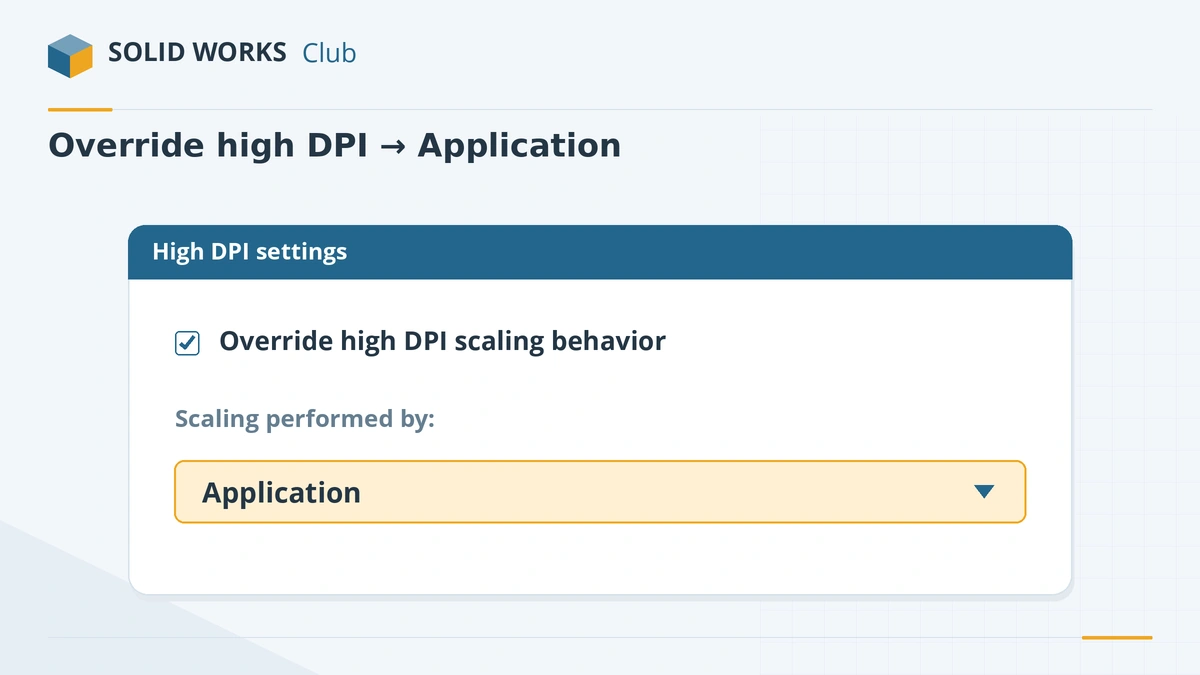
SLDWORKS.exe(in the SOLIDWORKS install folder) → Properties → Compatibility → Change settings for all users → Change high DPI settings → tick Override high DPI scaling behavior and choose Application. Restart. Resellers documented this for Windows 10; the same setting exists in Windows 11.5. Allow SOLIDWORKS through Controlled folder access
If saves to Documents or Desktop fail, check Windows Security → Virus & threat protection → Ransomware protection. With Controlled folder access on, Windows blocks untrusted programs from writing there; add SLDWORKS.exe under Allow an app through Controlled folder access, or keep your work in another folder.
6. Watch for Smart App Control and antivirus blocks
Smart App Control blocks programs and files that are not properly signed. If a macro, add-in or utility is blocked, check the Windows Security notification and ask IT before changing the setting. Ask IT to exclude SOLIDWORKS processes from real-time scanning.
7. Check .NET Framework
Resellers note that SOLIDWORKS uses .NET Framework 3.5 and 4.x, and that damaged .NET can cause save errors and instability. Make sure both are turned on in Windows Features; repair them if errors continue.
Sources
- SOLIDWORKS system requirements
- Hawk Ridge — SOLIDWORKS 2022 SP2 supports Windows 11
- CADimensions — Helping SOLIDWORKS survive a Windows 10 to 11 upgrade
- Javelin — Stop Windows from updating your graphics driver (May 2023)
- Hawk Ridge — Set SOLIDWORKS to use the dedicated graphics card
- GoEngineer — SOLIDWORKS display scaling solutions
- Javelin — SOLIDWORKS DPI scaling issue (Sep 2023)
- Microsoft — Controlled folder access
- Microsoft — Smart App Control has blocked part of this app
- Hawk Ridge — Repairing .NET Framework for SOLIDWORKS
- Hawk Ridge — Antivirus recommendations for SOLIDWORKS
Checked November 2026. SOLID WORKS Club is independent; menu names can differ slightly between releases.
Frequently asked questions
Does SOLIDWORKS work on Windows 11?
+
Yes. Windows 11 is supported from SOLIDWORKS 2022 SP2, and SOLIDWORKS 2026 and later support only Windows 11 among desktop versions. Windows Home editions are not supported.
Does SOLIDWORKS work on Windows 11 Home?
+
It may install, but Windows Home editions are not supported according to the official system requirements, and resellers will not support problems on them. Windows 11 Pro is the usual choice.
Do I need to reinstall SOLIDWORKS after upgrading to Windows 11?
+
Usually a repair is enough. Deactivate standalone licenses first, run Windows Update after the upgrade, then repair SOLIDWORKS. Installs made from an administrative image should be removed before and reinstalled after.
Are there known problems with Windows 11 25H2?
+
We found no official SOLIDWORKS statement about problems with 25H2, only individual user reports. SOLIDWORKS supports each Windows 11 release while it is within both the SOLIDWORKS and Microsoft support lifecycles.
Related
- SOLIDWORKS on Windows 11: editions, upgrade and setupSOLIDWORKS 2026 and 2027 need Windows 11. Which editions work (not Home), moving from Windows 10, ARM laptops, and graphics settings to change after install.
- Unsupported graphics card, RealView greyed out and display problemsSOLIDWORKS says your graphics card is unsupported, RealView is greyed out, or the screen goes black? Check certification, install the right driver, fix laptops.
- SOLIDWORKS installation errors and how to fix themFix SOLIDWORKS Installation Manager errors: pending reboot, cannot connect, additional files needed, 1722 and 1603, and where to find the install logs.
- SOLIDWORKS activation errors — how to fix themFix SOLIDWORKS activation errors: activation count exceeded, server unreachable or empty response. How to deactivate, transfer and activate by email.