Errors & Fixes
Unsupported graphics card, RealView greyed out and display problems
SOLIDWORKS tests graphics cards and drivers and publishes the results on its hardware certification page. When your card or driver is not on that list, SOLIDWORKS may still run, but you can get display glitches, crashes, a greyed-out RealView button or slow rotation. Most of the time the fix is the certified driver for your card — or making a laptop use its dedicated graphics instead of the processor's built-in graphics.
 Kevin Walsh

Applies to: SOLIDWORKS 2022–2027. Steps shown for NVIDIA and AMD cards on Windows 11.
Most likely causes
- Driver is not the certified version for your SOLIDWORKS release (most common)
- Windows Update or the vendor app replaced the certified driver (common)
- Laptop uses integrated graphics for SOLIDWORKS (common on laptops)
- Large Assembly Mode is active (RealView switches off) (RealView only)
- Use Software OpenGL is ticked (RealView only)
- Gaming or consumer card that SOLIDWORKS does not certify (occasional)
- Remote Desktop, VPN or a virtual machine without a passed-through GPU (remote work)
What "unsupported" means
SOLIDWORKS does not block uncertified cards. It certifies specific card-and-driver pairs for each release, and only those are supported. With anything else, SOLIDWORKS Rx flags the driver, some options (RealView, Enhanced Graphics Performance) can be unavailable, and your reseller may ask you to move to a certified setup before they investigate a problem.
Symptoms and where to start
| Symptom | Start with |
|---|---|
| Rx Diagnostics warns about the driver | Fixes 1–3 |
| Fine yesterday, broken after an update | Fix 3, then reinstall the certified driver |
| Laptop: slow rotation, RealView missing | Fix 4 |
| RealView greyed out in assemblies only | Fix 5 (Large Assembly Mode) |
| Black graphics area, missing icons, flicker | Fix 6 |
| Working over Remote Desktop or VPN | Fix 7 |
Choosing a card that will not cause problems
If you are buying, pick a card that is certified for the SOLIDWORKS version you will run — our graphics card guide and best GPU picks list current certified models, and the PC compatibility checker tests a full specification. For laptops, see best laptops for SOLIDWORKS, which marks certified models.
Card is supported but the model still looks wrong? See display problems.
Fixes, in order
1. Look up your card and driver
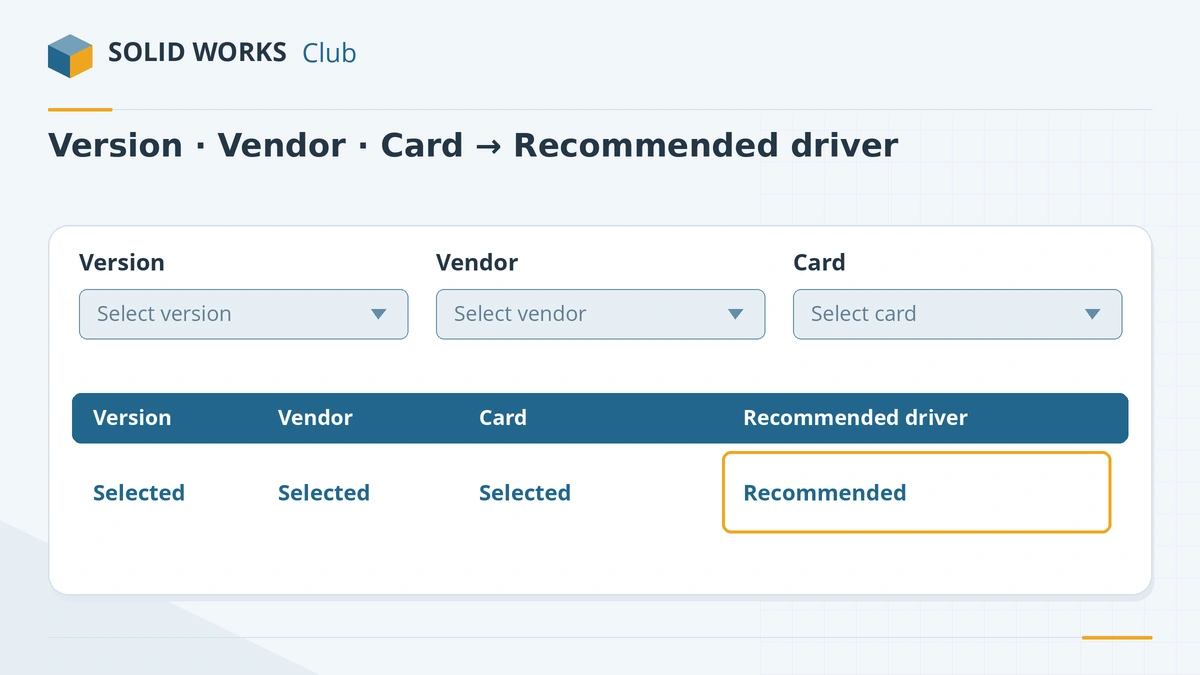
Open SOLIDWORKS Rx → Diagnostics and note the card and the driver version (a warning icon means it is not the recommended one). On the hardware certification page choose your SOLIDWORKS version, the vendor and the card. The Recommended Driver column tells you what to install.
2. Clean-install the recommended driver
Download that driver from the certification page or the card maker. In the NVIDIA or AMD installer choose Custom → Perform a clean installation and restart. Do not use the newest game-ready driver unless it is the one listed.
3. Stop Windows replacing the driver
System Properties → Hardware → Device Installation Settings → No. On Pro editions, IT can also enable Do not include drivers with Windows Update in Group Policy (Computer Configuration → Administrative Templates → Windows Components → Windows Update). Vendor update apps can still swap the driver, so turn off their automatic updates too.
4. Make a laptop use the dedicated card
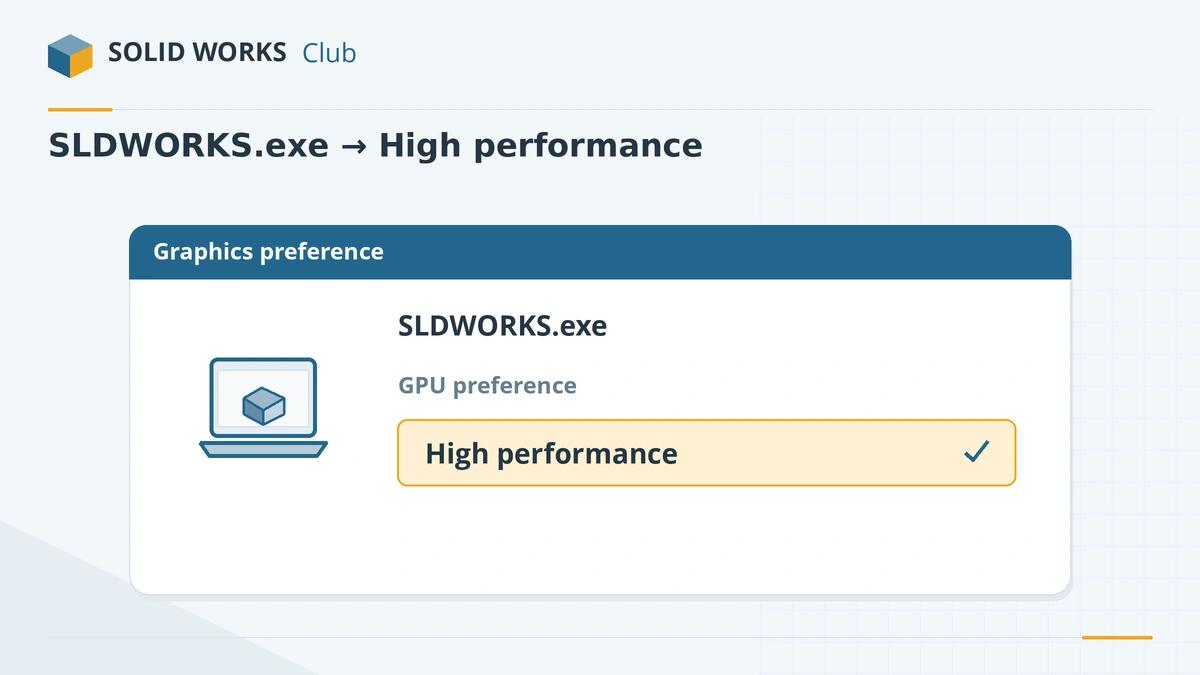
Settings → System → Display → Graphics → Add desktop app, browse to
SLDWORKS.exe, set High performance and restart. In NVIDIA Control Panel set SOLIDWORKS to High-performance NVIDIA processor. Plug external monitors into the ports on the dedicated card.5. If only RealView is greyed out
Open a single part. If RealView works there, Large Assembly Mode is turning it off in the assembly — that is by design. Otherwise check Tools → Options → System Options → Performance and untick Use Software OpenGL (close all documents first). Professional cards that SOLIDWORKS does not recognise for RealView can need the graphics card support patch mentioned on the certification page.
6. Fix a black or flickering graphics area
Turn off Enhanced Graphics Performance in System Options → Performance and restart. If the screen is blurry or the graphics area is doubled, right-click
SLDWORKS.exe→ Properties → Compatibility → Change high DPI settings → override scaling, performed by Application. If a model shows all black, the lights in DisplayManager may be off.7. Remote, VPN and virtual machines
SOLIDWORKS states that virtual machines need a GPU for good performance, and that it does not test or certify VPN products. Over Remote Desktop or in a VM without a dedicated GPU, expect Software OpenGL-like speed and no RealView. Use a workstation with a GPU or a supported virtual GPU setup.
Sources
- SOLIDWORKS hardware certification (graphics cards and drivers)
- SOLIDWORKS system requirements
- Javelin — Improve SOLIDWORKS graphics performance on laptops (Jul 2024)
- Hawk Ridge — Set SOLIDWORKS to use the dedicated graphics card
- Javelin — Stop Windows from updating your graphics driver (May 2023)
- TriMech — Troubleshooting: unable to turn on RealView (Feb 2026)
- GoEngineer — Software OpenGL for SOLIDWORKS explained (Jan 2026)
- CADimensions — The Use Software OpenGL setting
- GoEngineer — SOLIDWORKS 2021 Enhanced Graphics Performance
- Javelin — Solutions for common SOLIDWORKS display issues (Aug 2025)
- GoEngineer — SOLIDWORKS display scaling solutions
- GoEngineer — Everything you need to know about SOLIDWORKS Rx
Checked November 2026. SOLID WORKS Club is independent; menu names can differ slightly between releases.
Frequently asked questions
Can I use a gaming graphics card with SOLIDWORKS?
+
It usually runs, but GeForce and Radeon gaming cards are not certified, so RealView may be unavailable and display problems are not supported. Certified cards are professional models such as NVIDIA RTX PRO / RTX Ada and AMD Radeon PRO.
Why is RealView greyed out?
+
The most common reason is Large Assembly Mode, which switches RealView off in big assemblies. Others are Software OpenGL being on, a card that does not support RealView, or a professional card SOLIDWORKS does not recognise.
Should I always install the newest graphics driver?
+
No. Install the driver listed as recommended for your card and your SOLIDWORKS version on the hardware certification page. A newer driver is not always tested.
How do I know which graphics card my PC has?
+
SOLIDWORKS Rx shows it on the Diagnostics tab. In Windows you can also open Device Manager → Display adapters, or Task Manager → Performance.
Related
- SOLIDWORKS certified graphics cards and driversWhich graphics cards are certified for SOLIDWORKS 2026, why GeForce cards are not, how to find the certified driver for your card, and what RealView needs.
- Best GPU for SOLIDWORKS in 2026The best graphics card for SOLIDWORKS in 2026 by model size — certified NVIDIA RTX PRO Blackwell and AMD Radeon PRO picks, VRAM, and when a gaming card will do.
- SOLIDWORKS keeps crashing — causes and fixesSOLIDWORKS crashing on start-up or while you work? Recover your file, read the crash logs, test with Rx safe modes and fix drivers, settings and installs.
- SOLIDWORKS running slow — how to speed it upSpeed up a slow SOLIDWORKS with Performance Evaluation, large assembly settings, lightweight mode, image quality, local files and the right graphics setup.