Errors & Fixes
SOLIDWORKS installation errors and how to fix them
The SOLIDWORKS Installation Manager downloads and installs SOLIDWORKS and its prerequisites. It fails for a handful of predictable reasons: Windows wants a restart, the downloader cannot reach SOLIDWORKS servers, you are not a full local administrator, antivirus interferes, or Windows components such as Visual C++ are damaged. The Installation Manager keeps detailed logs that show exactly which step failed.
 Kevin Walsh
Applies to: SOLIDWORKS 2024–2027 Installation Manager on Windows 11 (and Windows 10 up to 2025).
Most likely causes
- Pending Windows restart or updates (most common)
- Not running as a full local administrator (common)
- Firewall, proxy or antivirus blocking the downloader (company networks)
- Damaged Visual C++ redistributables or Windows Installer (error 1722 / 1603)
- Unsupported Windows: Windows 10 for 2026+, any Home edition (new versions)
- Leftovers from an old installation (reinstalls)
Before you install: checklist
- Supported Windows edition and version — see Windows 11 problems and the requirements.
- All Windows updates installed and the PC restarted.
- Signed in as a full local administrator.
- Old version's standalone license deactivated if you will remove it.
- Settings backed up with the Copy Settings Wizard; Toolbox backed up (Toolbox upgrades cannot be undone).
- Antivirus paused or set to allow the installer, if IT agrees.
Common messages
| Message | Fix |
|---|---|
| A Windows reboot is pending from a previous installation | Fix 2 |
| Could not connect to the SOLIDWORKS server | Fix 4 |
| Additional files are needed based on the products selected | Fix 4 |
| ErrorCode:1722 (register step) | Fix 5 |
| Code: 1603 | Fix 5 |
| Toolbox is currently in use (upgrade) | Close SOLIDWORKS and see Toolbox errors |
| Blank installer window | Fix 6 |
After the install, activate the license — problems there are covered in activation errors.
For the normal installation steps, see how to install SOLIDWORKS; for removing it cleanly, how to uninstall SOLIDWORKS.
Fixes, in order
1. Check that your Windows is supported
SOLIDWORKS 2026 and later do not support Windows 10, and Home editions are never supported. SOLIDWORKS 2026 also dropped Windows Server 2019, Office 2016/2019 and SQL Server 2017. Check the system requirements before you start.
2. Restart and install Windows updates
For A Windows reboot is pending, click OK — the install often continues. If it stops, restart (not shut down) and run the installer again. If the message keeps coming back, IT can clear the pending rename operations in the registry after a backup.
3. Install as a full local administrator
Right-click
setup.exe→ Run as administrator, signed in as a local or domain administrator. If the installer restarts the PC, sign back in as the same administrator so it can finish.4. Let the downloader through
For Additional files are needed or Could not connect to the SOLIDWORKS server: right-click the Installation Manager title bar and make sure Disable Internet Access is not ticked; allow outbound traffic for
sldim.exeandsldimdownloader.exe; whitelistim.solidworks.com,im-ak.solidworks.comanddl-ak.solidworks.com; avoid proxies. If you already downloaded the full install set, click Cancel on the connection message and continue.5. Fix error 1722 and 1603
ErrorCode:1722 with a register step usually means damaged Visual C++ redistributables: uninstall and reinstall them, then run the installer again. Code 1603 is a general Windows Installer failure — remove leftovers from old CAD installs and temporarily pause antivirus or ransomware protection. Microsoft's program install troubleshooter fixes a damaged Windows Installer.
6. Fix display problems in the installer
A blank Installation Manager window happens when files were extracted from a ZIP and Windows blocked them — right-click the ZIP → Properties → Unblock before extracting. If text is cut off and you cannot type the serial number, set Windows text size to 100% while installing.
7. Gather the installation logs
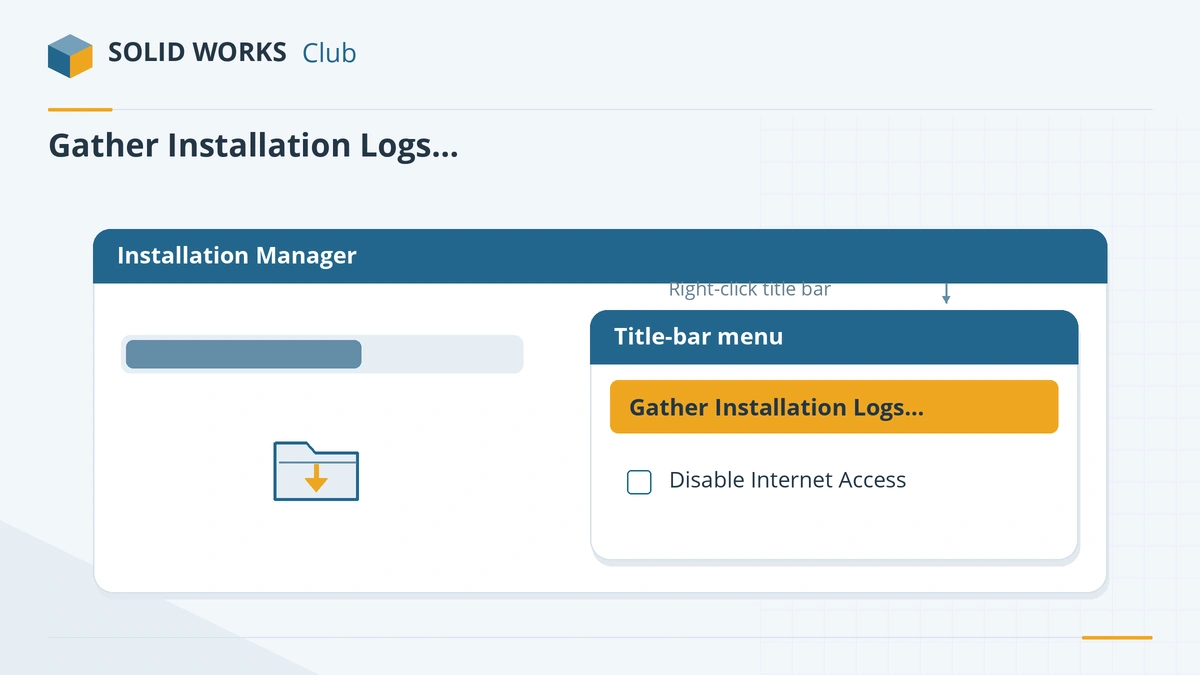
Right-click the Installation Manager title bar → Gather Installation Logs to create a zip for your reseller. The logs are stored in
%AppData%\SOLIDWORKS\Installation Logs, in a folder per version and service pack.8. Repair, or remove completely and reinstall
To repair: Programs and Features → SOLIDWORKS → Change → Repair (needs the original download, usually in Documents\SOLIDWORKS Downloads). For a clean reinstall, back up settings and Toolbox, deactivate the license, uninstall with the advanced option that removes all items, then delete leftover SOLIDWORKS folders and registry keys — follow your reseller's clean-uninstall guide.
Sources
- Javelin — SOLIDWORKS Installation Manager errors (Mar 2025)
- Solid Solutions — 10 things to do before upgrading to SOLIDWORKS 2026 (Dec 2025)
- SOLIDWORKS system requirements
- Hawk Ridge — Registration failures during installation (error 1722)
- Visiativ — Code 1603 error (Jul 2026)
- Hawk Ridge — Fix Windows issues that prevent a SOLIDWORKS install
- Javelin — SOLIDWORKS installation log files (Jun 2023)
- GoEngineer — SOLIDWORKS installation repair (Dec 2024)
- GoEngineer — Complete SOLIDWORKS clean uninstall guide
- Hawk Ridge — How to repair SOLIDWORKS
- Hawk Ridge — Upgrade error: Toolbox is currently in use
Checked November 2026. SOLID WORKS Club is independent; menu names can differ slightly between releases.
Frequently asked questions
Why won't SOLIDWORKS 2026 install on my PC?
+
Check Windows first: SOLIDWORKS 2026 does not support Windows 10 or any Home edition. Then restart, run the installer as administrator and make sure the downloader can reach the SOLIDWORKS servers.
Where are the SOLIDWORKS installation logs?
+
In %AppData%\SOLIDWORKS\Installation Logs, in a subfolder for each version and service pack. The Installation Manager can zip them for you from its title-bar menu.
How do I completely uninstall SOLIDWORKS?
+
Deactivate the license, back up settings and Toolbox, then uninstall from Programs and Features using the advanced option to remove all items. Leftover folders and registry keys can then be deleted by hand.
Do I need to uninstall the old version before installing the new one?
+
No. The Installation Manager can upgrade an existing version or install the new one side by side. Deactivate the old license first if you will remove that version later.
Related
- SOLIDWORKS activation errors — how to fix themFix SOLIDWORKS activation errors: activation count exceeded, server unreachable or empty response. How to deactivate, transfer and activate by email.
- SOLIDWORKS problems on Windows 11 and how to fix themSOLIDWORKS problems on Windows 11: unsupported versions and editions, blurry scaling, drivers replaced by Windows Update, blocked saves and licenses.
- SOLIDWORKS Toolbox and Hole Wizard errors — fixesFix SOLIDWORKS Toolbox errors: swbrowser.sldedb wrong version or missing, Hole Wizard database errors, fasteners changing size, read-only parts and PDM.
- SOLIDWORKS system requirements (2025–2027)Official SOLIDWORKS system requirements for 2025–2027 — Windows 11, 16 GB RAM minimum, 32 GB recommended, x86_64 CPU, certified graphics card and an SSD.