Errors & Fixes
SOLIDWORKS mate errors — over defined and failed mates
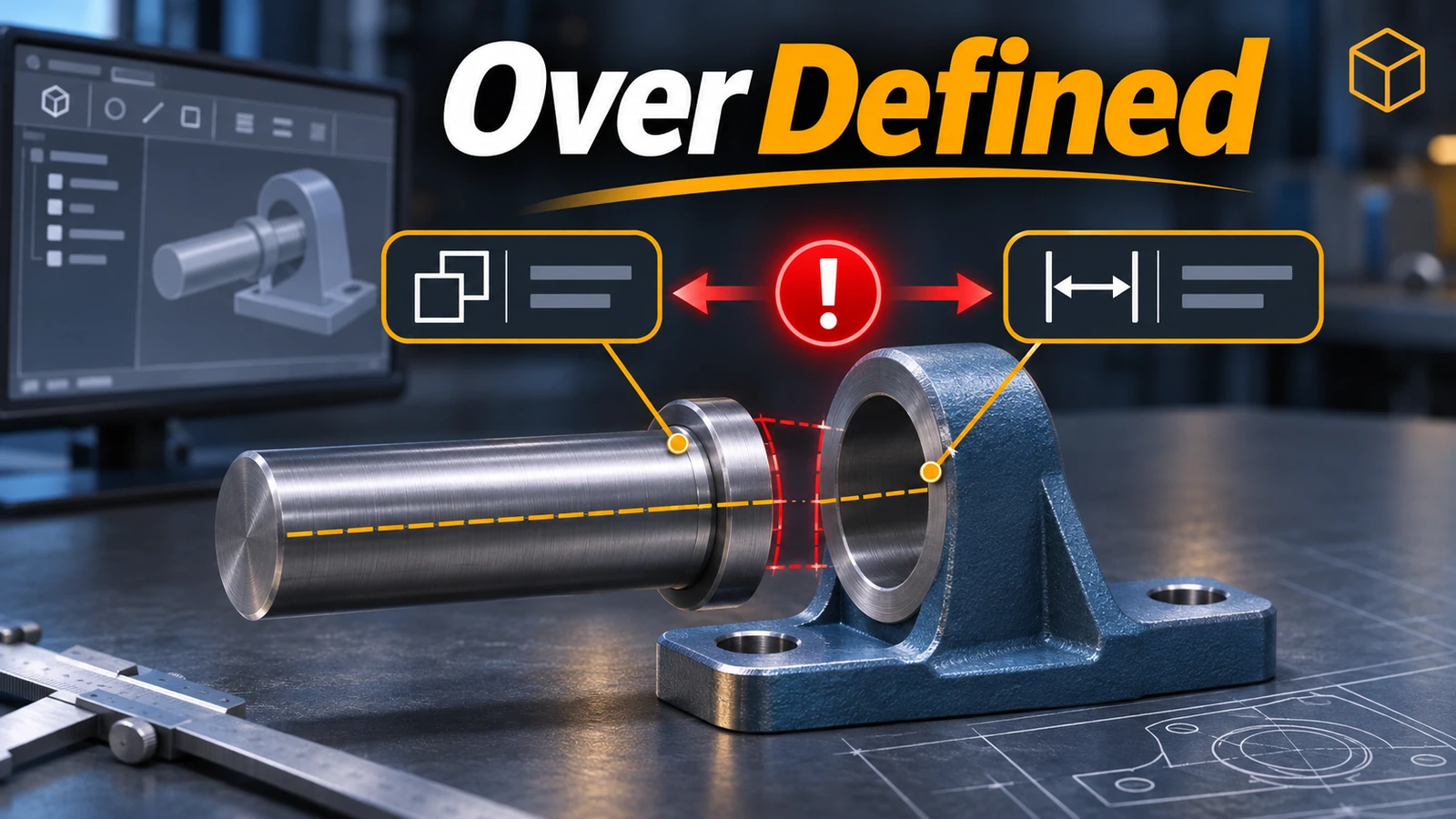
A mate error means SOLIDWORKS cannot place a component the way its mates describe. Usually two mates try to control the same movement and disagree — the component is over defined — or a mate refers to a face or edge that changed. Find the first mate that failed, check what it points to, and remove the duplicate control. MateXpert and the Mates folder show you which ones to look at.
 Kevin Walsh
Applies to: SOLIDWORKS 2022–2027 assemblies.
Most likely causes
- Two mates control the same degree of freedom and conflict (most common)
- A mated face or edge changed or disappeared in the part (after part edits)
- A component is fixed and also mated (common)
- Mate alignment flipped (aligned vs anti-aligned) after a change (occasional)
- Errors inside a subassembly showing at the top level (big assemblies)
Symbols in an assembly tree
| Symbol | On | Meaning |
|---|---|---|
(-) |
Component | Under defined — can still move |
(+) |
Component | Over defined |
(?) |
Component | Position cannot be solved |
(f) |
Component | Fixed |
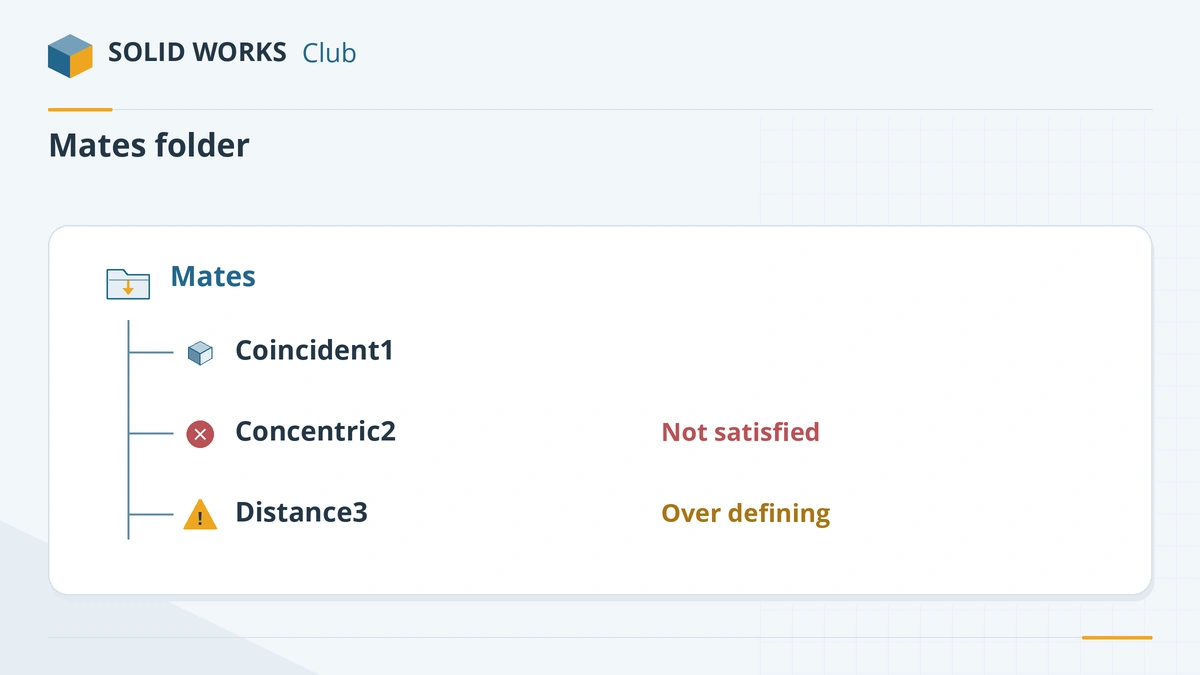
| Error icon | Mate | Not satisfied |
| Warning icon | Mate | Satisfied but over defining |
From the official SOLIDWORKS help on mate status and tree conventions.
Build assemblies that do not break
The SOLIDWORKS team's advice for stable assemblies comes down to a few habits:
- Mate to planes and the origin of parts where you can — they do not change when you add fillets or cuts.
- Give each degree of freedom one mate. Before adding a mate, ask which movement it removes.
- Build in subassemblies and fix errors in each one before using it.
- After a part change, rebuild the assembly and check the Mates folder immediately, while you still know what changed.
If components are missing altogether, see missing references. If the problem is inside a part, see rebuild errors.
Learn the mates from the start: standard mates, advanced mates and the whole assemblies course.
Fixes, in order
1. Find the error in the Mates folder
Expand the Mates folder. A mate with an error icon is not satisfied; a mate with a warning icon is satisfied but over defining the assembly. In the tree,
(+)before a component means over defined,(-)under defined,(?)not solved and(f)fixed.2. Run MateXpert
MateXpert — type MateXpert in the command search box at the top of the window — analyses the mates and shows groups of mates that cannot be satisfied together. Suppress the suggested mate, check whether the error disappears, and decide which mate reflects your design intent.
3. Check what the failing mate points to
Edit the mate and look at its selections. If a face was replaced by an edit in the part — for example a fillet split it — the mate lost its reference. Reselect the face and confirm.
4. Suppress suspects one at a time
Start with the most recent change. Suppress one mate, rebuild, and see whether the error clears. Repeat until you find the culprit. Then delete or edit it instead of leaving suppressed mates behind.
5. Float components that should move
The first component placed in an assembly is fixed automatically. Right-click a component that is both fixed
(f)and mated → Float, or remove the mates that duplicate the fix.6. Flip alignment
When a component jumps to the wrong side after an edit, edit the mate and switch alignment between Aligned and Anti-Aligned, or use the flip dimension option on distance and angle mates.
7. Make a dimension mate driven
A distance or angle mate that conflicts with other mates can be set to Driven. It then only reports the value instead of forcing it, which relaxes the conflict while you decide how to mate the part.
8. Fix subassemblies separately
Open each subassembly that shows an error on its own, fix it there and save. Mate errors in a subassembly are reported at the top level too.
Sources
- SOLIDWORKS Help 2024 — Identifying mate status
- SOLIDWORKS Help 2024 — FeatureManager design tree conventions
- SOLIDWORKS blog — Building stable assemblies (Sep 2026)
- CATI — Diagnosing assembly errors with MateXpert
- GoEngineer — Fixed vs floating components (Apr 2024)
- GoEngineer — Viewing mates instead of features in an assembly
- Javelin — Driven mate dimensions
- SOLIDWORKS Help 2024 — Error messages overview
Checked November 2026. SOLID WORKS Club is independent; menu names can differ slightly between releases.
Frequently asked questions
What does over defined mean in a SOLIDWORKS assembly?
+
Two or more mates try to control the same movement of a component and do not agree, or repeat each other. The component shows (+) in the tree. Remove or change the duplicate mate.
How do I find which mate is causing the error?
+
Look for error and warning icons in the Mates folder, run MateXpert, and suppress mates one at a time starting from the most recent change.
What does (f) mean before a component?
+
The component is fixed in place in all directions. The first component in an assembly is fixed automatically; float it if it should be positioned by mates.
How do I see the mates of one component?
+
Expand the component in the FeatureManager tree to see its Mates folder, or right-click the top of the tree → Tree Display → View Mates and Dependencies.
Related
- SOLIDWORKS rebuild errors and warnings — how to fix themFix SOLIDWORKS rebuild errors: red and yellow feature icons, the What's Wrong dialog, dangling references, zero-thickness geometry and failed fillets.
- SOLIDWORKS missing references — unable to locate fileSOLIDWORKS "unable to locate file" when opening an assembly or drawing? How the search order works, how to repair references, and how to rename files safely.
- SOLIDWORKS sketch errors — over defined, unsolvable and open sketchesFix SOLIDWORKS sketch errors: over defined, no solution found, dangling relations, open or self-intersecting contours, with SketchXpert and Repair Sketch.
- What is an SLDASM file?An SLDASM file is a SOLIDWORKS assembly that references its part files. Why it opens with missing parts, how to send it with Pack and Go, and how to convert it.