Sketching · Lesson 8
SOLIDWORKS Smart Dimension
Smart Dimension is one tool for almost every dimension. It decides what to create from what you click: one line gives its length, two lines give the distance or the angle between them, a circle gives its diameter, an arc and its two endpoints give the arc length. Type the value in the Modify box — numbers, other units, formulas or equations — and the sketch changes to match.
 Kevin Walsh
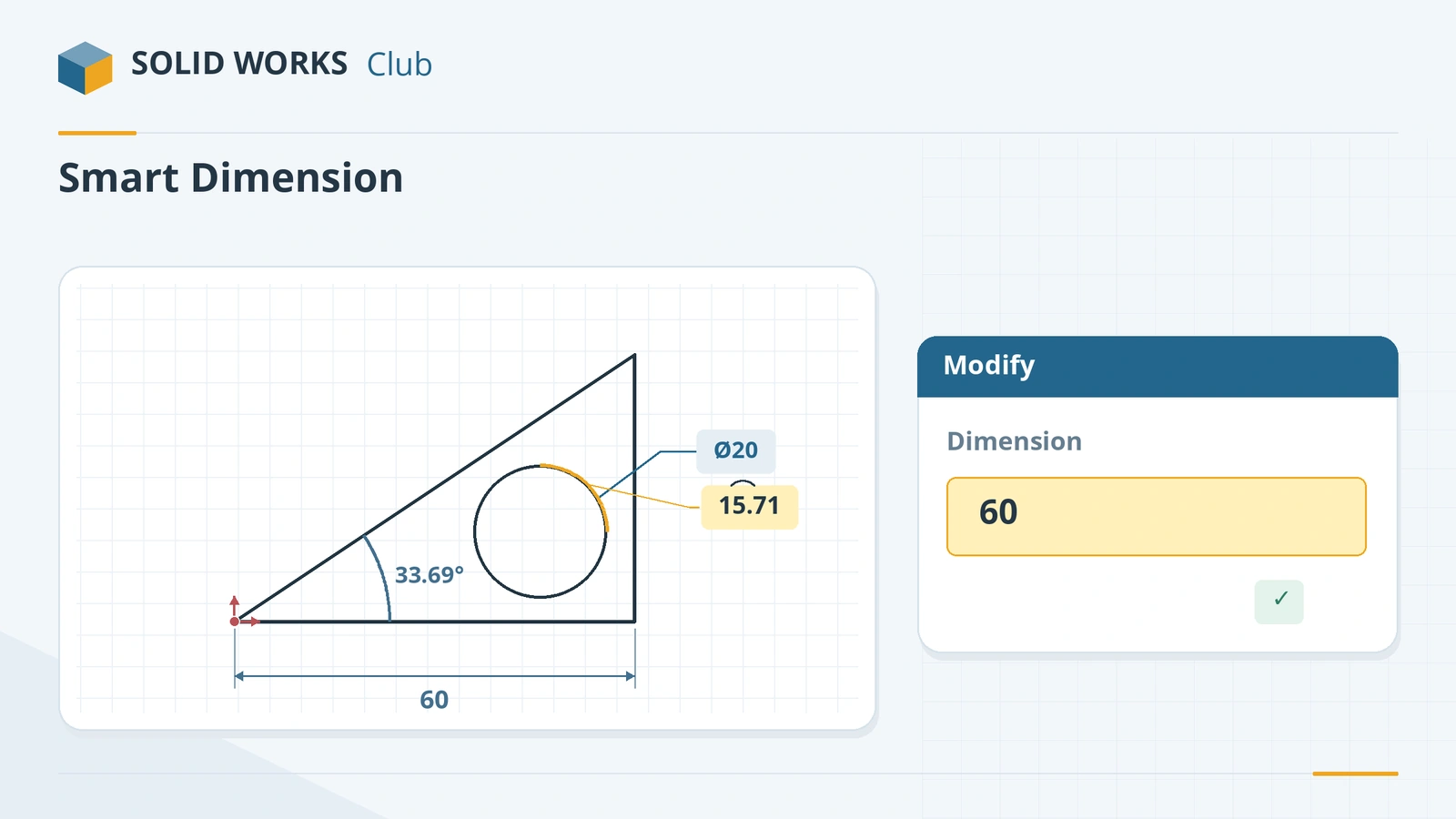
Where to find it
Sketch tab → Smart Dimension (far left)
What Smart Dimension creates from your clicks
| You click | You get |
|---|---|
| One line | Its length (horizontal, vertical or aligned, depending on where you place it) |
| Two parallel lines | Distance between them |
| Two non-parallel lines | Angle between them |
| A circle | Diameter |
| An arc | Radius |
| A point and a line | Perpendicular distance |
| Two points | Distance (drag to choose horizontal, vertical or aligned) |
| Arc endpoint, arc endpoint, arc | Arc length |
| A circle with Shift held | Distance to its nearest or farthest point |
| A centerline and a line (in a revolve profile) | Diameter about the axis |
The Modify box
- Value with units — type
25mmor1in; SOLIDWORKS converts. - Formulas —
120/3or2*15are calculated. - Equations — start with
=to link to another dimension or create a global variable. - Buttons: save value, restore original, rebuild, reverse direction, and the thumbwheel increment.
Time-savers
- Instant2D (since 2016): drag a dimension's arrow to change it with an on-screen ruler.
- On-screen numeric input: System Options → Sketch → Enable on screen numeric input on entity creation lets you type sizes while drawing lines, arcs and slots.
- Preview sketch dimension when selected (since 2024): select geometry and a grey preview dimension appears.
- Right-click while placing a dimension to lock its direction.
Next: hold the shape with sketch relations, and learn when a sketch is fully defined.
Step by step
-
1
Sketch a rough triangle
On the Front Plane draw a right-angled triangle with the Line tool: start on the origin, go right (horizontal), then up (vertical), then back to the origin.
-
2
Dimension the base
Click Smart Dimension, click the bottom line, move the pointer below it and click to place. In the Modify box type 60 and press Enter (or click the green tick).
-
3
Dimension the height
Click the vertical line, place the dimension to the right, type 40. For a line that is already horizontal or vertical, clicking the line is quicker than picking both endpoints.
-
4
Read an angle without driving it
Click the bottom line and the sloping line, then place the dimension inside the corner — it shows the angle. Because the sketch is already fully defined, SOLIDWORKS offers to make it driven (a reference that only reports the value). Accept: it should read about 33.69°.
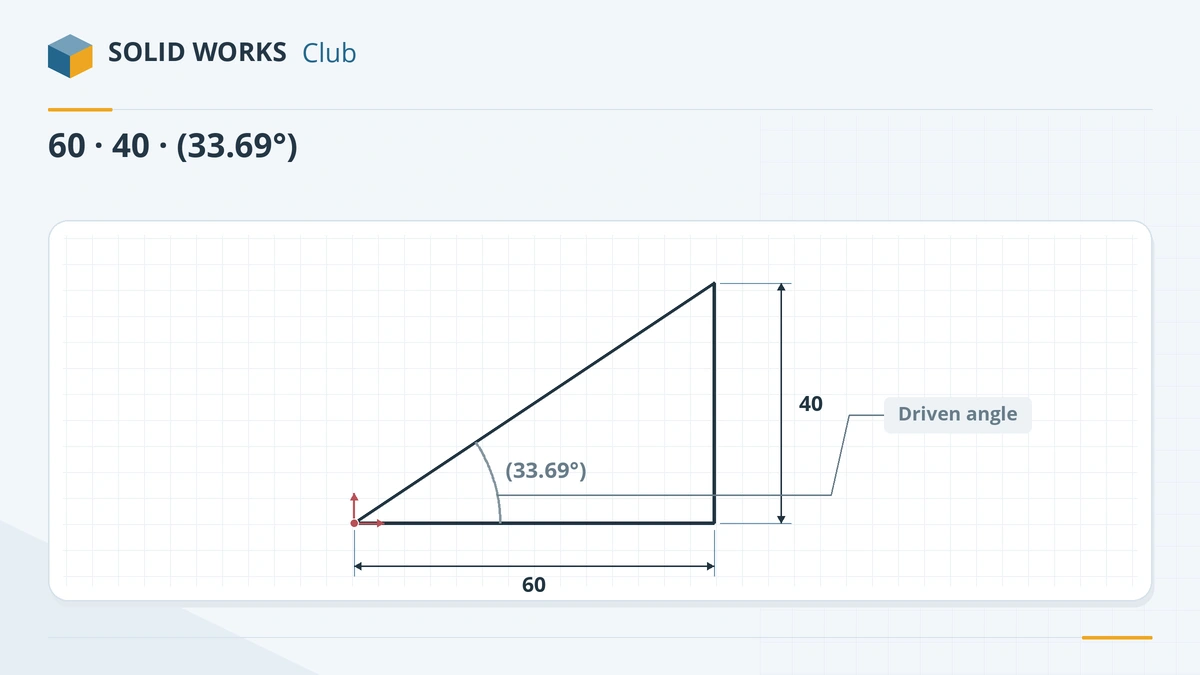
Base and height drive the triangle; the angle is a driven (reference) dimension.
Common mistakes
- Dimensioning everything when relations would do. Add relations first — you then need fewer dimensions.
- Over defining by adding a dimension that repeats another. Make it driven instead.
- Typing a value without a unit in a file with other units. Type the unit, for example 2in in a mm part.
- Expecting the D key to start Smart Dimension. D moves the confirmation corner to the pointer; Smart Dimension has no default key, so add one in Tools → Customize → Keyboard or use a mouse gesture.
Lesson 8 of 17 in the sketching course.
Practice
Finish the triangle above (base 60, height 40, corner on the origin) and extrude it 10 mm. Check: volume 12,000 mm³ and a driven angle of 33.69° at the origin corner.
Sources
- CATI — The Smart Dimension tool
- SOLIDWORKS Tech Blog — The fastest way to add smart dimensions (2018)
- SOLIDWORKS Tech Blog — Five great Smart Dimension tips
- SOLIDWORKS Tech Blog — Smart Dimension with arcs and circles (2020)
- CATI — The Modify dimension box
- Javelin — Tips for dimensioning sketches (Nov 2022)
- Hawk Ridge — Global variables and equations
- SOLIDWORKS Tech Blog — Instant2D and Instant3D (2020)
- Javelin — Show dimensions when creating a sketch (Mar 2026)
- Javelin — SOLIDWORKS keyboard shortcuts
Checked November 2026. SOLID WORKS Club is independent; menu names can differ slightly between releases.
Frequently asked questions
What is the shortcut for Smart Dimension in SOLIDWORKS?
+
There is no default keyboard shortcut. Many users assign one in Tools → Customize → Keyboard, or use a mouse gesture (right-drag). D is not Smart Dimension; it moves the confirmation corner to the pointer.
How do I dimension to the edge of a circle instead of the centre?
+
Hold Shift while clicking the circle or arc. The dimension snaps to the nearest or farthest point. You can also change it later under Leaders in the dimension's PropertyManager.
How do I dimension arc length?
+
Click the arc's two endpoints, then the arc itself, and place the dimension.
Can I type a formula in a SOLIDWORKS dimension?
+
Yes. Type a formula such as 100/4 and SOLIDWORKS calculates it. Start with = to create an equation that links to other dimensions or global variables.
Related
- SOLIDWORKS sketch relationsAll SOLIDWORKS sketch relations explained: horizontal, coincident, tangent, equal, symmetric, fix and more, plus how to add, view and delete them.
- Fully defined sketches in SOLIDWORKSWhat a fully defined sketch is in SOLIDWORKS, how to read blue, black and red geometry, find under defined sketches and use Fully Define Sketch safely.
- SOLIDWORKS Line toolHow to draw lines in SOLIDWORKS: the Line, Centerline and Midpoint Line tools, chain drawing, switching to a tangent arc, orientation options and L.
- SOLIDWORKS keyboard shortcutsEvery default SOLIDWORKS keyboard shortcut in a searchable list and a one-page PDF — rebuild, views, zoom, filters, sketch and assembly keys — and customising.