Drawings · Lesson 12
Title blocks and drawing templates
The title block lives in the sheet format layer of a drawing. You edit it in Edit Sheet Format mode: change lines, add your logo, and link notes to custom properties so part number, description, material and drawn-by fill themselves in. Title Block Fields then let users fill the rest with Tab. The drawing template stores your drafting standard, units and properties so every new drawing starts right.
 Kevin Walsh
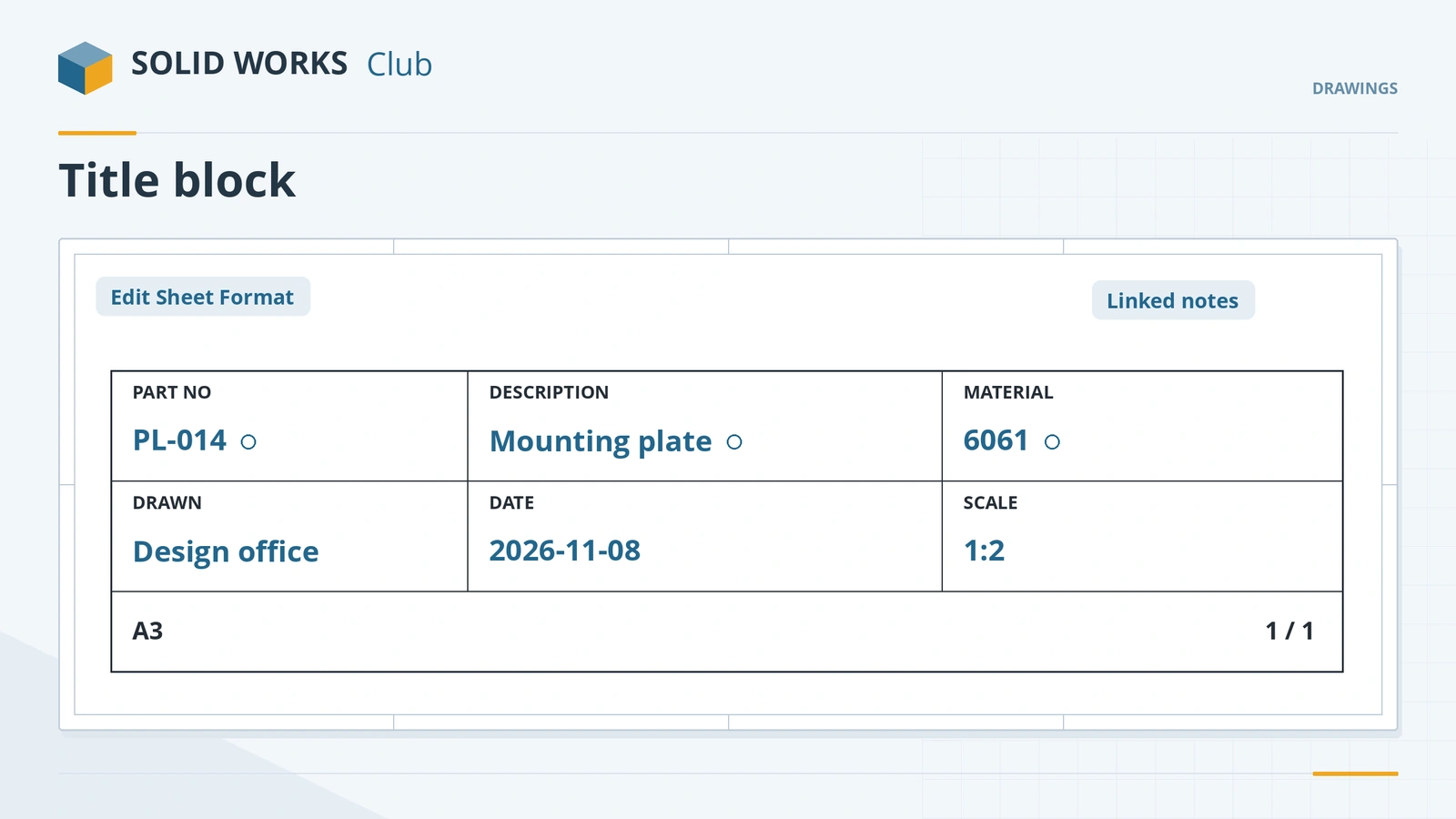
Where to find it
Right-click the sheet → Edit Sheet Format; File → Save As → Drawing Template
Property link codes
| Code | Reads properties from |
|---|---|
$PRP |
The drawing itself |
$PRPSHEET |
The model in the view chosen in Sheet Properties |
$PRPSMODEL |
The component or view picked when the link was made |
$PRPVIEW |
The view the note is attached to |
$PRPMODEL |
The component the leader points to |
From Javelin's 2026 guide to linked notes. Sheet format tools since 2024 also include automatic borders with zones. Part and assembly templates are covered in templates; sizes and multiple sheets in sheet formats.
Step by step
-
1
Enter Edit Sheet Format
On a drawing, right-click the sheet → Edit Sheet Format. The views disappear and the border and title block become editable.
-
2
Link notes to properties
Double-click the material note in the title block, or add a note and click Link to Property. Use Model in view specified in sheet properties and pick Material — the note becomes
$PRPSHEET:"Material".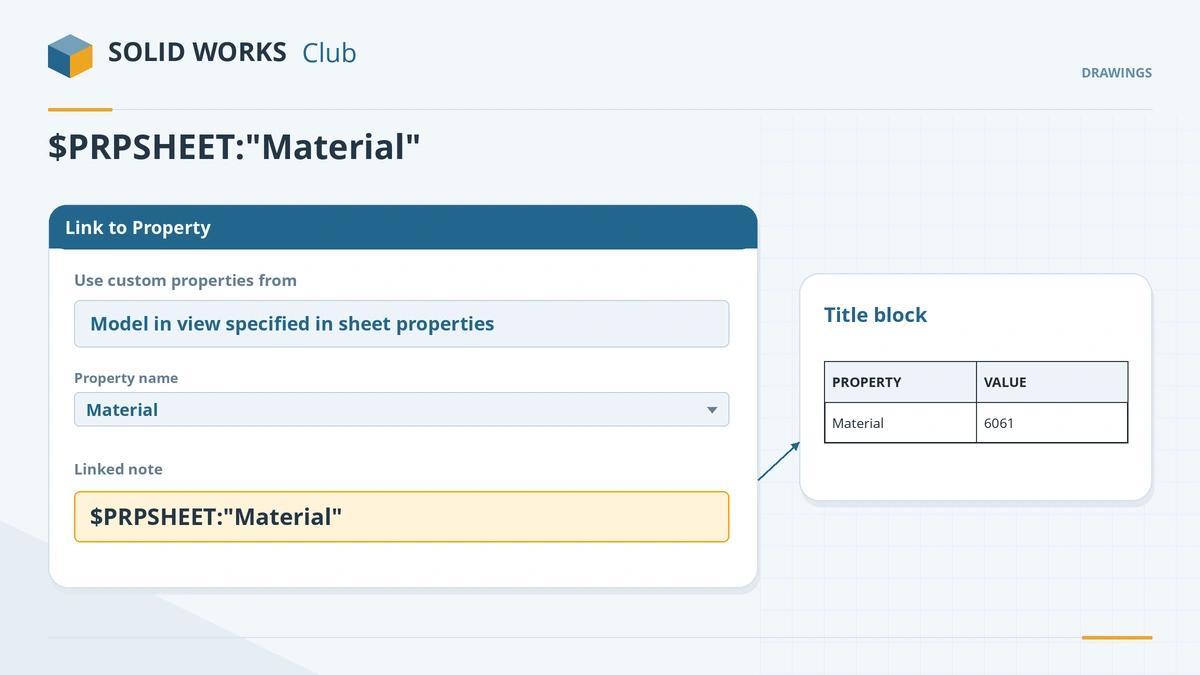
Link title block notes to model properties so they fill themselves in. -
3
Set up Title Block Fields
Right-click → Title Block Fields, select the notes users should fill (drawn by, date, checked) and set their order. Exit with right-click → Edit Sheet.
-
4
Save the sheet format and template
File → Save Sheet Format to save the border and title block as a
.slddrt. Then set Document Properties (standard, units, fonts) and File → Save As → Drawing Template (*.drwdot).
Common mistakes
- Typing values into the title block instead of linking them — every drawing then needs manual edits.
- Saving the sheet format with Save As instead of File → Save Sheet Format.
- Expecting the sheet format to hold the projection type, predefined views or revision tables — those belong to the drawing template.
Lesson 12 of 14 in the drawings course.
Practice
Link the title block's material and description notes to the model and save your own sheet format and drawing template. Check: a new drawing of the mounting plate made from your template shows the part's material and description in the title block automatically.
Sources
- Hawk Ridge — Drawing template vs sheet format
- GoEngineer — Drawing templates vs sheet formats
- Javelin — Edit the SOLIDWORKS title block (2016)
- Javelin — Tools to help create sheet formats (Mar 2024)
- GoEngineer — Link properties in a drawing
- Javelin — How to use linked notes in drawings (Jul 2026)
- GoEngineer — Sheet format FAQ
- CATI — Drafting standard in Document Properties
Checked November 2026. SOLID WORKS Club is independent; menu names can differ slightly between releases.
Frequently asked questions
How do I edit the title block in SOLIDWORKS?
+
Right-click the sheet and choose Edit Sheet Format. Edit lines and notes, then right-click and choose Edit Sheet to return.
How do I make title block notes update automatically?
+
Link them to custom properties with Link to Property. $PRPSHEET reads the model shown in the view chosen in Sheet Properties.
What are Title Block Fields?
+
Notes in the sheet format that users can fill in by double-clicking the title block and pressing Tab to move between fields. Edits sync with the linked properties.
What is the difference between a drawing template and a sheet format?
+
The template (.drwdot) holds document properties, custom properties, predefined views and tables. The sheet format (.slddrt) holds the sheet size, border, title block, logos and table anchors.
Related
- Sheet formats, sizes and scaleManage SOLIDWORKS drawing sheets: sheet properties, standard and custom sizes, sheet and view scale, multiple sheets, reloading formats, 1:1 printing.
- How to create SOLIDWORKS templatesCreate SOLIDWORKS part, assembly and drawing templates (.prtdot, .asmdot, .drwdot), save them to your own folder and set them as the defaults.
- Annotations in SOLIDWORKS drawingsAdd annotations to SOLIDWORKS drawings: center marks, centerlines, linked notes, surface finish and weld symbols, datum targets, revision tables and threads.
- SOLIDWORKS drawing basicsSOLIDWORKS drawing basics: make a drawing from a part, pick the template and sheet, place views from the View Palette, set scale, projection, Detailing mode.