Drawings · Lesson 14
Export drawings to PDF, DXF and DWG
Most drawings leave SOLIDWORKS as a PDF for people and a DXF or DWG for other CAD systems and CNC machines. Save As PDF is the supported route and rebuilds the drawing first; printing to a PDF printer works but can distort lines. DXF/DWG export has options for the AutoCAD version, fonts, line styles and — most important — true 1:1 scale.
 Kevin Walsh
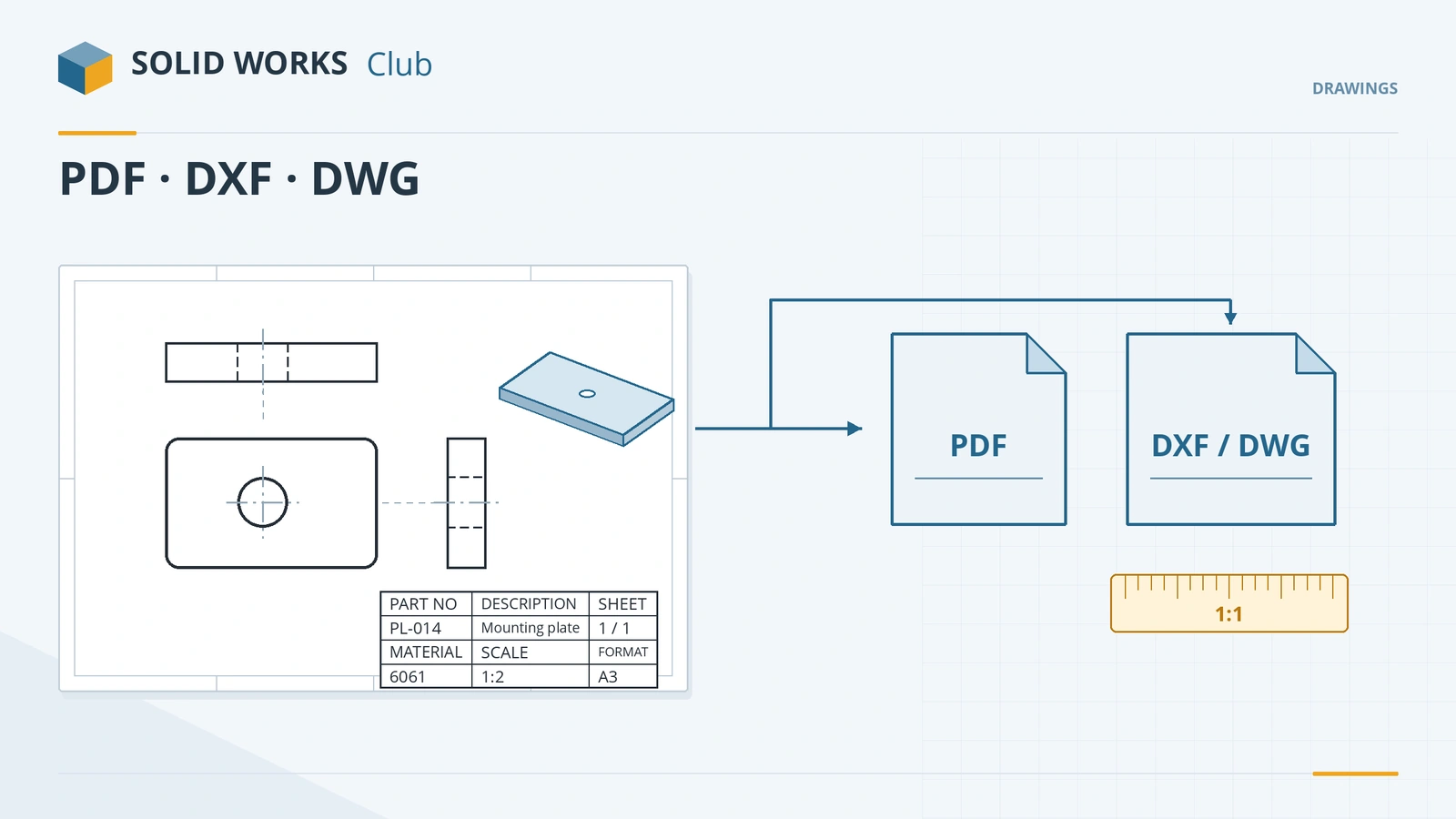
Where to find it
File → Save As → Adobe PDF / DXF / DWG (Options for settings)
Export formats
| Format | For | Notes |
|---|---|---|
| PDF (Save As) | People, approval, printing | High-quality lines option; rebuilds first |
| DXF / DWG | Other CAD, CNC, laser | Version, fonts, line styles, 1:1, splines as polylines, views as blocks (2025+) |
| eDrawings | Viewing with measure and markup | Measurement can be disabled in System Options → Export |
| 3D PDF | Model-based definition | Needs the SOLIDWORKS MBD add-in |
| Flat pattern DXF | Sheet metal cutting | Export from the part, not the drawing — see flat pattern to DXF |
More on converting parts and drawings: convert to DXF and opening files without SOLIDWORKS. This is the last lesson of the drawings course.
Step by step
-
1
Save as PDF
On the plate drawing, File → Save As, type Adobe PDF. Click Options and tick high-quality lines (and high-quality shaded edges for shaded views). Save.
-
2
Save as DXF or DWG
File → Save As, type DXF (or DWG), click Options. Choose the AutoCAD version and whether to use SOLIDWORKS or AutoCAD fonts and line styles.
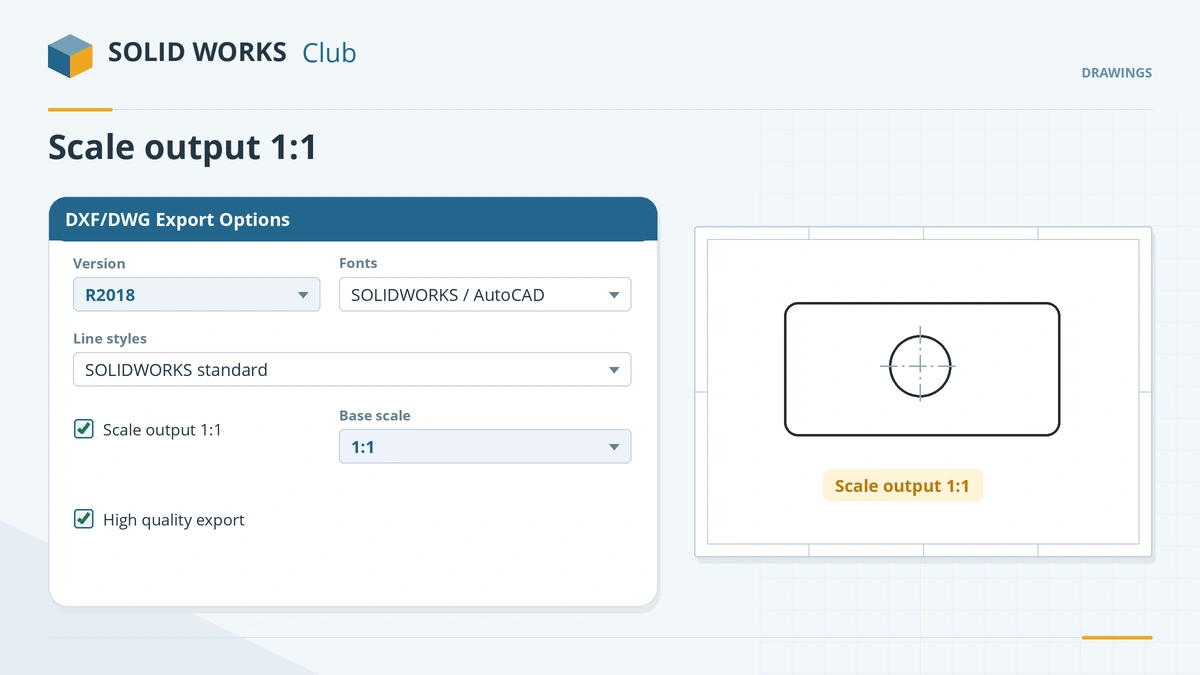
Set version, fonts and line styles, and turn on Scale output 1:1. -
3
Set true 1:1 scale
In the DXF/DWG options, turn on Scale output 1:1 and choose the view scale of the view you need as the base scale — enabling 1:1 alone is not enough when views have different scales.
-
4
Check the result
Open the DXF in eDrawings or a free DXF viewer and measure a known length.
Common mistakes
- Printing to PDF for drawings that must be accurate — use Save As PDF.
- DXF files at the wrong size. DXF is unitless; set 1:1 with the correct base scale and tell the receiver the units.
- Exporting views in draft quality, which can fail or lose detail.
- Sending a drawing DXF of a sheet metal part to a laser cutter — export the flat pattern from the part instead.
Lesson 14 of 14 in the drawings course.
Practice
Save the plate drawing as PDF and as DXF with Scale output 1:1. Check: in a DXF viewer the plate measures 100 × 60 in the drawing units, and the PDF opens with sharp lines at any zoom.
Sources
- GoEngineer — Save as PDF vs print to PDF
- Javelin — High quality PDF export
- Javelin — Export drawings to DXF/DWG (Apr 2026)
- Javelin — Base scale for DXF/DWG export
- Hawk Ridge — Customize DXF or DWG formatting
- Javelin — Exporting model data to DXF/DWG (Oct 2025)
- Hawk Ridge — DXF/DWG export
- GoEngineer — Export a sheet metal flat pattern to DXF (Jul 2024)
- GoEngineer — MBD custom 3D PDF template
- Hawk Ridge — Disable measurement for eDrawings
- Solid Solutions — Technical drawings in SOLIDWORKS 2025
- Javelin — SOLIDWORKS 2022 drawings
Checked November 2026. SOLID WORKS Club is independent; menu names can differ slightly between releases.
Frequently asked questions
How do I save a SOLIDWORKS drawing as PDF?
+
File → Save As, choose Adobe PDF, set Options such as high-quality lines, and save. It is better than printing to a PDF printer.
How do I export a DXF at the correct scale?
+
In the DXF/DWG options turn on Scale output 1:1 and pick the right view scale as the base scale, then check a known length in a viewer.
How do I export a sheet metal flat pattern to DXF?
+
In the part, right-click the flat face or flat pattern → Export to DXF/DWG, choose Sheet Metal, review the cleanup preview and save.
Can I map layers and colours in DXF exports?
+
Yes, with a custom map file: System Options → Export → Custom Map SOLIDWORKS to DXF/DWG, then save or load the map.
Related
- How to export DXF and DWG from SOLIDWORKSHow to export SOLIDWORKS drawings to DXF or DWG for AutoCAD, and sheet metal flat patterns to DXF for laser cutting — options, bend lines and common problems.
- eDrawings: the free SOLIDWORKS file viewerWhat eDrawings is, how to get the free Viewer for Windows, Mac, iPhone and Android, what it opens, what Professional adds and how to publish eDrawings files.
- Sheet formats, sizes and scaleManage SOLIDWORKS drawing sheets: sheet properties, standard and custom sizes, sheet and view scale, multiple sheets, reloading formats, 1:1 printing.
- How to open SOLIDWORKS files without SOLIDWORKSHow to open SLDPRT, SLDASM and SLDDRW files without SOLIDWORKS — free eDrawings, online viewers, Onshape, Fusion, Rhino and converters — and which can edit.