Reference
How to export DXF and DWG from SOLIDWORKS
For a drawing, choose File → Save As → DXF or DWG and set the AutoCAD version and scale in Options. For a sheet metal part, right-click the flat pattern (or a face) and choose Export to DXF/DWG; you can include or remove bend lines and clean up unwanted geometry before saving. Missing bend lines usually come from the default drawing template.
 Kevin Walsh
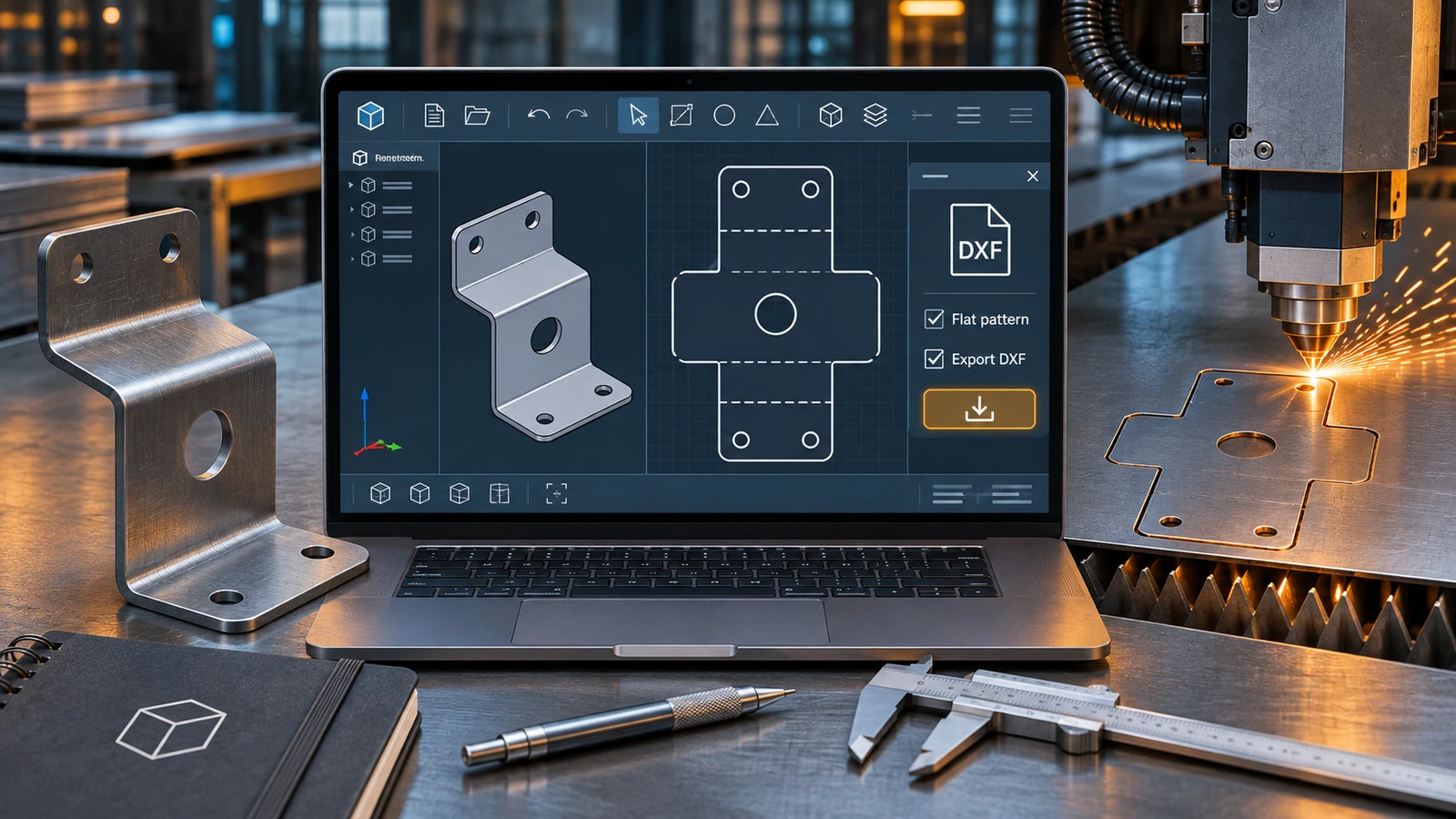
Where to find it
Drawings: File → Save As → DXF/DWG · Sheet metal: right-click Flat-Pattern → Export to DXF/DWG
Fixing missing bend lines
Hawk Ridge Systems explains that the flat-pattern export takes its display settings from the default drawing template. If that template has View Bend Lines turned off, the DXF has no bend lines. Fix it once:
- Open a new drawing from your template and turn on bend lines for flat-pattern views.
- Save it as a drawing template (.drwdot).
- In Tools → Options → System Options → Default Templates, set it as the drawing template.
Drawing export options
Javelin describes the DXF/DWG options in detail. The ones that matter most:
| Option | Why |
|---|---|
| AutoCAD version | Match the recipient's AutoCAD or CAM software |
| Line fonts (SOLIDWORKS or AutoCAD) | Keeps dashed and centre lines readable |
| Scale output 1:1 | Geometry at true size, regardless of sheet scale |
| Merge endpoints | Joins nearly touching lines into closed profiles |
| Splines as polylines | For machines that cannot read splines |
Our step-by-step lesson is flat pattern to DXF for laser cutting. The full flat-pattern walkthrough is also on GoEngineer. Drawings themselves are explained in SLDDRW files, and drawing export options step by step in export to PDF, DXF and DWG; for 3D exchange, use STEP. If you also work in AutoCAD, see SOLIDWORKS vs AutoCAD.
Step by step
-
1
Flat pattern — start the export
In a sheet metal part, right-click a face or the Flat-Pattern feature and choose Export to DXF/DWG. Choose a file name and type.
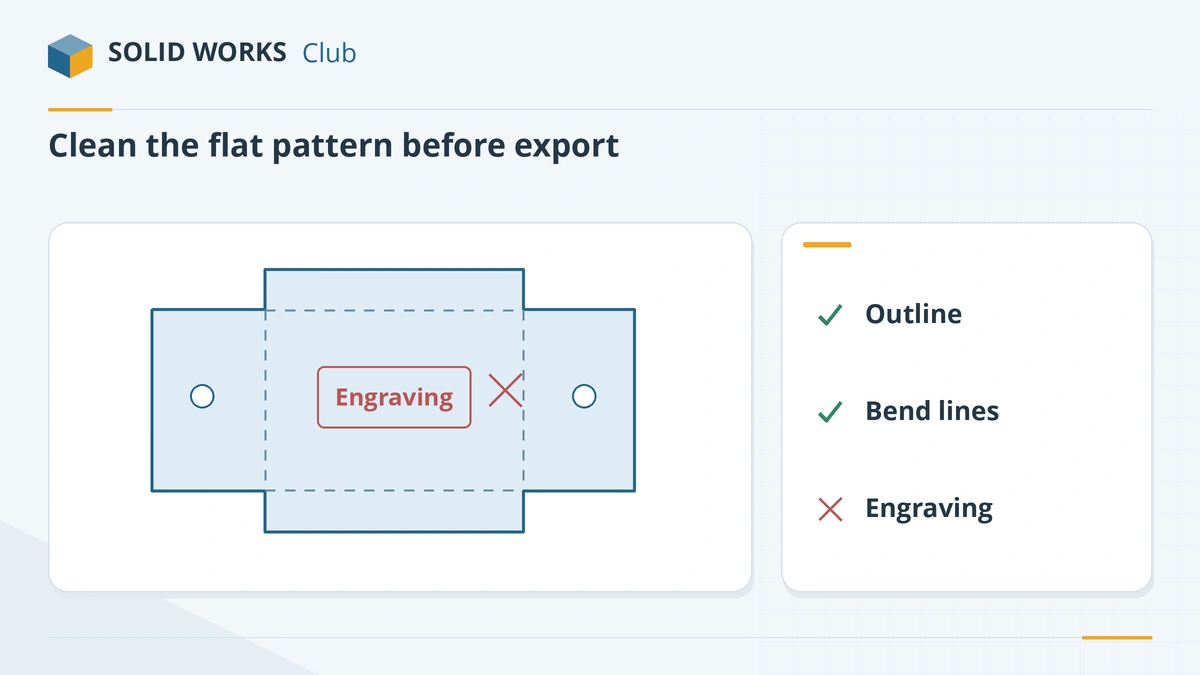
Remove anything the cutter should not see before saving. -
2
Flat pattern — choose what to export
Select Sheet metal as the output and choose the entities to include — geometry, bend lines, sketches, library features.
-
3
Flat pattern — clean up and save
In the preview, click any entity you do not want (for example engravings or countersink edges a laser cannot cut) to remove it, then save.
-
4
Drawings — Save As DXF or DWG
Open the drawing, choose File → Save As, select DXF or DWG, and click Options to set the AutoCAD version, line fonts, 1:1 scale output and how splines are written. Save.
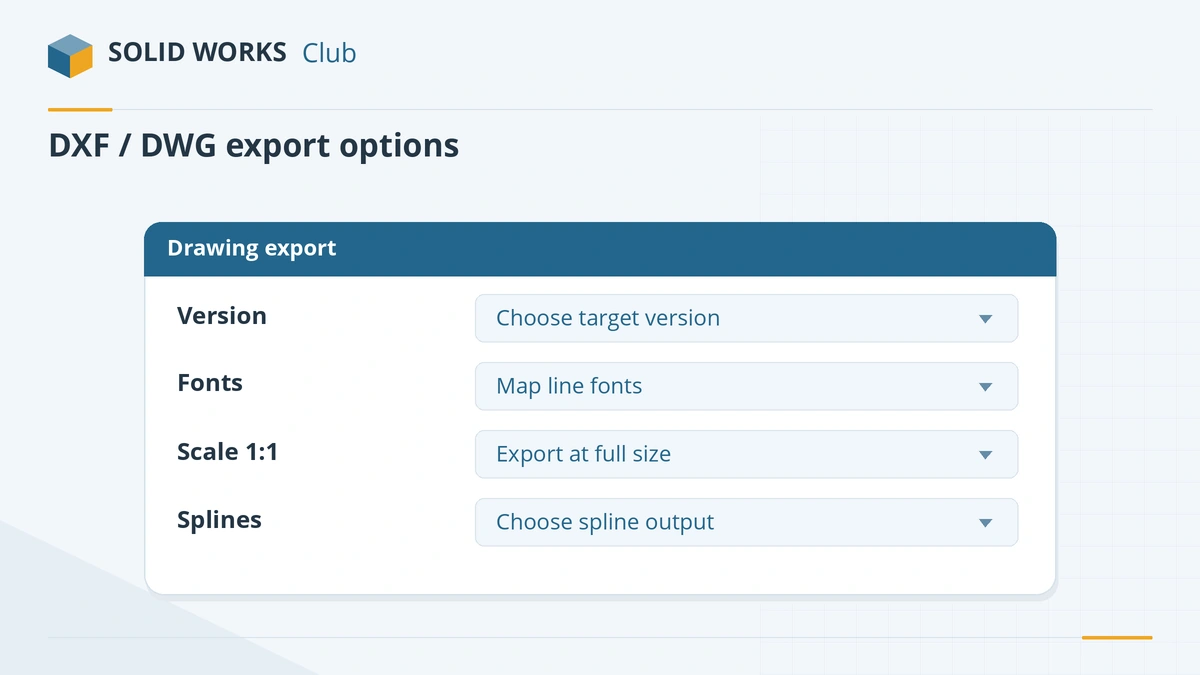
The options that matter most for drawings.
Common mistakes
- Exporting the flat pattern without bend lines because the default drawing template hides them.
- Leaving engraving or countersink edges in a laser-cutting DXF.
- Exporting a drawing at sheet scale when the shop needs 1:1.
- Sending splines to a machine that only accepts arcs and lines — use the spline conversion option.
Frequently asked questions
Why are bend lines missing from my flat pattern DXF?
+
The export follows your default drawing template. If View Bend Lines is off in that template, no bend lines are exported. Hawk Ridge Systems' fix: turn bend lines on, save the template as .drwdot and set it as the default drawing template.
DXF or DWG — which should I send?
+
DXF for laser, plasma and waterjet machines and CAM software — it is the most widely read. DWG for AutoCAD users who will keep editing the drawing.
Related
- What is an SLDDRW file?An SLDDRW file is a SOLIDWORKS 2D drawing linked to its part or assembly. How to open it without SOLIDWORKS and convert it to PDF, DWG or DXF for others.
- How to export SOLIDWORKS to STEPHow to save a SOLIDWORKS part or assembly as STEP, which AP version to choose (AP203, AP214, AP242), exporting components separately, and pitfalls.
- SOLIDWORKS file formats and extensionsEvery SOLIDWORKS file extension explained — SLDPRT, SLDASM, SLDDRW, templates, libraries and tables — plus the import and export formats and 3D Interconnect.
- SOLIDWORKS vs AutoCAD: 3D design or 2D drafting?SOLIDWORKS vs AutoCAD explained — 3D parametric design vs 2D drafting, who uses each, prices, Mac support, DWG and DXF exchange, and whether you need both.