Advanced parts · Lesson 11
Split, Combine and Intersect in SOLIDWORKS
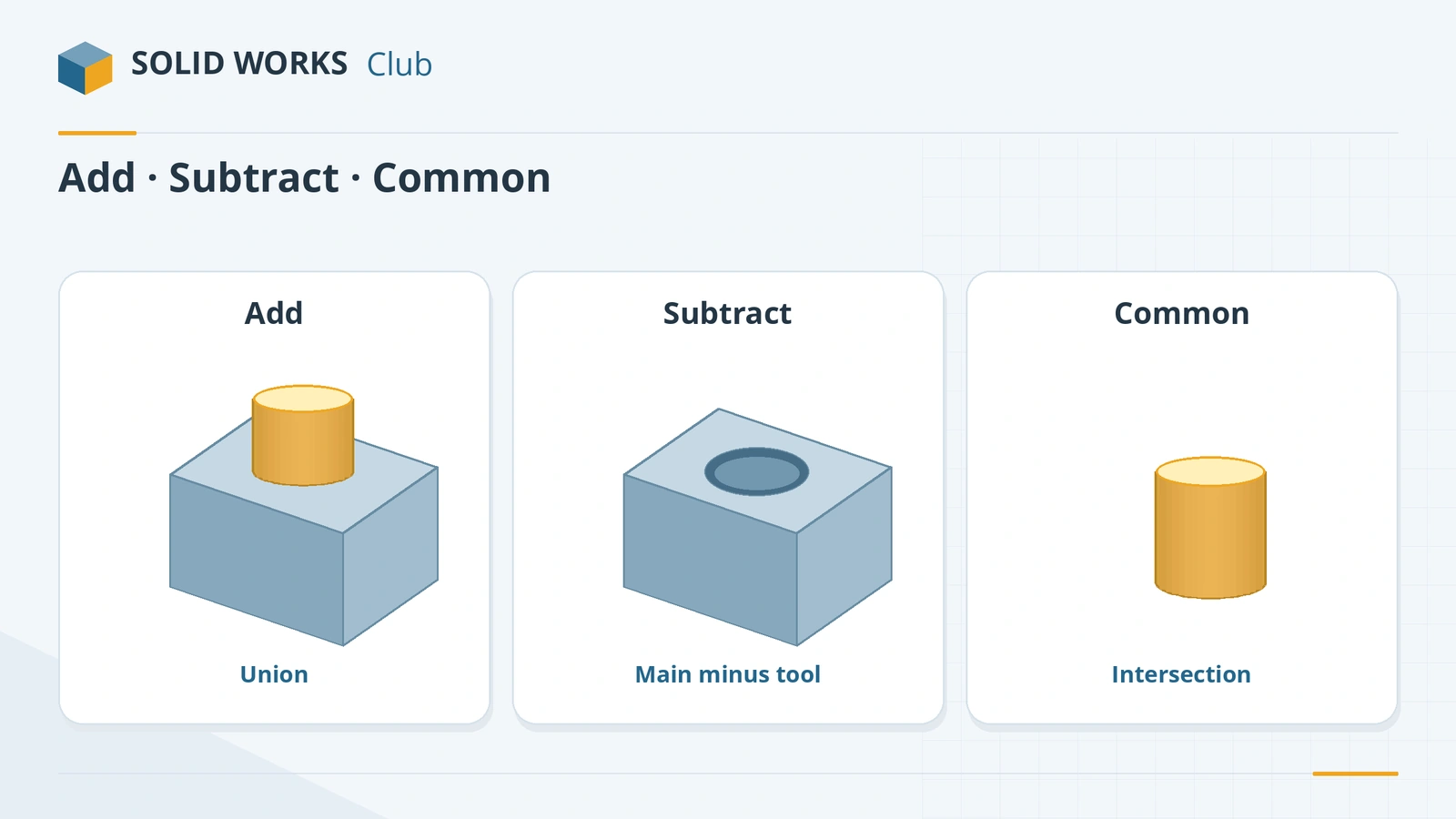
These tools work on whole bodies. Split cuts a body into pieces with a plane, surface or sketch. Combine joins bodies (Add), removes one from another (Subtract) or keeps only their overlap (Common). Intersect, available since 2013, builds solids from the regions where bodies, surfaces and planes cross. Delete/Keep Body removes bodies you no longer need.
 Kevin Walsh
Where to find it
Insert → Features → Split / Combine / Intersect
Body tools at a glance
| Tool | What it does |
|---|---|
| Split | Cuts bodies with planes, surfaces or sketches; pieces can be saved as files |
| Combine – Add | Merges bodies into one |
| Combine – Subtract | Removes tool bodies from a main body |
| Combine – Common | Keeps only the shared volume |
| Intersect (2013+) | Builds or removes regions where solids, surfaces and planes cross |
| Delete/Keep Body | Deletes bodies, or keeps only the selected ones (2015+) |
Split trim tools
| Tool | Extends? |
|---|---|
| Plane, planar face, sketch | Extends infinitely |
| Surface body, non-planar face | No — must cross the whole body |
Typical uses: tool bodies for cuts, plastic housings split into halves, and mould tooling.
Practise it: subtract the phone body in the phone case project.
Step by step
-
1
Make a block and a tool body
Extrude a 60 × 40 mm Center Rectangle on the Top Plane 20 mm. Then sketch a Ø20 circle on the top face, centred, and extrude it 20 mm down into the block with Merge result unticked — a separate cylinder body.
-
2
Subtract
Insert → Features → Combine, type Subtract. Main Body = the block, Bodies to Subtract = the cylinder. Click the tick — the cylinder is removed and leaves a hole.
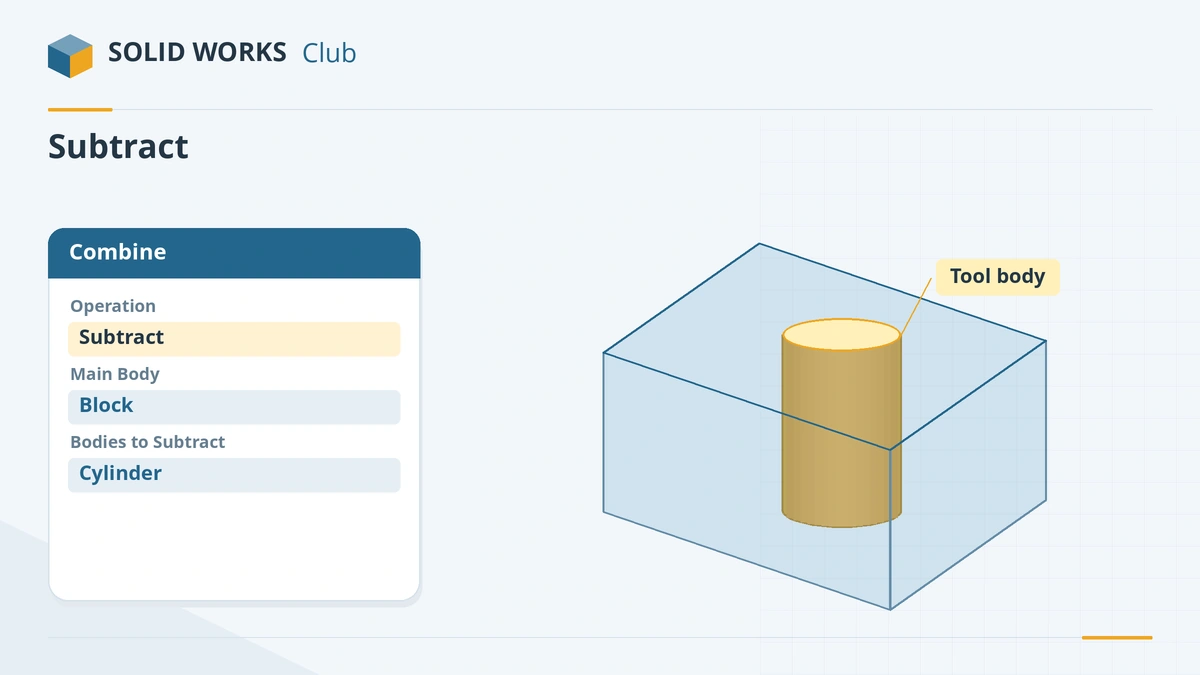
The main body stays; the tool body is removed from it. -
3
Split a body in two
In a new part, extrude a 100 × 50 × 20 mm block. Insert → Features → Split, trim tool = the Right Plane, click Cut Bodies, tick both resulting bodies and confirm.
Common mistakes
- Thinking an unticked body in Split is deleted. Unticked pieces fuse back where they can; use Consume cut bodies to delete.
- Picking the bodies in the wrong boxes in Subtract — the main body is what remains.
- Pieces that touch only at an edge after Split cannot merge, so you get more bodies than expected.
Lesson 11 of 16 in the advanced parts course.
Practice
Subtract the Ø20 × 20 cylinder body from the 60 × 40 × 20 mm block. Check: volume 41,716.81 mm³, one body. Split the 100 × 50 × 20 block with the Right Plane: two bodies of 50,000 mm³ each.
Sources
- GoEngineer — Split command: understanding resulting bodies (May 2025)
- Javelin — How to use the Split command (Jul 2026)
- CADimensions — How to use Combine
- TriMech — Using the Combine tool (Aug 2020)
- SolidProfessor — Add, subtract and combine solid bodies (Jul 2026)
- SOLIDWORKS blog — New in 2013: Intersect feature
- Hawk Ridge — The Intersect tool
- Javelin — Delete/Keep Bodies (2015)
Checked November 2026. SOLID WORKS Club is independent; menu names can differ slightly between releases.
Frequently asked questions
What does Combine do in SOLIDWORKS?
+
It combines solid bodies in a multibody part: Add merges them, Subtract removes the tool bodies from a main body, and Common keeps only the volume they share.
How do I cut a part into two pieces?
+
Use Insert → Features → Split with a plane, surface or sketch as the trim tool, click Cut Bodies, and tick the pieces to keep as bodies. You can also save them as separate part files.
What is the Intersect feature?
+
A feature added in SOLIDWORKS 2013 that intersects solids, surfaces and planes and lets you choose which regions to keep — for example to make a solid from the space inside a closed set of surfaces.
How do I delete a body?
+
Use Delete/Keep Body and choose whether to delete the selected bodies or keep only them (the Keep option arrived in 2015).
Related
- SOLIDWORKS multibody partsWhat multibody parts are in SOLIDWORKS, how Merge result and Feature Scope work, Save Bodies to make an assembly, and when an assembly is better.
- SOLIDWORKS Move/Copy BodiesHow to move, rotate and copy bodies in SOLIDWORKS with Move/Copy Bodies, using translation, rotation or mate-style constraints, plus Insert Part.
- SOLIDWORKS Extruded CutHow to use Extruded Cut in SOLIDWORKS: sketch on a face, choose Blind or Through All, flip side to cut, open-profile cuts, and when to use Hole Wizard.
- SOLIDWORKS Mass PropertiesHow to use Mass Properties in SOLIDWORKS: mass, volume, centre of mass and inertia, units, coordinate systems, overrides, Measure and Section Properties.