Reference
SOLIDWORKS material library: apply and create materials
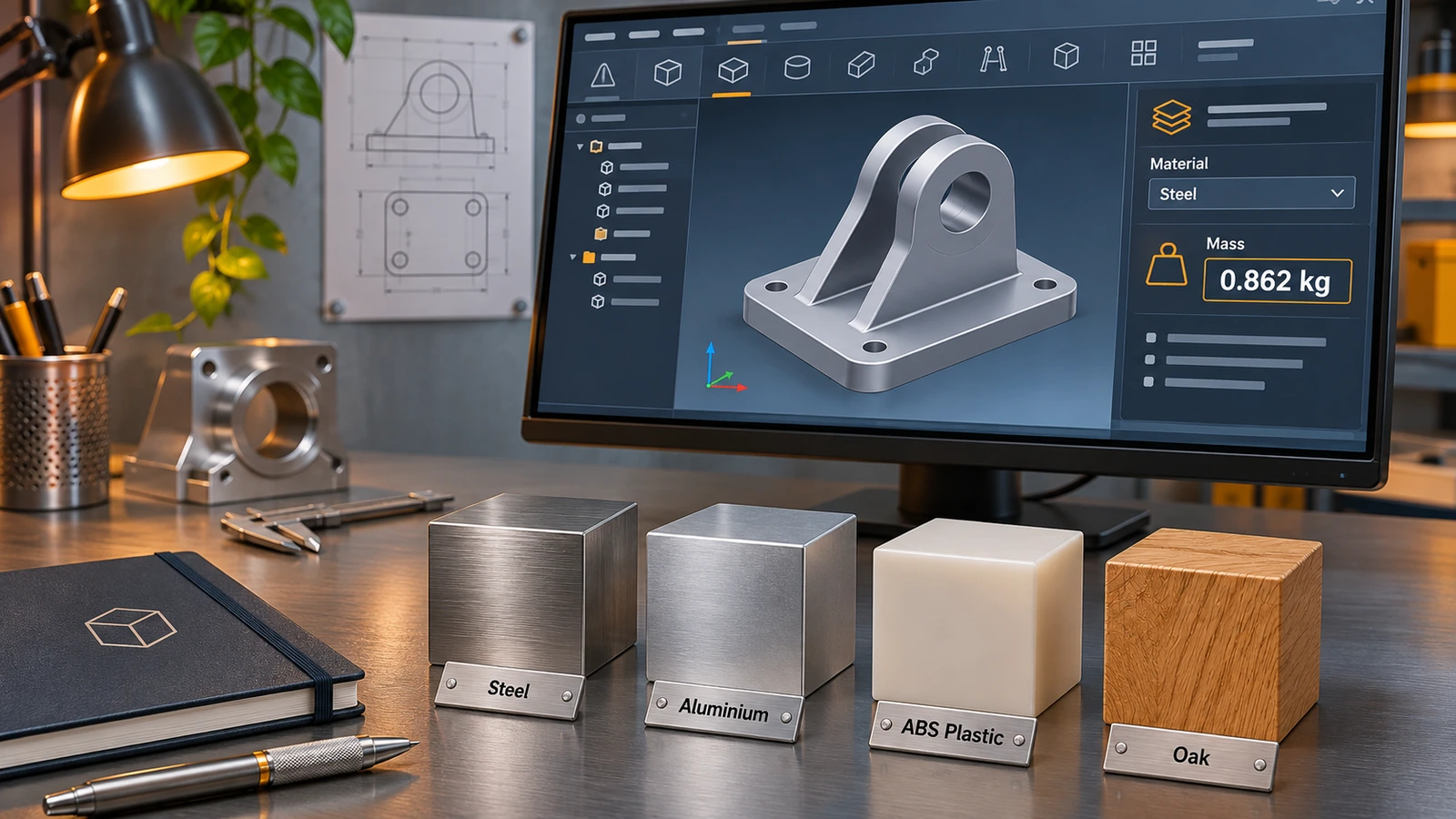
Materials in SOLIDWORKS carry physical properties — density, elastic modulus and more — plus a matching appearance. Applying one (right-click Material → Edit Material) sets the part's mass and is used by Simulation. The built-in SOLIDWORKS Materials library cannot be edited, so copy a material into your own .sldmat library to create custom ones.
 Kevin Walsh
Where to find it
FeatureManager tree → right-click Material → Edit Material
How the library is organised
Materials are grouped as libraries → categories → materials. The default library is SOLIDWORKS Materials; built-in materials cannot be edited — GoEngineer's guide puts it plainly (source). Each library is a .sldmat file, which can be shared from a network folder or a PDM vault (Solid Solutions).
What a material stores
| Tab or property | Used for |
|---|---|
| Density | Mass, centre of gravity, moments of inertia |
| Elastic modulus, Poisson's ratio, strengths, thermal properties | SOLIDWORKS Simulation |
| Appearance and hatch | How the part looks and how sections are hatched in drawings |
| Custom properties | Data for BOMs and title blocks |
| Sheet metal | Default thickness, bend radius and bend allowance method for that material |
Temperature-dependent property curves need SOLIDWORKS Simulation. Simulation is built into the Premium edition.
Materials vs appearances
An appearance only changes colour and texture. A material changes physics. Apply a material first, then override its appearance if you want a different look — mass stays correct.
Material density drives every mass answer in the CSWA exam — check yours with the mass calculator. Where library files live by default is listed in SOLIDWORKS file locations; terms such as appearance and RealView are in the glossary.
How to apply and create materials in SOLIDWORKS: materials tutorial.
Step by step
-
1
Apply a material
In the FeatureManager tree, right-click Material and choose Edit Material. Browse the libraries, select a material and click Apply. The part's mass properties update straight away.
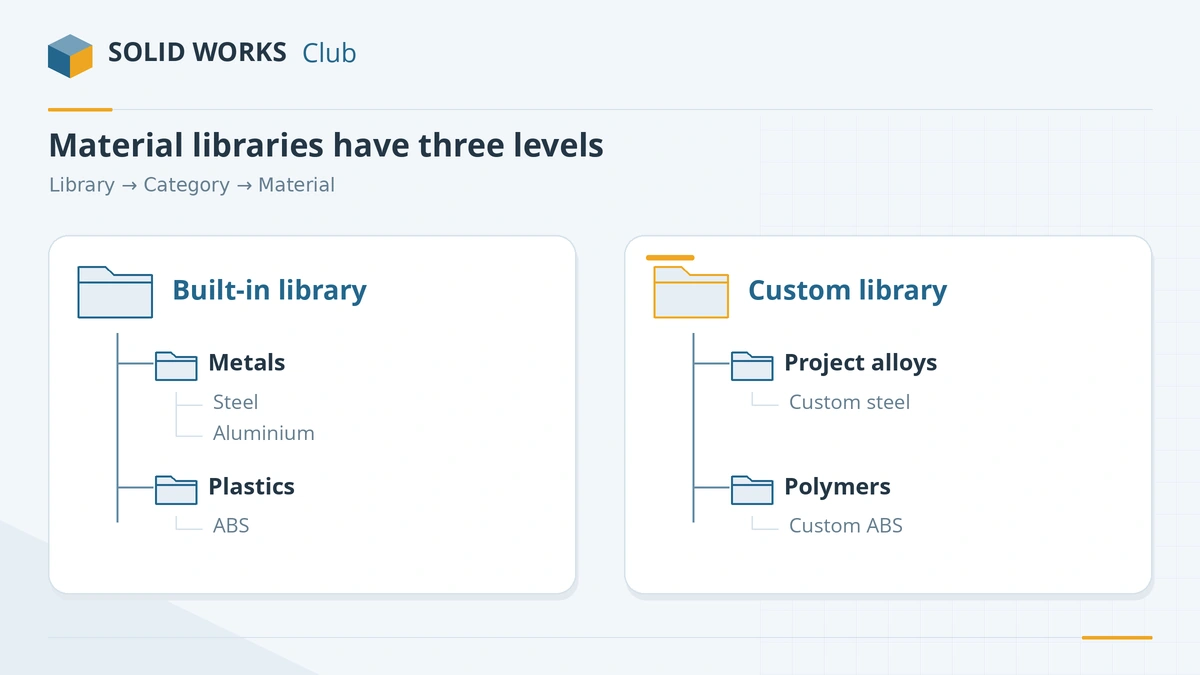
Libraries contain categories, which contain materials. -
2
Create your own library
In the material tree, right-click and choose New Library. It is saved as an external .sldmat file — keep it in a shared folder for your team.
-
3
Add a category and a material
Right-click your library → New Category. Then copy a similar existing material and paste it into your category, or create a new material (which starts without mechanical properties).
-
4
Edit the properties
Select your material and edit density, elastic modulus and other values, plus its appearance and, for sheet metal, thickness and bend settings. Click Apply or Save.
-
5
Make SOLIDWORKS find the library
Add the library's folder under Tools → Options → System Options → File Locations → Material Databases, otherwise it will not appear in the editor.
Common mistakes
- Trying to edit a built-in material — copy it to your own library first.
- Using an appearance instead of a material and getting the wrong mass.
- Creating a new material from scratch and forgetting to enter density.
- Keeping a custom library only on one PC — put it in a shared folder.
Frequently asked questions
Why is my SOLIDWORKS part's mass wrong?
+
Usually because no material is applied, an appearance was applied instead of a material, or the density of a custom material is missing or in the wrong units. Check Material in the tree and Mass Properties.
Where is the SOLIDWORKS material library file?
+
Built-in libraries are .sldmat files in the SOLIDWORKS installation, in a folder such as C:\Program Files\SOLIDWORKS Corp\SOLIDWORKS\lang\english\sldmaterials. Custom libraries can be anywhere listed under File Locations → Material Databases.
What is the difference between a material and an appearance?
+
An appearance is only colour and texture. A material has physical properties that drive mass and simulation, and comes with its own default appearance.
Related
- SOLIDWORKS default file locationsDefault SOLIDWORKS folders for templates, sheet formats, the Design Library, BOM templates, profiles and materials, and how to point to shared folders.
- SOLIDWORKS glossaryPlain-English definitions of SOLIDWORKS terms — FeatureManager, PropertyManager, mates, configurations, fully defined, K-factor, SpeedPak, Pack and Go.
- What is an SLDPRT file?An SLDPRT file is a SOLIDWORKS part. How to open it with or without SOLIDWORKS, which versions can read it, and how to convert SLDPRT to STEP, STL or DXF.
- SOLIDWORKS Standard vs Professional vs PremiumWhat SOLIDWORKS Standard, Professional and Premium include in 2026, what each costs, and which edition you need — rendering, Toolbox, simulation, routing.