Weldments · Lesson 7
Weld beads in SOLIDWORKS weldments
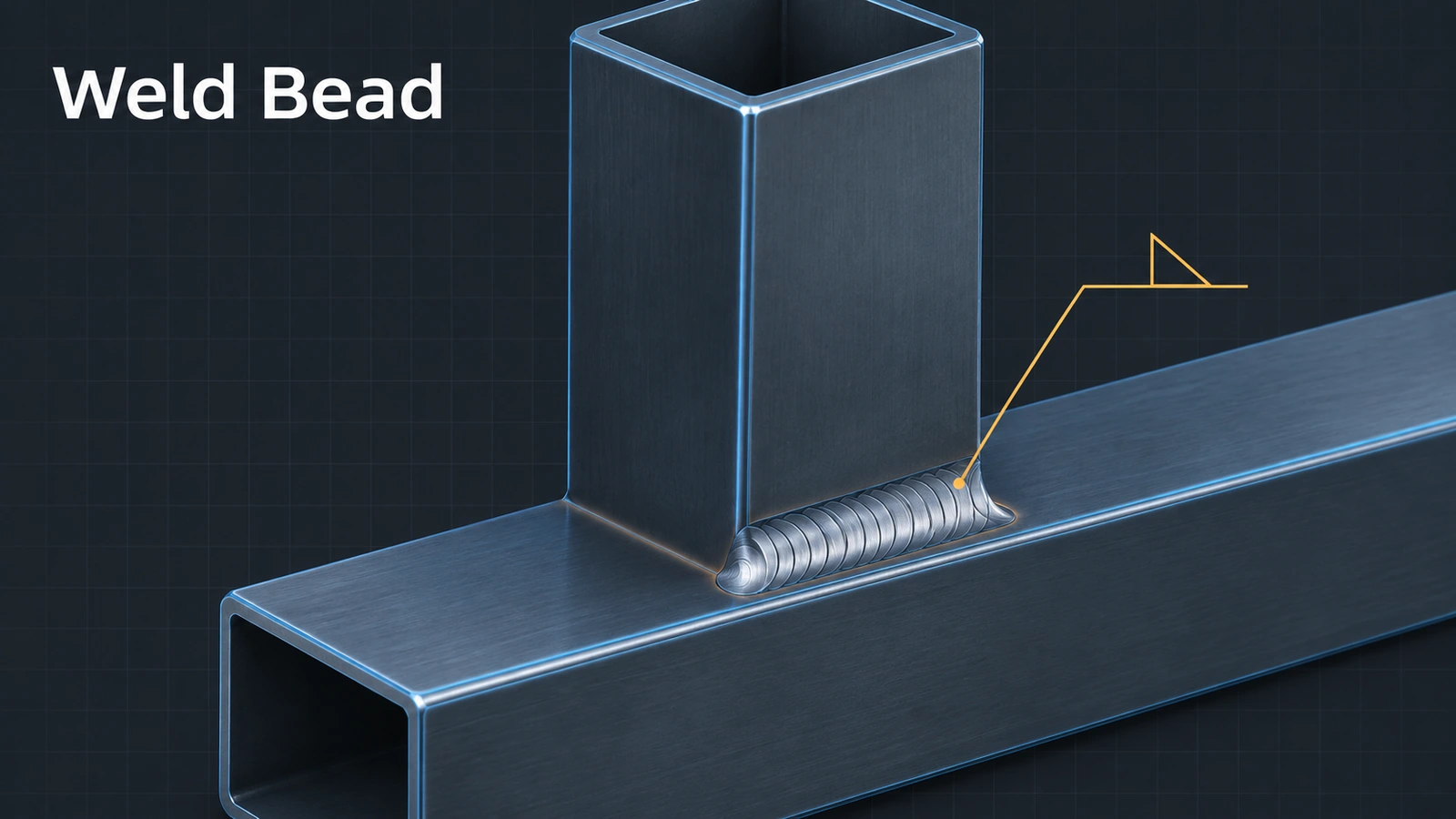
Weld Bead (since 2011) adds lightweight graphical welds: no solid bodies, so the model stays fast, but each bead has a length, a size and a weld symbol that drawings and weld tables can use. Fillet Bead is the older tool that builds solid weld bodies — use it only when the weld's mass or shape matters.
 Kevin Walsh
Where to find it
Weldments tab → Weld Bead; assemblies: Insert → Assembly Feature → Weld Bead
Weld Bead vs Fillet Bead
| Weld Bead | Fillet Bead | |
|---|---|---|
| Geometry | Graphical | Solid bodies |
| Mass | None | Adds mass |
| Performance | Light | Heavier |
| Data | Length, size, symbol, weld table | Size; full length, intermittent or staggered |
| Use for | Most designs | When the physical weld matters |
Weld symbols in drawings in general are covered in annotations. This is the last lesson of the weldments course.
Step by step
-
1
Start Weld Bead
In the table frame, Weld Bead. Use the Smart Weld Selection Tool: drag across the leg and the rail where they meet.
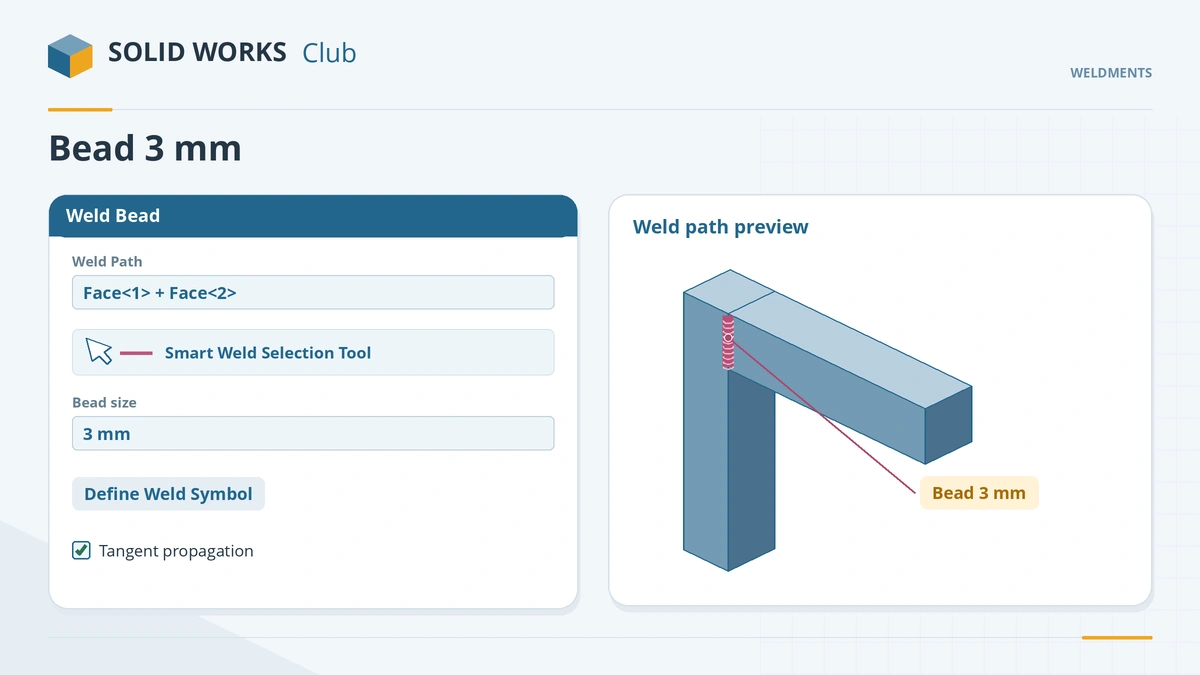
Drag across two faces with the Smart Weld Selection Tool to define the path. -
2
Set size and symbol
Bead size 3 mm. Click Define Weld Symbol and set a fillet weld symbol. Click the tick.
-
3
Check the Weld Folder
A Weld Folder appears in the tree, listing each bead with its length.
-
4
Show it on the drawing
In a drawing, insert weld symbols and caterpillars with Model Items, and a weld table from the weld bead properties.
Common mistakes
- A weld path that touches more or fewer than two bodies — each path must join exactly two.
- Using Fillet Bead by default — it adds solid bodies and slows large frames.
- Hidden weld beads — check Hide/Show Items → Weld Beads.
Lesson 7 of 7 in the weldments course.
Practice
Add a 3 mm weld bead where one leg meets the rail. Check: Mass Properties shows the same mass as before — weld beads are graphical — and the Weld Folder lists the bead with its length.
Sources
- SOLIDWORKS Blog — New in SolidWorks 2011: weldment enhancements (Oct 2010)
- GoEngineer — Creating and adding weld beads in models and drawings (Jan 2022)
- Javelin — Weld bead behaviour with different entities (Aug 2019)
- TriMech — How to add a weld bead to a weldment
- TriMech — How to use the Weld Bead feature
- Dassault Systèmes — Working with Weldments, SolidPractices (rev. May 2025)
- Hawk Ridge — Choosing between a weld bead and weld fillet (Dec 2019)
- GoEngineer — Weld Bead vs Fillet Bead (Sep 2022)
- Hawk Ridge — Getting familiar with weld symbols
Checked November 2026. SOLID WORKS Club is independent; menu names can differ slightly between releases.
Frequently asked questions
How do I add a weld in SOLIDWORKS?
+
Click Weld Bead on the Weldments tab, select the weld path with the Smart Weld Selection Tool, set the bead size and weld symbol, and click OK.
What is the difference between Weld Bead and Fillet Bead?
+
Weld Bead is graphical, lightweight and carries weld data. Fillet Bead creates solid bodies that add mass and can be checked for interference.
Can I add weld beads in an assembly?
+
Yes, as an assembly feature: Insert → Assembly Feature → Weld Bead.
How do I show welds on a drawing?
+
Use Model Items to insert weld symbols and caterpillars, and add a weld table based on the weld bead properties.
Related
- Weldment cut listsHow the SOLIDWORKS weldment cut list works: grouping identical bodies, LENGTH and ANGLE properties, bounding boxes, properties and the cut list table.
- Annotations in SOLIDWORKS drawingsAdd annotations to SOLIDWORKS drawings: center marks, centerlines, linked notes, surface finish and weld symbols, datum targets, revision tables and threads.
- End caps in SOLIDWORKS weldmentsClose open tube ends in a SOLIDWORKS weldment with End Cap: outward, inward and internal directions, thickness, offset or thickness ratio and corner treatment.
- SOLIDWORKS Mass PropertiesHow to use Mass Properties in SOLIDWORKS: mass, volume, centre of mass and inertia, units, coordinate systems, overrides, Measure and Section Properties.