Surfacing · Lesson 3
Trim Surface — standard and mutual
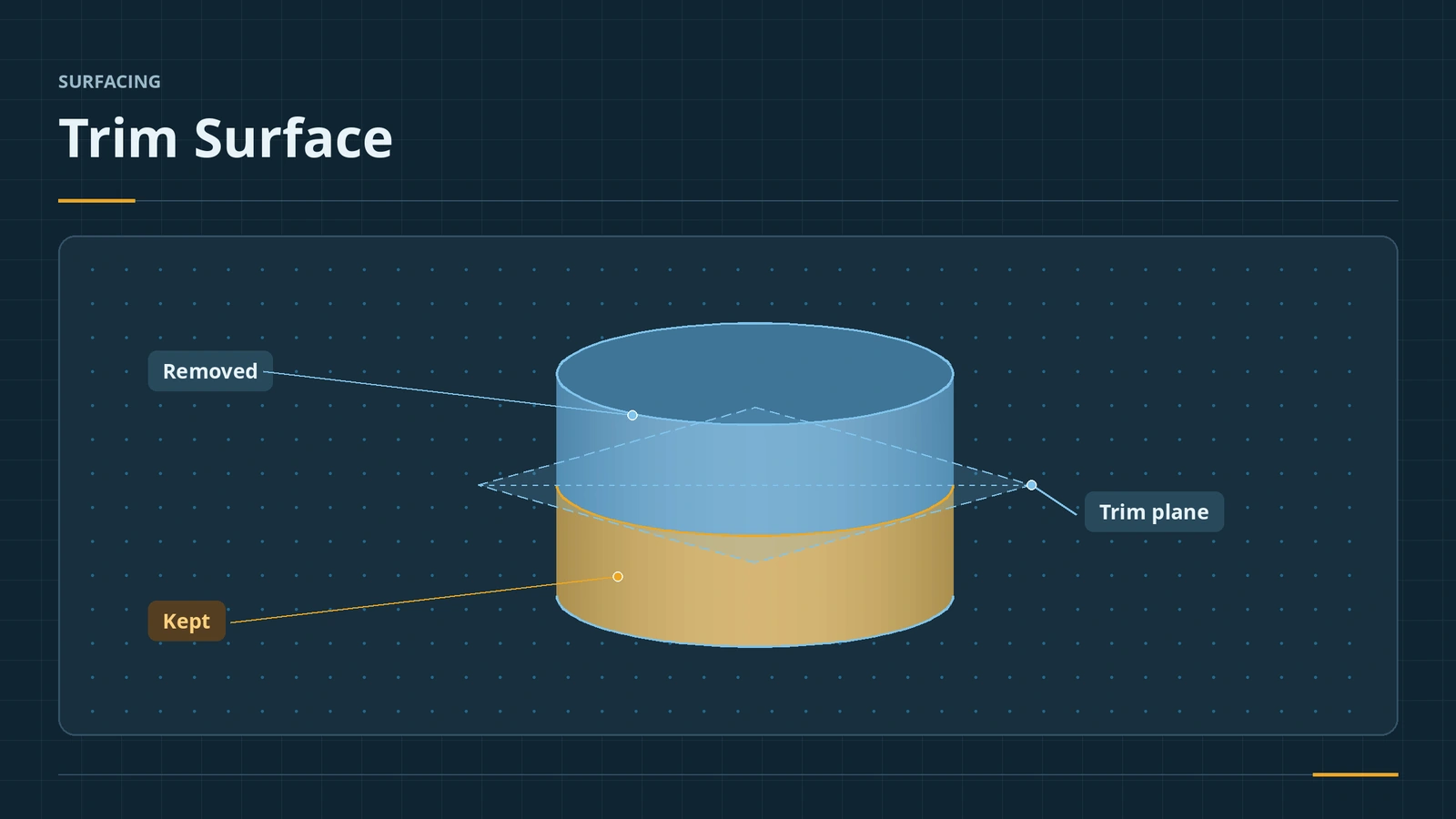
Overlapping solids merge on their own; overlapping surfaces do not. Trim Surface cuts them back with another surface, a plane, a sketch or a curve. Standard trim uses one tool; mutual trim lets several surfaces trim each other and can even create a solid in one step. Untrim and Extend do the opposite — they grow surfaces back.
 Kevin Walsh
Where to find it
Surfaces tab → Trim Surface, Untrim Surface, Extend Surface
Options
| Option | Use |
|---|---|
| Standard / Mutual | One trim tool, or surfaces trimming each other |
| Keep / Remove selections | Pick the easier side |
| Split all | Finds all regions the tool creates |
| Natural / Linear | How the tool's boundary is extended to the edge |
| Create Solid (mutual) | Solid in one step when the result is closed |
| Untrim Surface | Re-grows natural boundaries; 2024: Exclude Parent Surface |
Solids can be split with surfaces too — see split and combine.
Step by step
-
1
Make the cylinder and a plane
Reuse the open R20 × 60 mm revolved cylinder. Add a plane parallel to Top, 30 mm up — half the height.
-
2
Standard trim
Trim Surface, type Standard. Trim tool: the new plane.
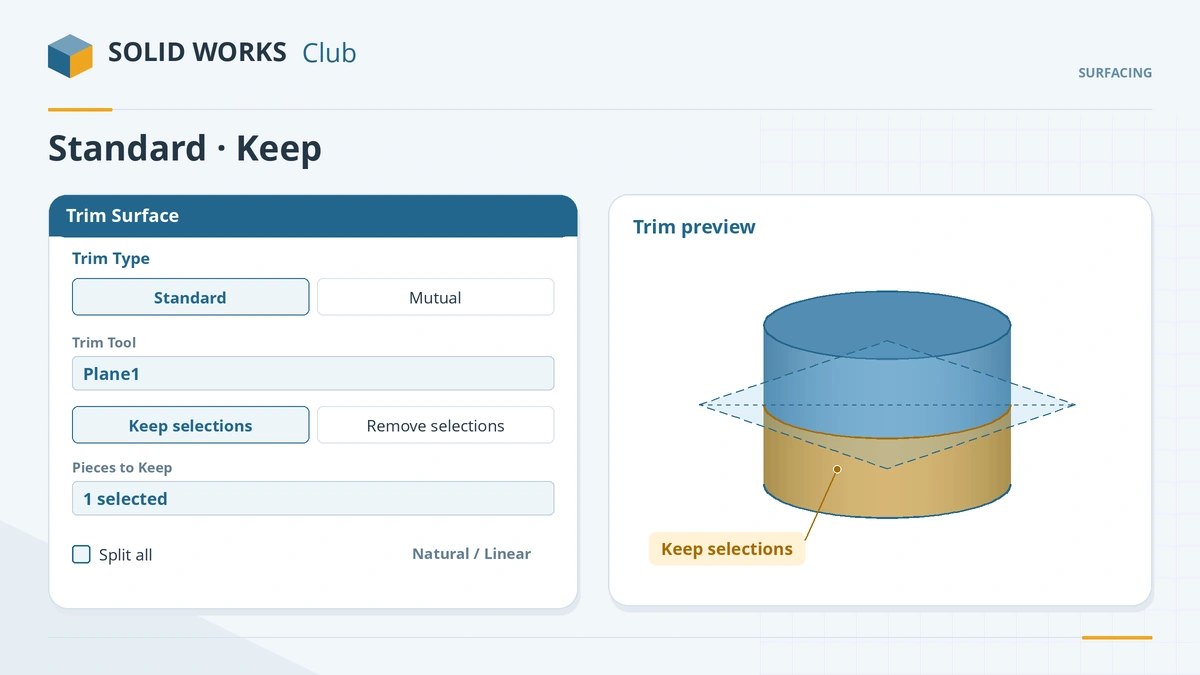
Pick the trim tool, then the pieces to keep or remove. -
3
Choose what stays
Keep selections, click the lower half of the cylinder. Click the tick — the top half is gone.
-
4
Try mutual trim
With two crossing surfaces, use Mutual: select both, keep the pieces you want; with a closed result, Create Solid is offered.
Common mistakes
- Picking the harder side — choose Keep or Remove depending on which pieces are easier to click.
- Missing pieces — turn on *Split all* to find every region.
- Extend Surface failing on imported faces — try Untrim Surface instead.
Lesson 3 of 7 in the surfacing course.
Practice
Trim the R20 × 60 mm open cylinder at half height and keep the lower half. Check: the remaining surface area is 3,769.91 mm² (π × 20 × 60).
Sources
- CATI — SOLIDWORKS Trim Surface (Sep 2022)
- Javelin — Trim surface types: standard vs mutual (Sep 2022)
- Hawk Ridge — Trim Surface, Split, Split Line: what's the difference (Feb 2018)
- Javelin — New methods of converting surface into solid (Dec 2015)
- Javelin — Extend Surface does not work with my model? (Nov 2010)
- GoEngineer — Delete Hole feature explained (Apr 2021)
- GoEngineer — What's new in SOLIDWORKS 2024: sketches, features, multibody (Dec 2023)
Checked November 2026. SOLID WORKS Club is independent; menu names can differ slightly between releases.
Frequently asked questions
How do I trim a surface in SOLIDWORKS?
+
Use Trim Surface: pick Standard with a trim tool (surface, plane or sketch) or Mutual with several surfaces, then keep or remove pieces.
What is the difference between standard and mutual trim?
+
Standard trims with one tool. Mutual trims several surfaces against each other and can create a solid when they enclose a volume.
How do I undo a trim on an imported surface?
+
Untrim Surface extends edges and fills holes along the surface's natural boundaries; in 2024 it gained Exclude Parent Surface.
Trim, Split or Split Line?
+
Trim removes material from surfaces. Split divides bodies without removing anything. Split Line divides faces without new bodies.
Related
- Extruded, revolved and planar surfacesBasic SOLIDWORKS surfaces: Extruded Surface from open or closed sketches, Revolved Surface around a centerline, Planar Surface caps, sweep and loft.
- Knit Surface and Create SolidKnit SOLIDWORKS surfaces into one body or a solid: Knit Surface, Create Solid, gap control, seed faces, and finding gaps with Check when no solid forms.
- Boundary SurfaceUse SOLIDWORKS Boundary Surface: curves in two directions, tangency and curvature to face, tangent weight, connectors, trim by direction, boundary vs loft.
- Split, Combine and Intersect in SOLIDWORKSHow to use Split, Combine (Add, Subtract, Common), Intersect and Delete/Keep Body in SOLIDWORKS to cut bodies apart, join them, and use one body as a tool.