Advanced parts · Lesson 8
SOLIDWORKS equations
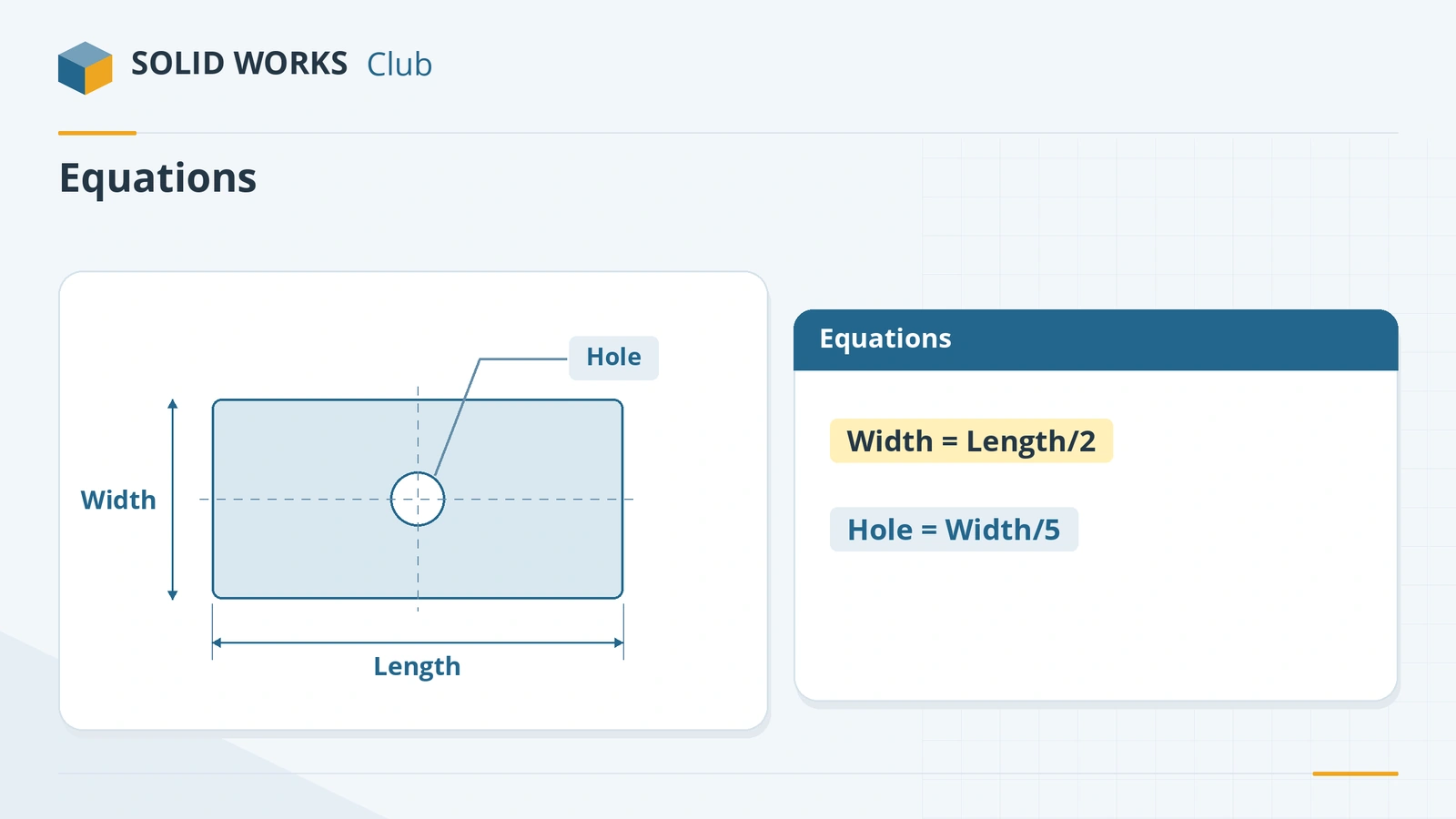
Equations link dimensions with formulas, so one change updates everything that depends on it: width is half the length, a hole is a fifth of the width, a feature is suppressed when the part gets too small. Start an equation by typing = in any dimension's Modify box, or manage them all in the Equations, Global Variables, and Dimensions dialog.
 Kevin Walsh
Where to find it
Tools → Equations, or type = in a dimension's Modify box
The Equations dialog
Tools → Equations opens Equations, Global Variables, and Dimensions. It has three sections:
| Section | Holds |
|---|---|
| Global Variables | Named values used in many equations — see global variables |
| Features | Suppression states driven by IIF statements |
| Equations | Dimensions driven by formulas |
Views switch between the equation list, sketch equations and the solve order. If automatic solve order is greyed out, check System Options → Messages/Errors/Warnings for circular references.
Step by step
-
1
Build and name the plate
Sketch a Center Rectangle on the Top Plane and extrude it 10 mm. Add a centred hole. Rename the dimensions Length (100), Width and Hole.
-
2
Link Width to Length
Double-click the Width dimension. In the Modify box type
=, click the Length dimension in the graphics area (its name is inserted), type/2, and press Enter.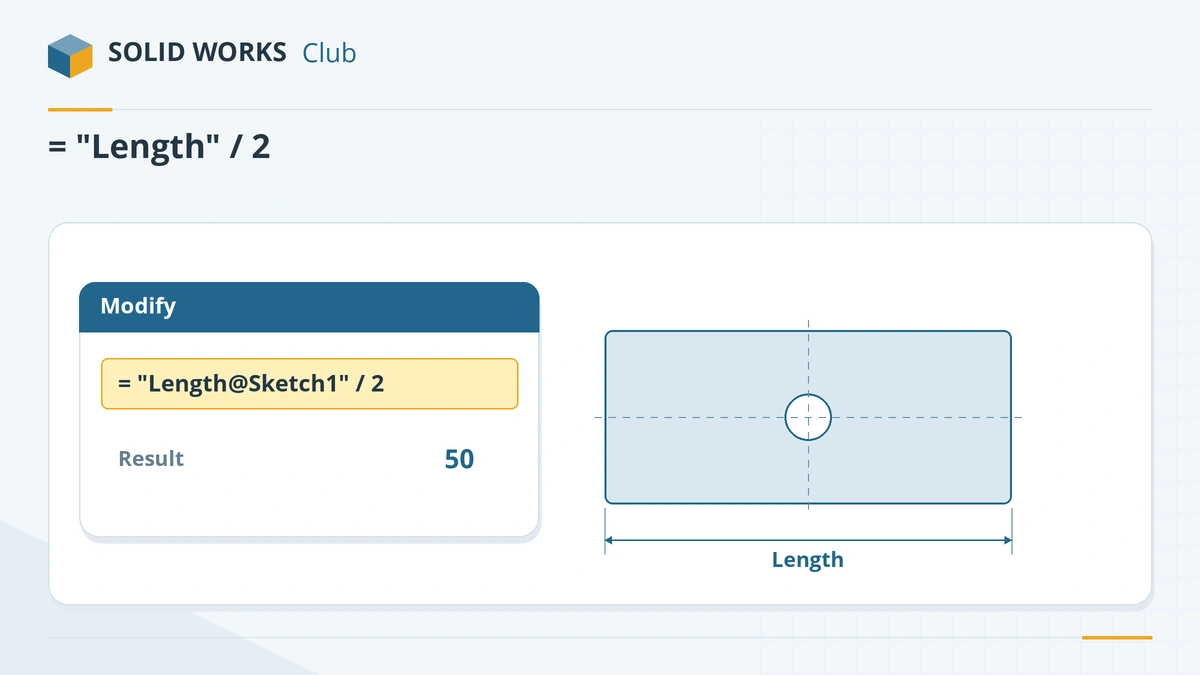
Type = in the Modify box and click the dimension to link. -
3
Link the hole to the width
Set Hole to
= "Width@Sketch1" / 5the same way. The plate is now 100 × 50 with a Ø10 hole. -
4
Change one value
Change Length to 120 and rebuild (Ctrl + B). Width becomes 60 and the hole Ø12.
-
5
Suppress with IIF
In Tools → Equations, under Features, add for a chamfer or fillet:
"Fillet1" = IIF("Length@Sketch1" <= 110, "suppressed", "unsuppressed"). Note the double I — GoEngineer warns that IF with a single I does not work for suppression.
Common mistakes
- Writing equations with unnamed dimensions — "D2@Sketch3" means nothing a month later.
- Circular references (A depends on B, B on A). SOLIDWORKS cannot solve them.
- Missing units when mixing systems; type units in the expression (for example 25mm) when needed.
- IF instead of IIF in suppression equations.
Lesson 8 of 16 in the advanced parts course.
Practice
Build the plate with Width = Length / 2 and Hole = Width / 5. Check: with Length 100 the volume is 49,214.60 mm³; with Length 120 it is 70,869.03 mm³.
Sources
- GoEngineer — Intro to IF-THEN statements (Nov 2020)
- Hawk Ridge — Global variables and equations
- Javelin — Equation views
- Javelin — Configure equations
- Javelin — IF statements to suppress features (2018)
- Javelin — Multiple unit systems in equations
- Javelin — Automatic solve order issue (2018)
- CATI — The Modify dimension box
Checked November 2026. SOLID WORKS Club is independent; menu names can differ slightly between releases.
Frequently asked questions
How do I add an equation in SOLIDWORKS?
+
Double-click a dimension, type = in the Modify box, click other dimensions to insert their names, and finish the formula. Or use Tools → Equations to manage all equations.
How do I suppress a feature with an equation?
+
In the Features section of the Equations dialog, set the feature equal to IIF(condition, "suppressed", "unsuppressed").
Can equations differ between configurations?
+
Yes, since SOLIDWORKS 2014 equations can be configured — choose This configuration in the dialog next to the expression.
What do the equation views do?
+
The Equations dialog has several views, including the equation view, the sketch equation view and the ordered view, which shows the solve order. Since 2017 an equation can be disabled and re-enabled there.
Related
- SOLIDWORKS global variablesHow to create global variables in SOLIDWORKS, use them in dimensions and equations, avoid the units pitfall, and link them to an external text file.
- SOLIDWORKS design tablesHow to create a design table in SOLIDWORKS: the Excel requirement, auto-create, dimension and $PRP@ columns, edit options and common mistakes.
- SOLIDWORKS configurationsHow to use configurations in SOLIDWORKS: add them, change dimensions and suppress features per configuration, configuration tables and display states.
- SOLIDWORKS Smart DimensionHow to use Smart Dimension in SOLIDWORKS: linear, angular, diameter and arc length dimensions, Shift for circle edges, the Modify box and equations.