Reference
How to export STL from SOLIDWORKS for 3D printing
Choose File → Save As, select STL (*.stl), click Options to set the resolution and units, and save. Fine resolution gives smooth curves; Custom lets you set deviation and angle yourself. For assemblies you can save all components into one STL. If your slicer supports it, 3MF keeps units and colours and is a better choice.
 Kevin Walsh
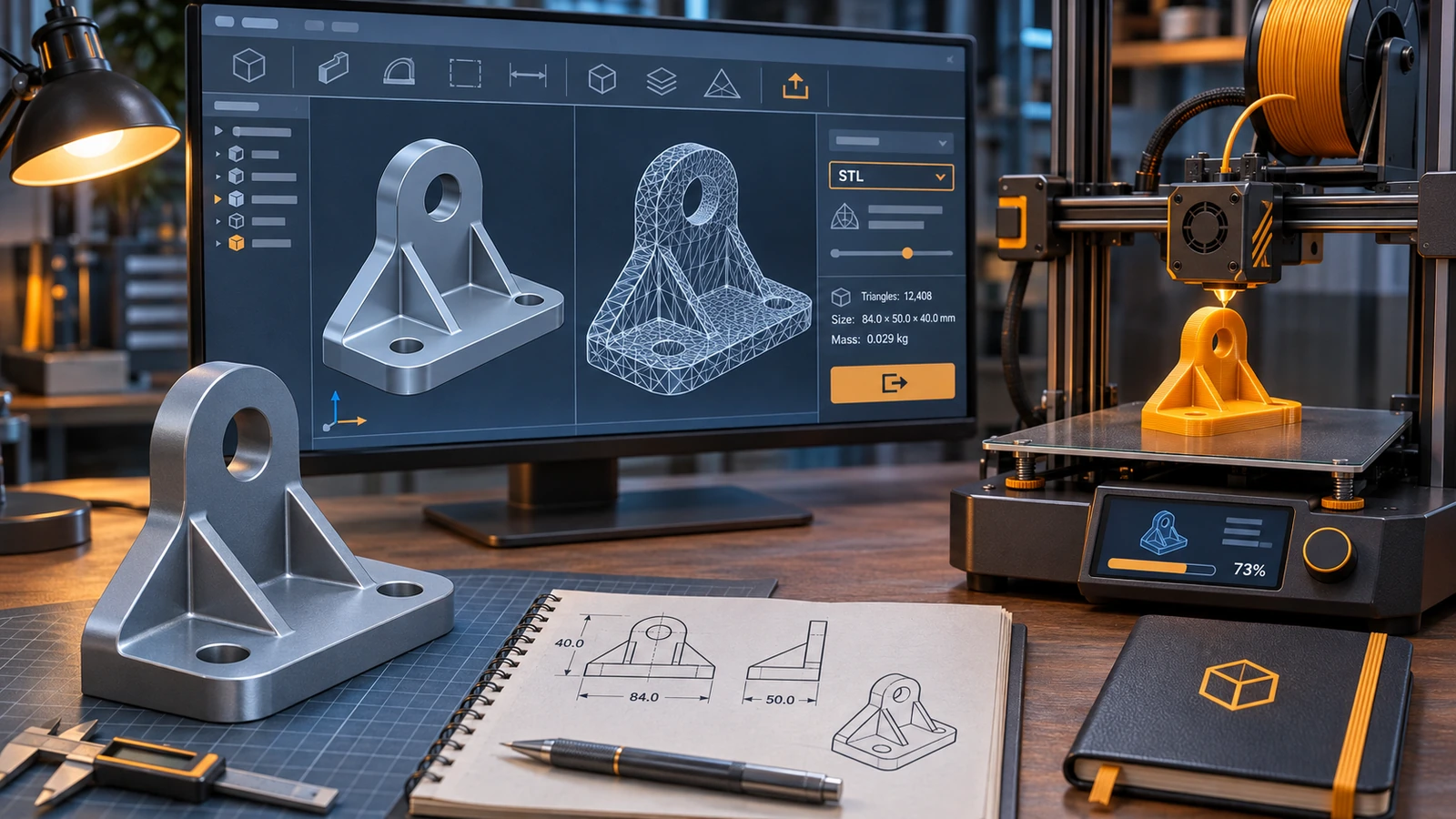
Where to find it
File → Save As → Save as type → STL (*.stl) → Options
STL options at a glance
| Option | What it does | Recommendation |
|---|---|---|
| Resolution: Coarse / Fine / Custom | Sets how finely surfaces are split into triangles | Fine for most prints |
| Deviation (Custom) | Maximum gap between surface and triangles | Smaller = smoother, bigger file |
| Angle (Custom) | Maximum angle between neighbouring triangles | Smaller = smoother curves |
| Unit | Unit written for the slicer | Millimetres |
| Save all components in a single file | One STL for an assembly | On for printing as one piece |
| Show STL info before saving | Shows triangle count and size | On |
Options as described by Solid Print3D, a SOLIDWORKS 3D-printing reseller.
STL or 3MF?
| STL | 3MF | |
|---|---|---|
| Units in the file | No | Yes |
| Colours and materials | No | Yes |
| Multiple bodies | Merged or separate files | Kept in one file |
| Slicer support | Universal | Most modern slicers |
SOLIDWORKS added 3MF import and export in 2017 (Javelin). Hobbyists printing at home can get SOLIDWORKS for $48 a year with Makers. For exchanging editable models with other CAD users, use STEP instead.
3D printing threaded parts? See the Thread feature.
Step by step
-
1
Choose File → Save As → STL
Open the part or assembly, choose File → Save As and select STL (*.stl) as the type.
-
2
Set the resolution
Click Options. Coarse makes small files with visible facets; Fine gives smoother curves; Custom unlocks the deviation (maximum distance between the true surface and the triangles) and angle (maximum angle between neighbouring triangles) sliders.
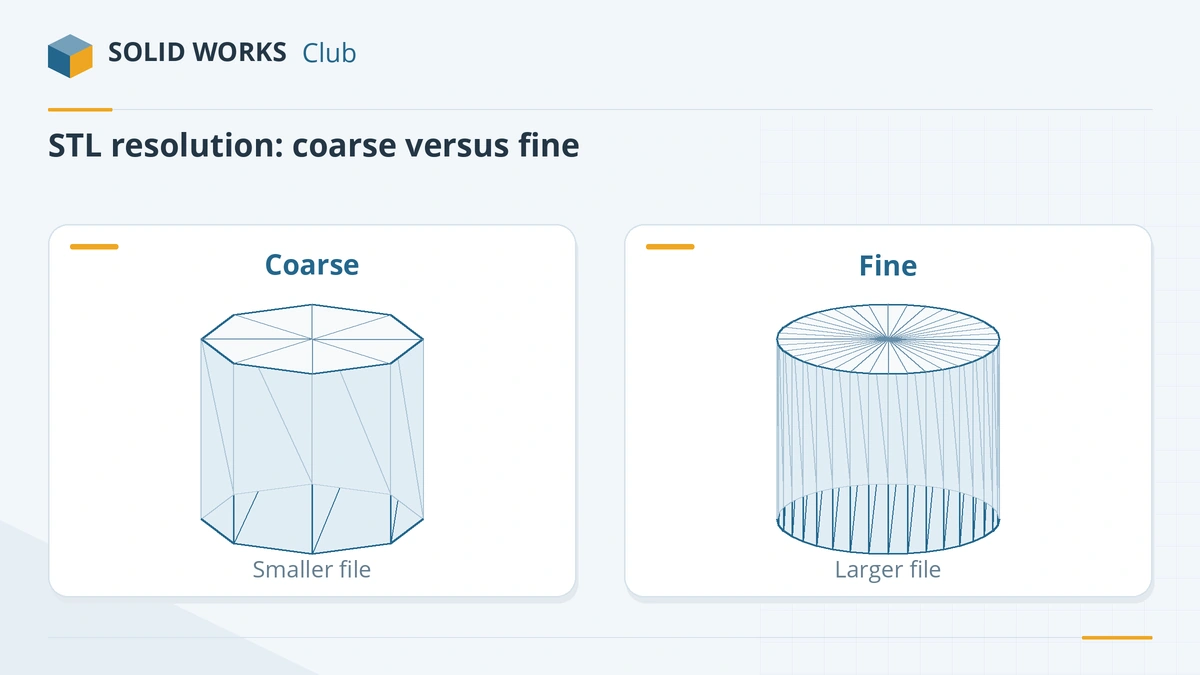
Coarse is small but faceted; Fine is smooth but larger. -
3
Set the units
STL has no units inside the file, so choose the unit your slicer expects — usually millimetres. A wrong unit is the most common reason a print comes out 25.4 times too big or small.
-
4
Assemblies and multibody parts
For assemblies, tick Save all components of an assembly in a single file if you want one STL. For multibody parts, SOLIDWORKS asks which bodies to save.
-
5
Check the preview and save
Turn on Show STL info before file saving to see the triangle count and file size, then save.
Common mistakes
- Exporting in inches when the slicer expects millimetres.
- Using Coarse for curved parts — round holes print as polygons.
- Using very fine settings that create huge files without visible benefit.
- Forgetting that STL has no colour, material or units — 3MF keeps them.
Frequently asked questions
What STL resolution should I use for 3D printing?
+
Fine is enough for most FDM and resin prints. Use Custom with a smaller deviation only for large, smooth curved parts where facets are visible.
Can SOLIDWORKS export 3MF?
+
Yes. SOLIDWORKS has imported and exported 3MF since 2017. 3MF stores units, colours and multiple bodies, which STL cannot.
Can I edit an STL file in SOLIDWORKS?
+
You can open STL as a graphics body, solid body or surface body (Import options), but meshes are hard to edit like normal features. Ask for a STEP file if you need to modify the design.
Related
- How to export SOLIDWORKS to STEPHow to save a SOLIDWORKS part or assembly as STEP, which AP version to choose (AP203, AP214, AP242), exporting components separately, and pitfalls.
- What is an SLDPRT file?An SLDPRT file is a SOLIDWORKS part. How to open it with or without SOLIDWORKS, which versions can read it, and how to convert SLDPRT to STEP, STL or DXF.
- SOLIDWORKS for Makers (2026)SOLIDWORKS for Makers costs $48 a year or $15 a month for personal projects earning under $2,000. What's included, limits, offline use, Mac options and refunds.
- SOLIDWORKS file formats and extensionsEvery SOLIDWORKS file extension explained — SLDPRT, SLDASM, SLDDRW, templates, libraries and tables — plus the import and export formats and 3D Interconnect.