Modules
Animations and video in SOLIDWORKS
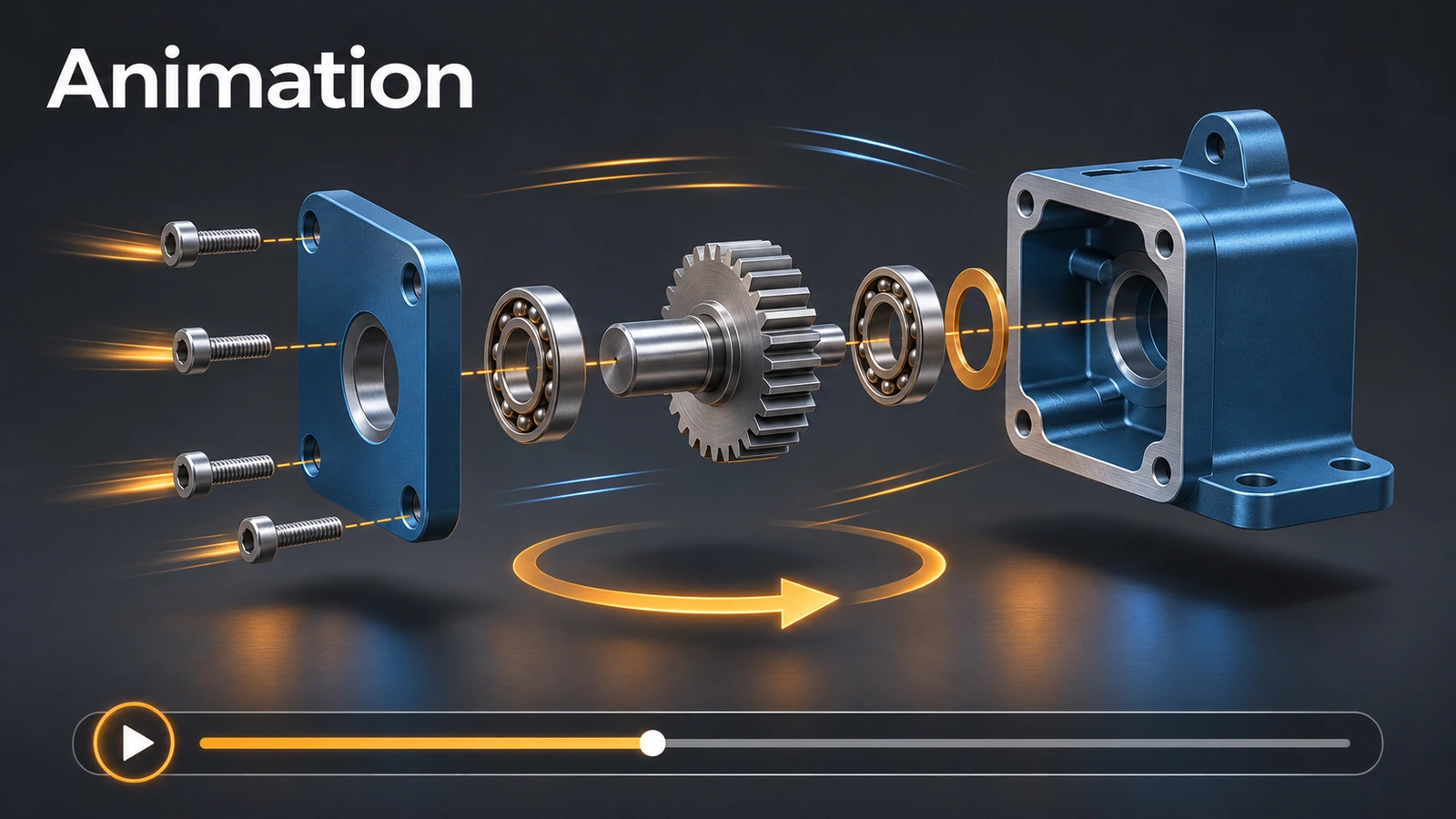
For a quick look, animate an exploded view straight from the ConfigurationManager. For a video you can send, use an Animation motion study: the Animation Wizard adds a turntable rotation, explode and collapse steps in seconds, and Save Animation writes an MP4. Set the resolution and frame rate before saving — the defaults are too low.
 Kevin Walsh
Where to find it
ConfigurationManager → right-click exploded view → Animate Explode; Motion Study tab → Animation Wizard
Save settings
| Setting | Recommendation |
|---|---|
| Format | MP4 (smaller than AVI) |
| Size | At least 1920 × 1080; 4K for large screens |
| Frame rate | 30 fps (default 7.5 fps stutters) |
| Frames to output | The whole animation |
| Aspect ratio | Set with the camera's field of view while building |
View keys interpolate linearly by default; Snap and Ease In/Out are alternatives. For photo-real video, render in Visualize Professional — PhotoView 360 was retired in 2024. Exploded views themselves are made in exploded views.
Step by step
-
1
Quick preview
In an assembly with an exploded view, right-click the view in the ConfigurationManager → Animate Explode. The Animation Controller plays, loops and reciprocates it.
-
2
Animation Wizard
Open the Motion Study tab, type Animation, click Animation Wizard → Rotate model, Y axis, 1 rotation, duration 10 s.
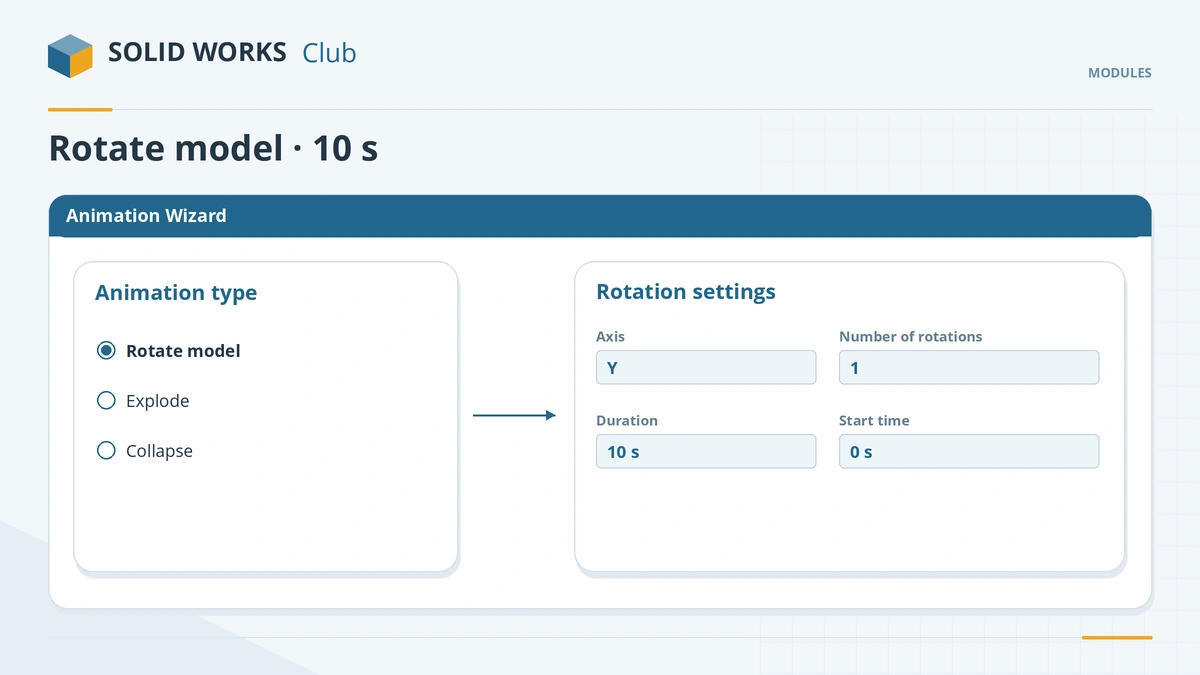
The Animation Wizard builds rotation, explode and collapse keys for you. -
3
Add explode and collapse
Run the wizard again for Explode and Collapse after the rotation. It uses the first exploded view in the list.
-
4
Save the video
Save Animation, type MP4, size 1920 × 1080, 30 frames per second, frames to output: the whole animation.
Common mistakes
- Default 7.5 fps — the video stutters; use 30 fps.
- Frames to output not set to the full timeline — part of the animation is missing.
- The wizard using the wrong exploded view — reorder the views so the one you want is first.
Practice
Make a 10 s one-turn rotation and save it as MP4 at 30 fps. Check: the video lasts 10 s and contains 300 frames; at the default 7.5 fps it would have only 75.
Sources
- MEAM.Design (UPenn) — Creating and animating exploded views
- Hawk Ridge — Making a simple animation, part 2 (May 2016)
- GoEngineer — Motion studies: animating view orientation (Mar 2026)
- Solid Solutions — Best settings for saving SOLIDWORKS animations (Aug 2023)
- CATI — Technical communication: assembly motion (Apr 2018)
Checked November 2026. SOLID WORKS Club is independent; menu names can differ slightly between releases.
Frequently asked questions
How do I animate an exploded view in SOLIDWORKS?
+
Right-click the exploded view in the ConfigurationManager and choose Animate Explode, or use the Animation Wizard in a motion study.
Can SOLIDWORKS save animations as MP4?
+
Yes. Save Animation defaults to AVI, but MP4 is available and gives much smaller files.
What frame rate should I use?
+
30 fps for smooth video, 60–120 fps for slow motion. The default 7.5 fps stutters.
Can I save with a transparent background?
+
Not in core SOLIDWORKS. Use Visualize Professional, or a plain white or green background.
Related
- Motion studies in SOLIDWORKSSOLIDWORKS motion studies: Animation vs Basic Motion vs Motion Analysis, the MotionManager timeline, key points, motors, springs, contact and plots.
- SOLIDWORKS exploded viewHow to create an exploded view in SOLIDWORKS: regular and radial steps, auto-space, smart explode lines, animation, and showing the exploded state in drawings.
- SOLIDWORKS VisualizeSOLIDWORKS Visualize explained: Standard vs Professional, who gets it free with a subscription, exporting from SOLIDWORKS, render modes, denoiser and GPU needs.
- SOLIDWORKS modules and add-insSOLIDWORKS add-ins explained: Motion, animation, Visualize, PhotoView 360, PDM, CAM, Routing, Electrical and Plastics, and which package includes each.